Task Manager OG Image
A link preview that says what the app does.
Turns your AI into a social-preview designer that builds a 1200×630 link-preview image for a task-management app — a checklist motif, one plain-language promise, and a high-contrast layout that stays readable at thumbnail size.
Install it in 3 steps
No sign-up. No CLI tools. Pick your AI, copy one line, paste it over.
Prefer doing it yourself? Buy the skill ($4.99), download the ZIP from your checkout confirmation, unzip it into the directory shown above, restart your AI session — same result. Already bought it? Your AI assistant can download it for you.
What’s inside
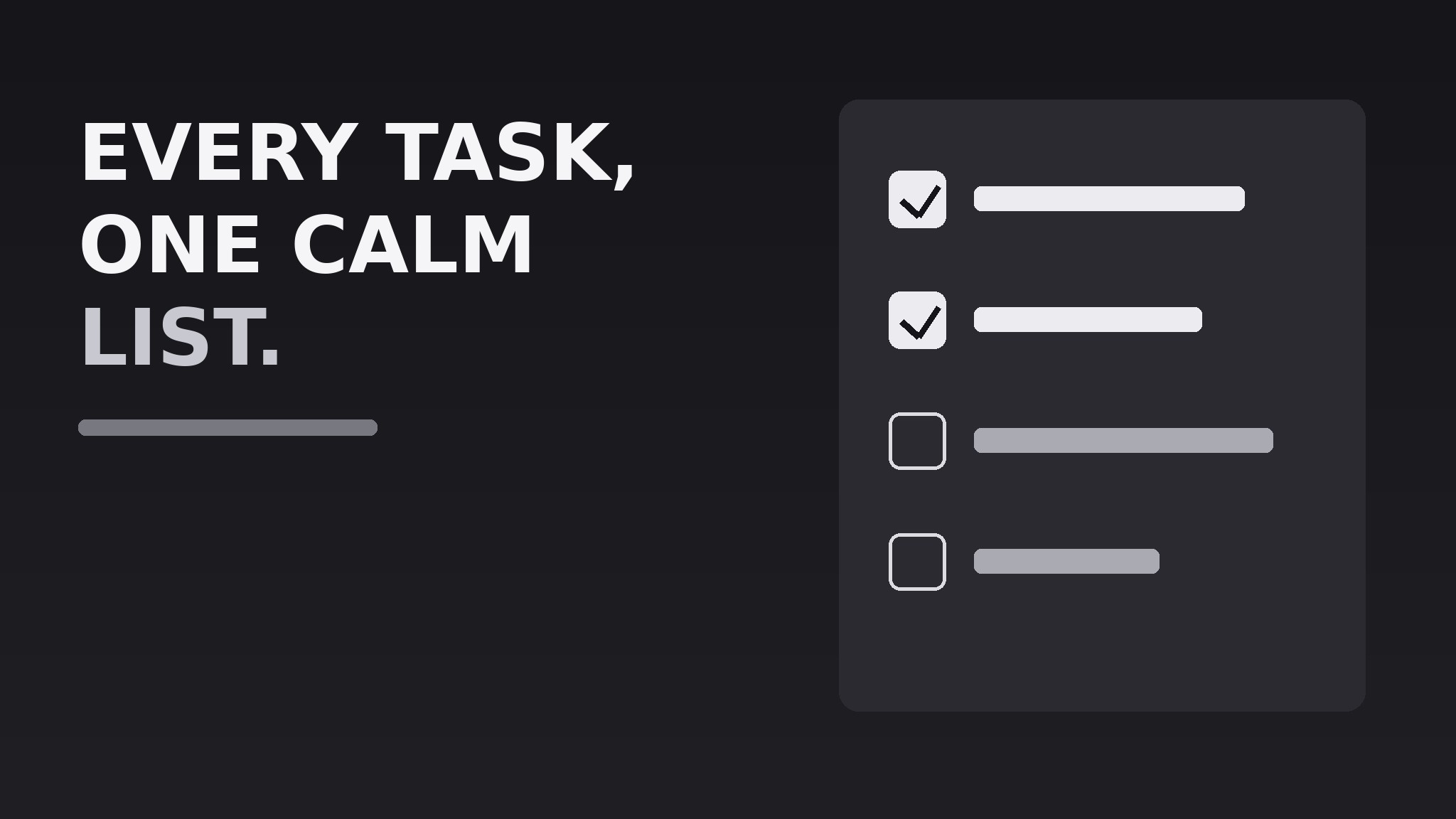
One SKILL.md (the playbook) + one starter template. A preview:
Task Manager OG Image
When to use
- You are launching or relaunching a task-management or to-do app and need the image that appears when anyone shares its link
- Your current link preview is a blank screenshot, a cropped logo, or an auto-generated grab that says nothing
- You want the preview to communicate the app's core promise in the two seconds before someone decides to click
- You need one image that works across chat apps, social feeds, and messaging previews without redesign
- You are preparing a launch post, a directory listing, or a press page and need a consistent share image
Workflow
- Write the one-line promise (input: your app's positioning → output: one preview headline)
State what the app does for the user in 5–8 plain words, e.g. "Every task, one calm list." No feature lists, no jargon, no superlatives. The line must make sense to someone who has never heard of the app. If it needs a second sentence to explain itself, it is not the line — keep cutting until it stands alone. - Choose the checklist motif (input: headline → output: visual concept)
Build the image around a short checklist: three to five task rows, some checked, one in progress. The checklist is the instant visual shorthand for "task manager" — a reader should grasp the category before reading a word. Keep the rows abstract (short bars, not real task text) or use three generic tasks like "Plan the week" so nothing looks like a real user's private data. - Lay out the 1200×630 canvas (input: headline + motif → output: composed layout)
Put the headline large on the left or top, the checklist motif on the opposite side, and the app name or wordmark small in one corner. Keep all critical content inside a safe zone with at least 60 px of margin — previews crop unpredictably. Use one dark or one light background, never a busy photo, and keep the contrast ratio high enough that the headline survives being shrunk to a 240 px thumbnail. - Set type and color (input: layout → output: finished visual spec)
Use one bold, highly legible typeface for the headline and a smaller weight for a subline of at most 10 words. Limit the palette to three colors: background, text, and one accent for the checked boxes and one key word. Checked boxes get the accent; unchecked boxes stay as outlines so the eye reads progress at a glance.
Template preview
Task Manager OG Image — Template
One image, one promise. Fill in the blanks, then build the 1200×630 file.
The promise
- Headline (5–8 plain words): {headline}
- Subline (optional, ≤10 words): {subline}
- App name / wordmark: {name} — placement: {corner}
Checklist motif
Labels rule: generic and abstract — nothing that looks like a real person's private data.
Layout
- Canvas: 1200×630 px, {JPEG / PNG}, under 1 MB
- Background: {dark / light} — color {hex}
- Headline placement: {left / top} | Checklist placement: {right / bottom}
- Margins: ≥60 px on all sides, nothing critical near the edges