Search-Product OG Image
One query, one glance, one click.
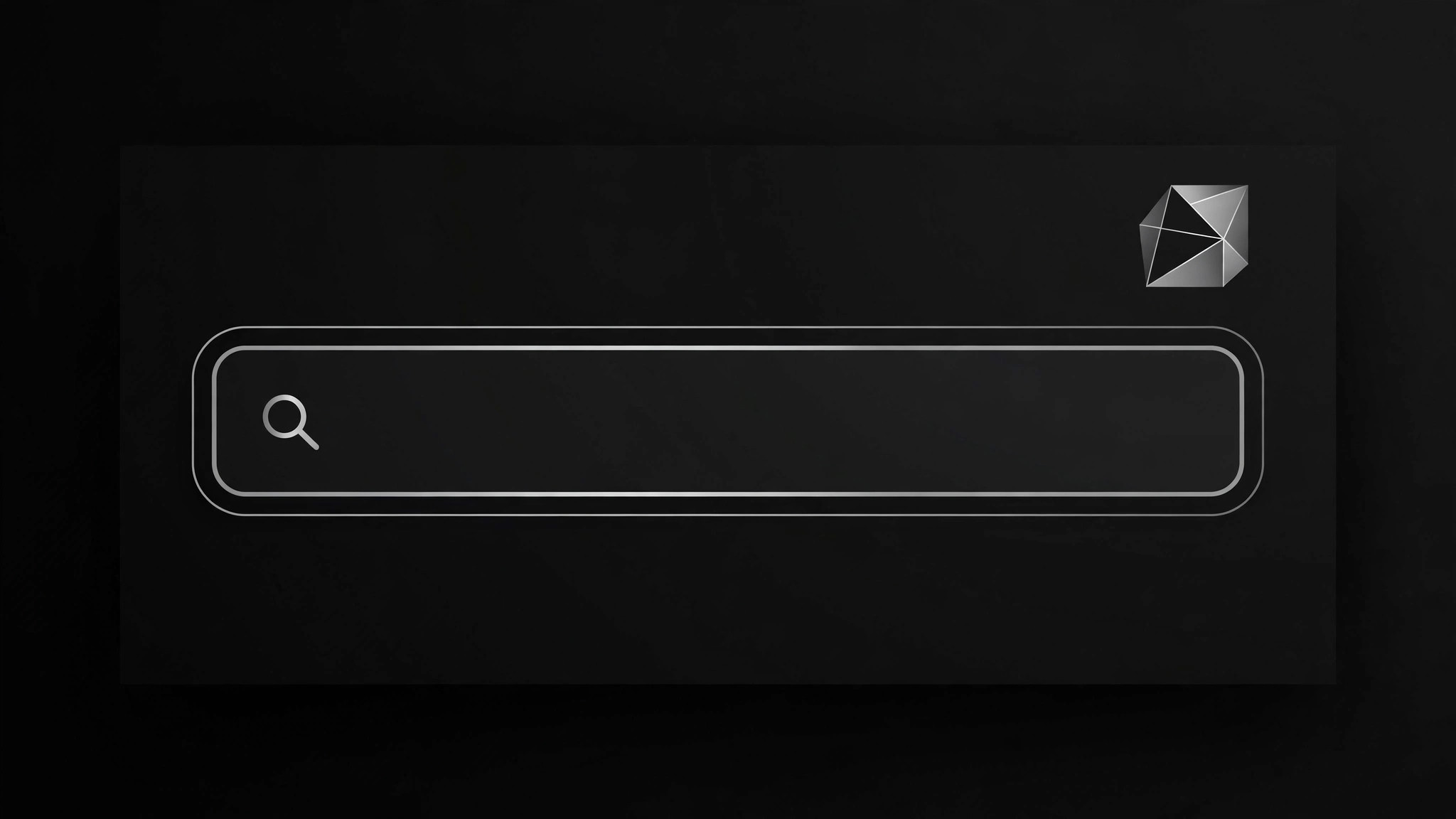
Design a social preview image for a search or developer product: a clean 1200×630 layout with a realistic query in a search-bar motif and a product mark that still reads at thumbnail size.
Install it in 3 steps
No sign-up. No CLI tools. Pick your AI, copy one line, paste it over.
Prefer doing it yourself? Buy the skill ($4.99), download the ZIP from your checkout confirmation, unzip it into the directory shown above, restart your AI session — same result. Already bought it? Your AI assistant can download it for you.
What’s inside
One SKILL.md (the playbook) + one starter template. A preview:
Search-Product OG Image
When to use
- You are about to launch or announce a search tool, docs site, API, or developer product and the link preview is currently a blank grey box
- Your existing OG image is a screenshot of your homepage that turns into unreadable mush when a chat app shrinks it to 400 pixels wide
- You need one image that works everywhere a link gets pasted: chat apps, social feeds, docs, and forum posts
- Your product's core idea is "type a query, get an answer" and you want the preview to say that in under a second
- You are shipping a changelog, launch post, or docs page and want the share card to look deliberate instead of accidental
Workflow
- Pin down the one idea (input: product positioning → output: one-sentence message)
An OG image gets one idea, not three. Write the sentence a stranger should take away: "Search across all your docs in one box" beats "Fast, AI-powered, blazingly quick semantic search for modern teams." If you cannot say it in one sentence, the image will not say it either. Everything downstream — layout, query text, mark — serves this sentence. - Write the query (input: one-sentence message → output: example query string)
The query motif is the heart of this skill: show a short, realistic query your actual users type, not a generic "Search...". A docs product shows something likehow do I rotate API keys?; a code search product showsauth middleware retry logic. Keep it under 40 characters so it renders large. The query must be plausible — a fake or nonsensical query makes the product look fake. - Lay out the card (input: query + product mark → output: composition)
Use the standard 1200×630 canvas. Put the product mark (logomark or wordmark) in one corner, the query in a search-bar shape as the dominant element, and one short supporting line under it at most. Leave generous margins: chat apps crop unpredictably, so keep all meaningful content inside the central 90% of the canvas. One focal point — the query bar — and everything else quiet. - Set type and contrast (input: composition → output: legible type spec)
Test legibility at 400 pixels wide, because that is the size most people will actually see. Body copy that is comfortable at 1200 wide is invisible at 400, so set the query large (roughly 72–96px on the full canvas) and keep supporting text to a handful of words at a size that survives the shrink. Check contrast against the background: dark text on a dark wash, or thin weights on busy gradients, both fail. If the image has a background texture, keep it subtle enough that text never competes with it.
Template preview
Search-Product OG Image — Brief Template
Fill this in before any layout work. One product, one idea, one query.
Product: {product name}
One-sentence message: {what a stranger should take away — one idea only}
Product mark: {logomark / wordmark / both — attach the actual asset, do not redesign it}
The query
Example query (≤40 characters): {e.g. how do I rotate API keys?}
Why this query: {where it came from — real search log, support inbox, or docs analytics}
Result hint (optional): {one short line suggesting answers exist, e.g. "Every doc. One search."}