Launcher App OG Image
A share image that shows your launcher's palette at a glance.
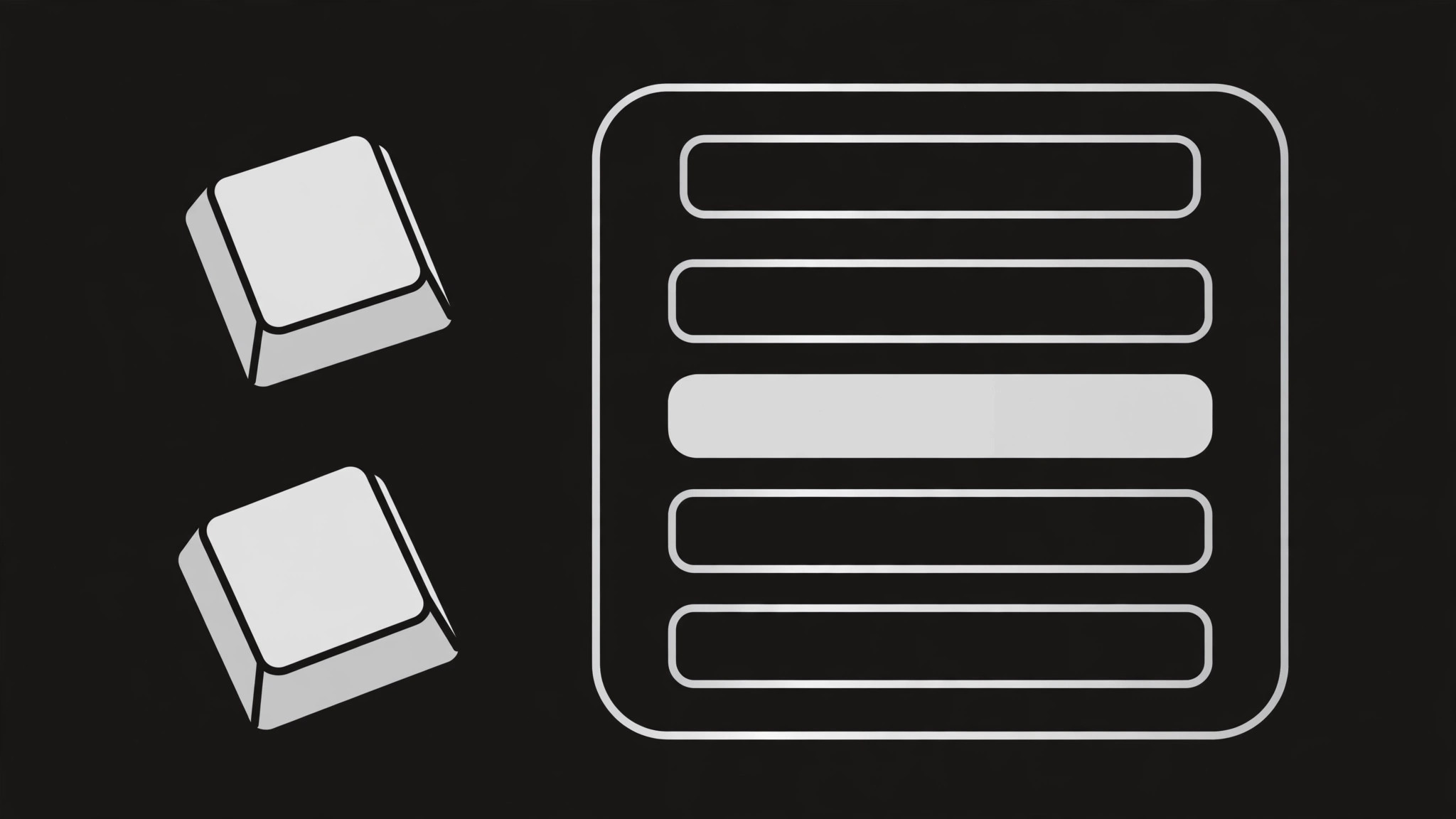
Turns your AI into a social-preview designer that builds a 1200×630 OG image for a keyboard launcher app — a command-palette motif, shortcut keys, and a one-line promise, readable at thumbnail size.
Install it in 3 steps
No sign-up. No CLI tools. Pick your AI, copy one line, paste it over.
Prefer doing it yourself? Buy the skill ($4.99), download the ZIP from your checkout confirmation, unzip it into the directory shown above, restart your AI session — same result. Already bought it? Your AI assistant can download it for you.
What’s inside
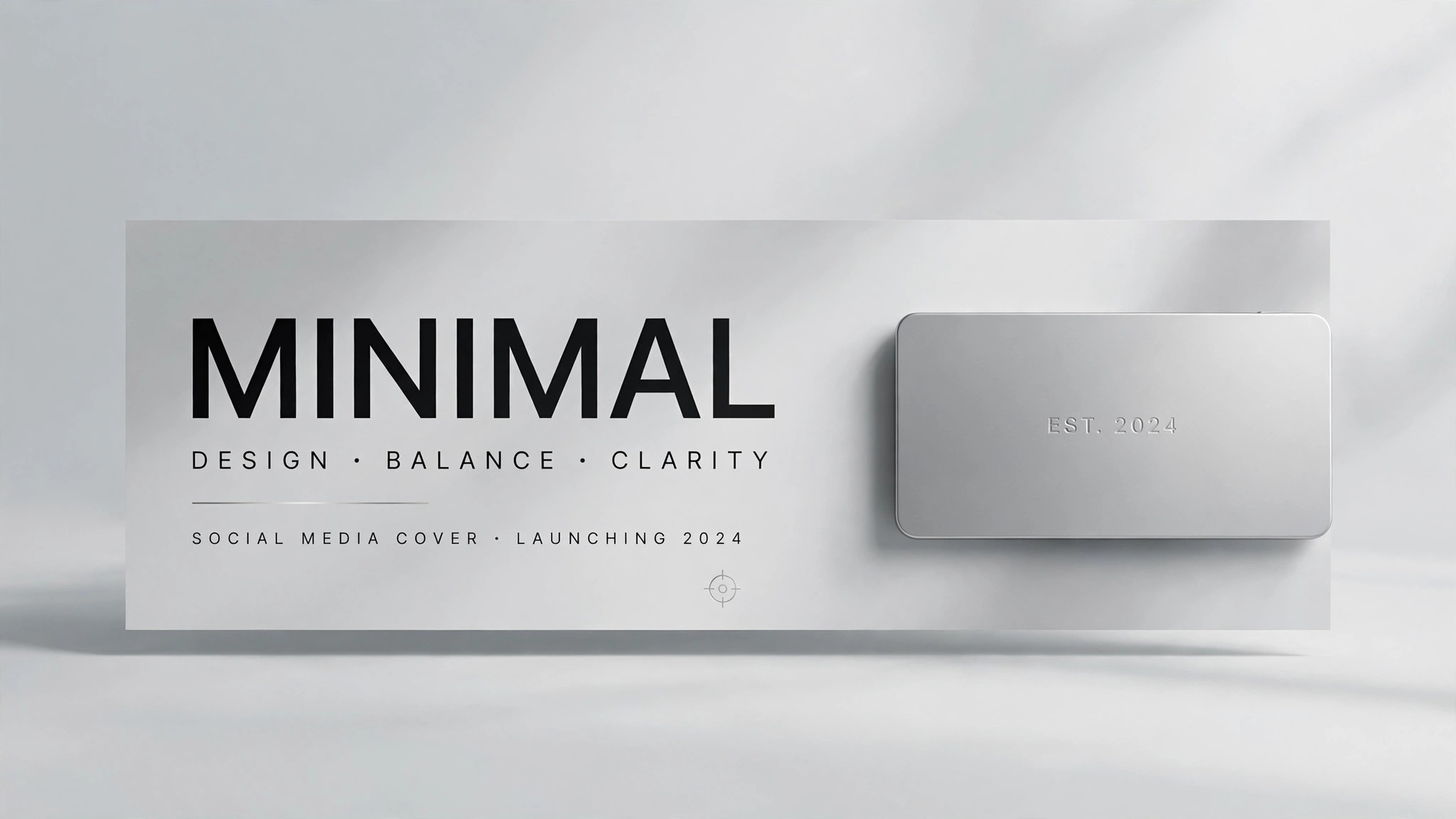
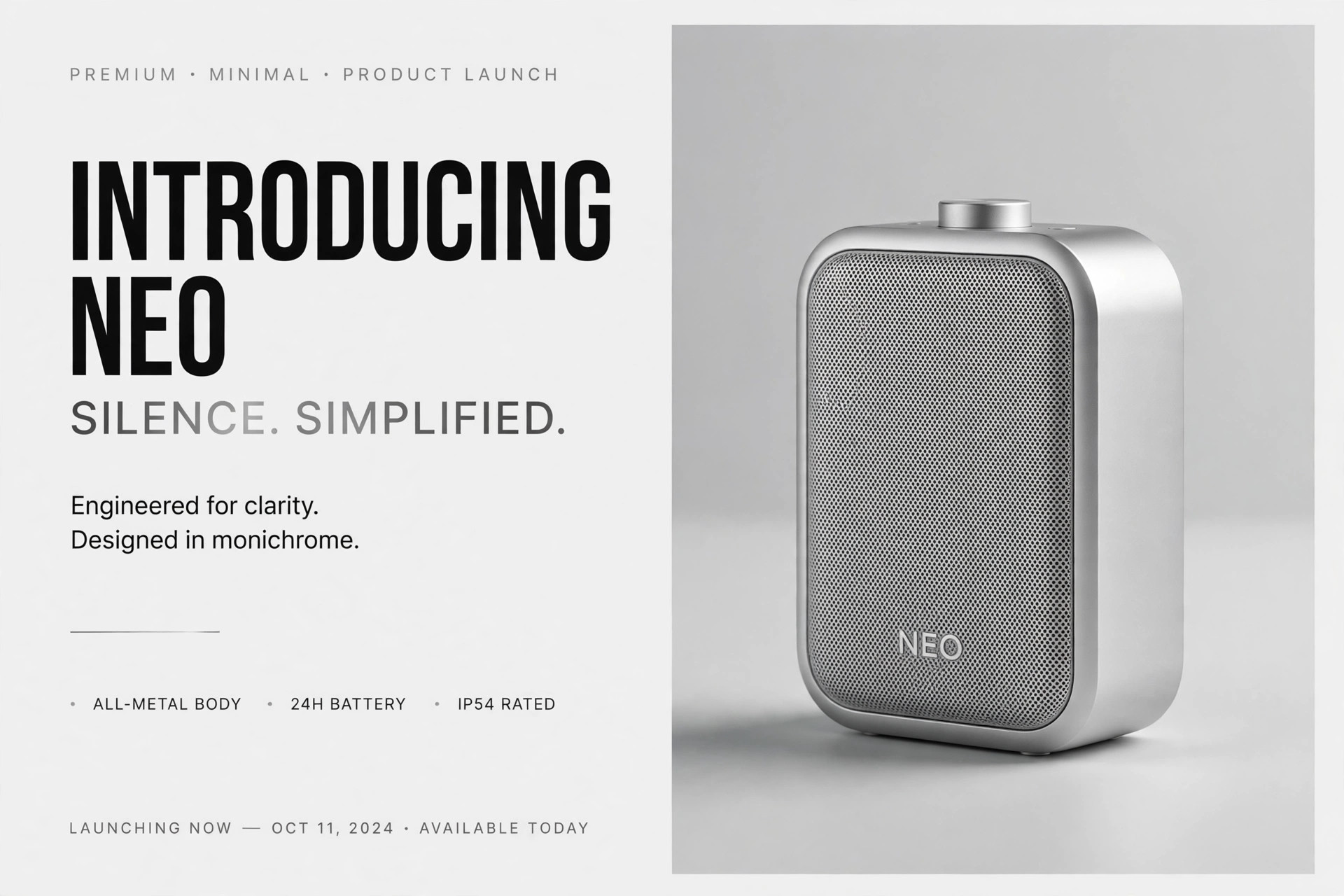
One SKILL.md (the playbook) + one starter template. A preview:
Launcher App OG Image
When to use
- Your launcher app gets shared on social media, chat, or forums and the link preview is blank or a cropped screenshot
- You're launching a keyboard-first tool and need a share image that shows the core interaction — type, pick, go — in one glance
- Your existing OG image is a busy full-app screenshot that turns to mush at thumbnail size
- You need matching preview images for a launch post, a changelog page, and the homepage — same system, different headlines
- A redesign changed the palette or the command bar and the old preview image still shows the old look
Workflow
- Lock the message (input: product facts → output: one-line promise)
An OG image carries exactly one message: the app name plus one promise of under 8 words ("Launch anything in two keystrokes"). Write the promise first and design around it — if it needs a second sentence, it's the wrong promise. Everything else on the image (palette, keys, background) exists to make that one line land. No feature lists, no version numbers, no URLs: at thumbnail size, every extra word is noise. - Compose the command palette (input: app UI → output: palette render)
Draw the command palette as the hero: a rounded floating bar, centered-right on the canvas, showing a short typed query and three or four results below it, with one result highlighted. Use generic result entries ("Open Project", "Search Files", "Run Command") — never real file names, real contacts, or real user data. Keep the palette large: at 240 pixels wide, the query text and the highlighted row must still be readable. The palette is the product's face; it should look like your app's actual palette, simplified, not like a stranger's screenshot. - Set the type hierarchy (input: promise + app name → output: placed headline)
Two text elements, no more: the app name (small, top-left, in the brand font) and the promise (large, left-aligned, two lines maximum, heavy weight). The promise must be legible at 240 pixels wide — test by shrinking the image, not by squinting at full size. If any word wraps awkwardly, shorten the promise rather than shrinking the type. Contrast: dark text on light ground or light text on dark ground, never mid-tone on mid-tone.
Template preview
Launcher App OG Image — Build Template
One promise, one palette, one image. Fill this in before composing.
Message
App name: {name}
One-line promise (≤8 words): {e.g. Launch anything in two keystrokes.}
Palette mockup
- Layout: floating command bar, centered-right
- Typed query: {short query, e.g. "open pro…"}
- Results (3–4, generic only):
- {e.g. Open Project}
- {e.g. Search Files}
- {e.g. Run Command}
- {optional}
- Highlighted row: {which row, and why}
- Real user data in mock? NO — generic entries only, always