Internal Tools OG Image
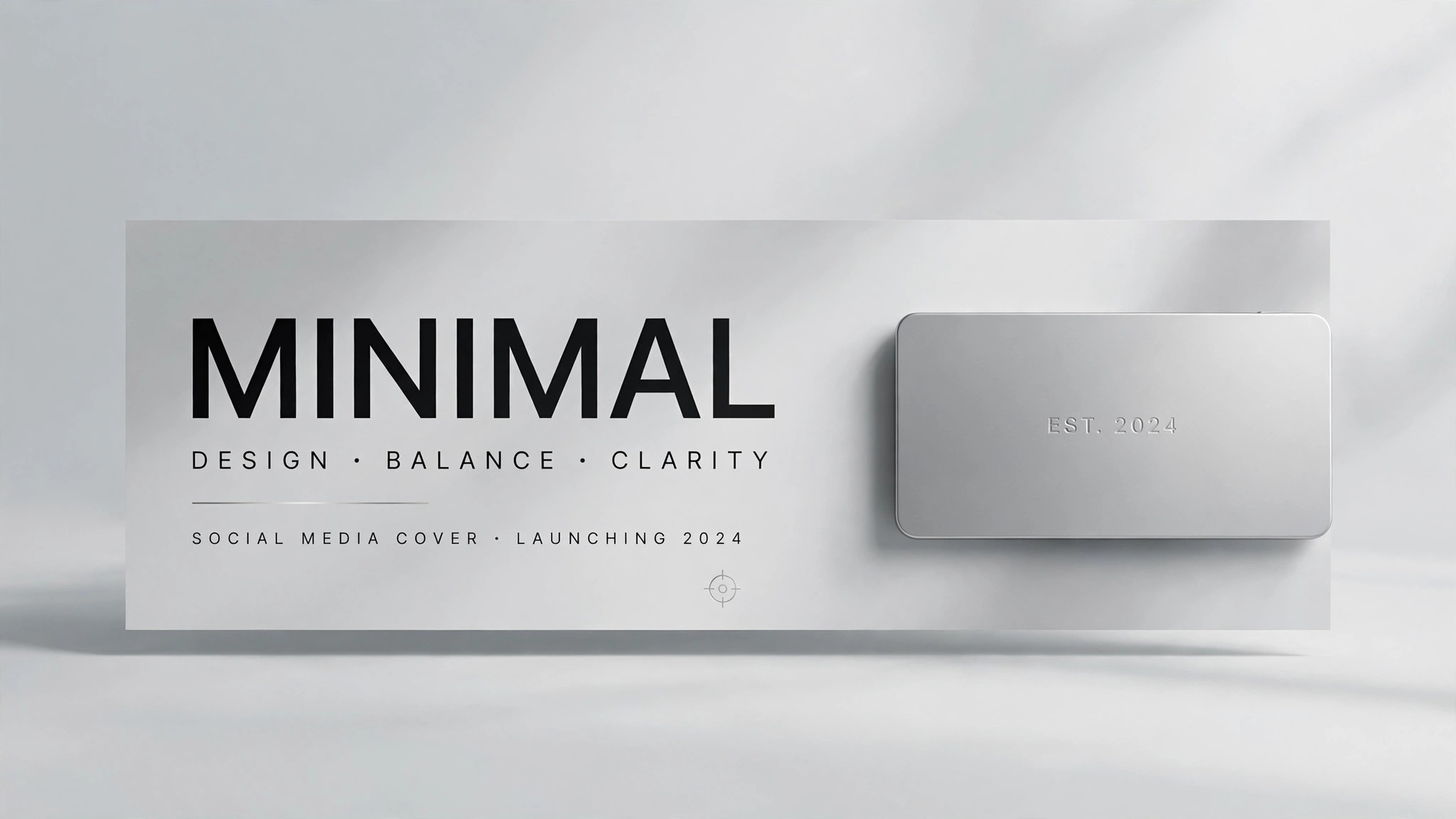
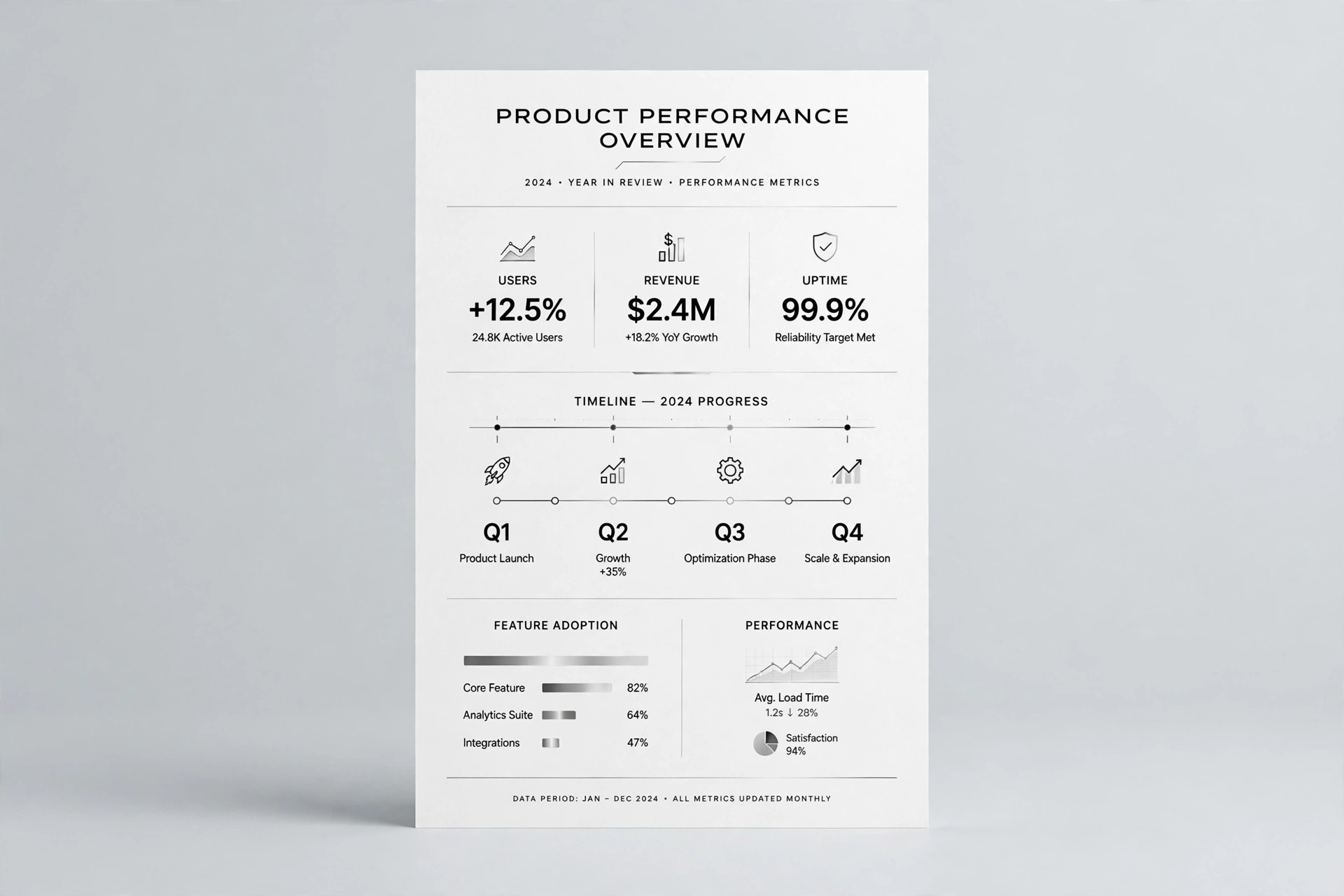
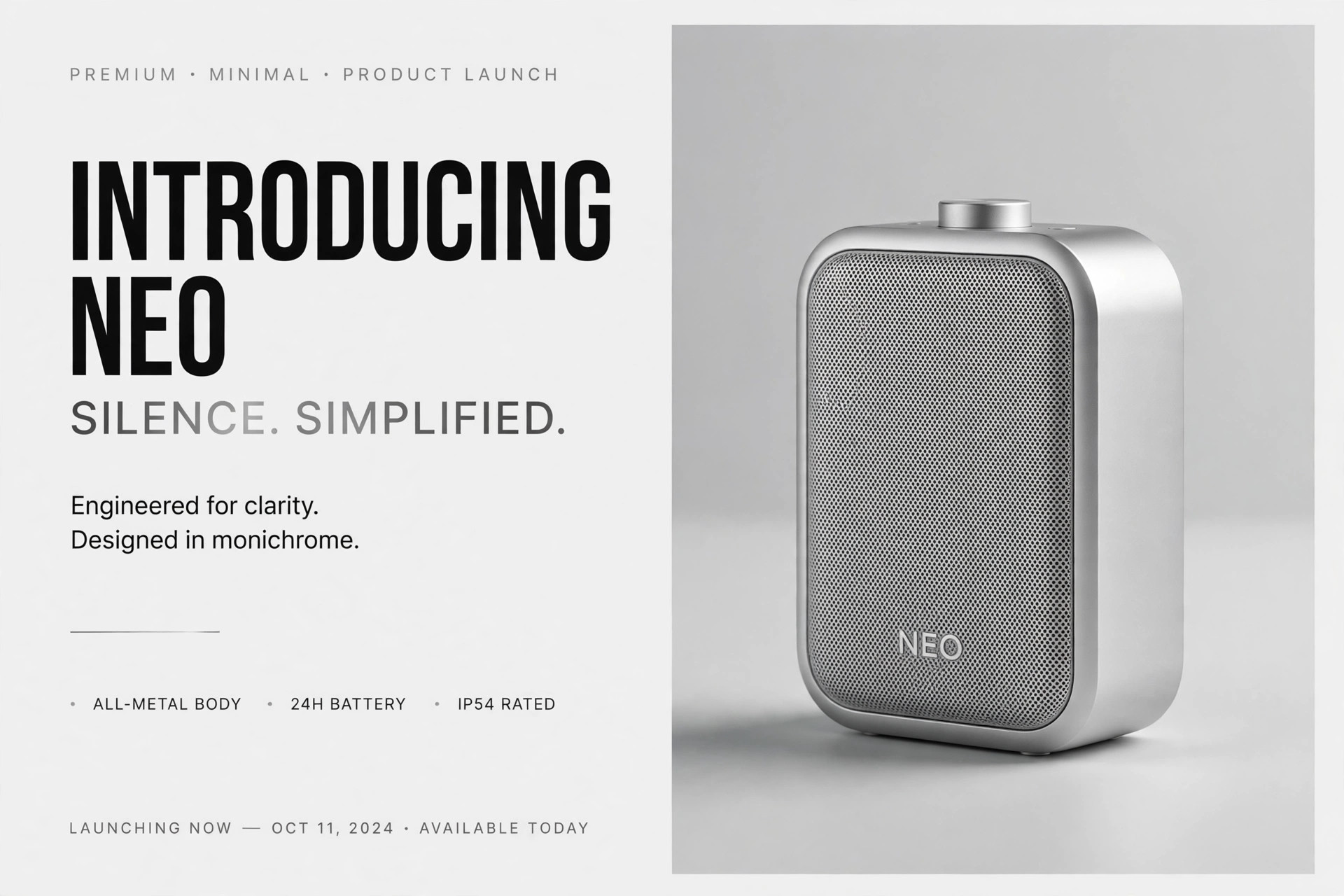
A clean 1200×630 preview card so your internal tools look like real products in Slack.
Turns your AI into a social preview designer for internal tools — builds a clean 1200×630 OG image for dashboards, admin panels, and team tools that looks sharp in Slack, docs, and link previews.
Install it in 3 steps
No sign-up. No CLI tools. Pick your AI, copy one line, paste it over.
Prefer doing it yourself? Buy the skill ($4.99), download the ZIP from your checkout confirmation, unzip it into the directory shown above, restart your AI session — same result. Already bought it? Your AI assistant can download it for you.
What’s inside
One SKILL.md (the playbook) + one starter template. A preview:
Internal Tools OG Image
When to use
- You built an internal dashboard, admin panel, or team tool and its link preview in Slack shows a blank gray box
- You're sharing an internal tool in docs, a wiki, or a team announcement and want the link to look like a real product
- Your team ships several internal tools and they all need consistent, recognizable preview cards
- You're demoing an internal tool externally (conference talk, blog post, portfolio) and the preview is the first impression
- A tool's preview currently shows a screenshot full of real user data — a privacy problem you need to fix
Workflow
- Collect the tool's identity (input: tool name + purpose → output: identity brief)
Gather the essentials: the tool's name, one line on what it does, its brand color or the team's neutral palette, and whether it has a logo or mark. Decide what the preview should communicate to someone who has never seen the tool: usually the name + one line of purpose + a hint of the interface. If the tool has no brand at all, pick a neutral dark or light background with one accent color — an OG image for an internal tool should look intentional, not like a screenshot accident. - Design the 1200×630 composition (input: identity brief → output: layout spec)
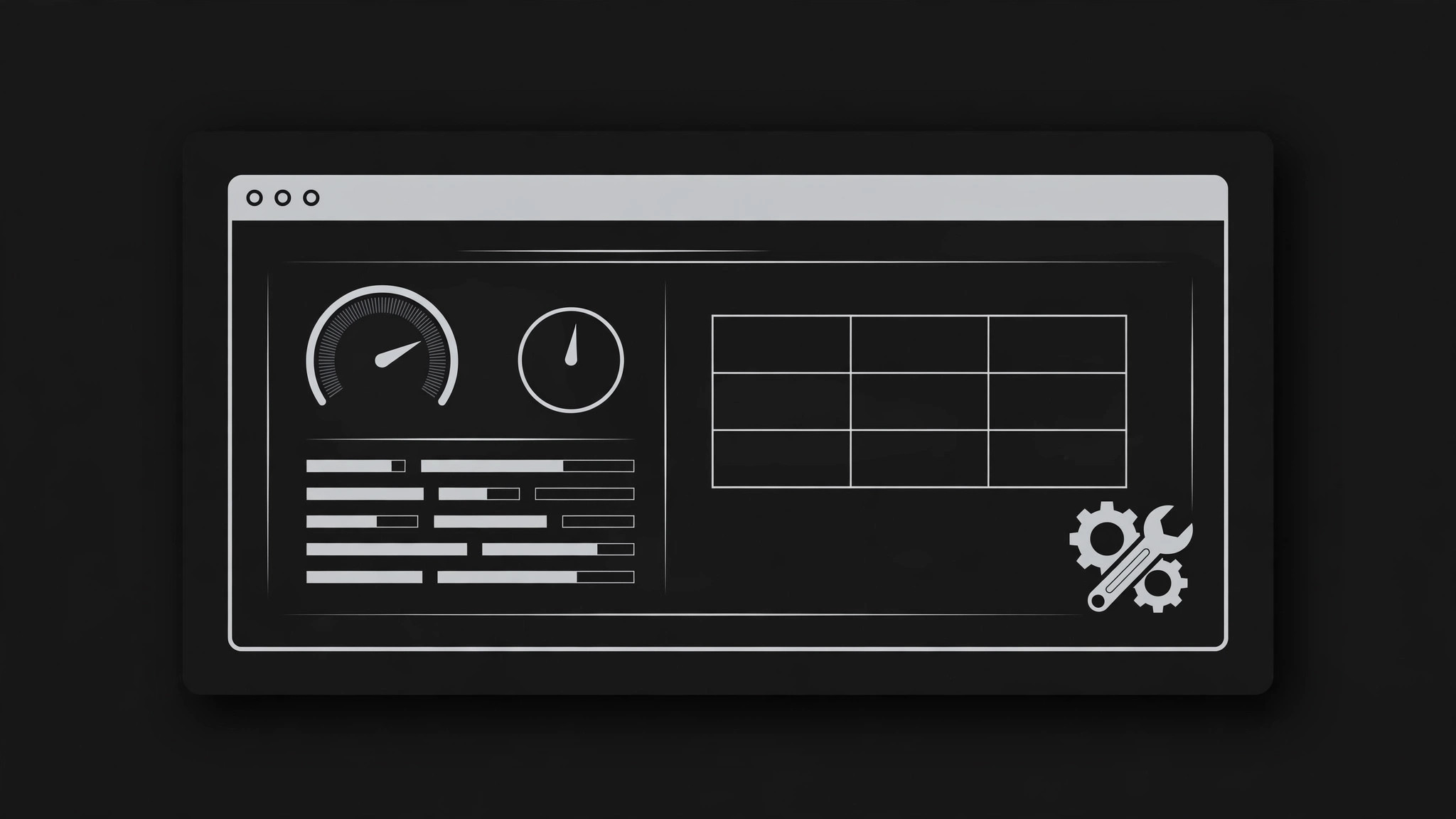
Lay out the standard anatomy: left side for text (tool name in large type, one-line purpose underneath), right side for a small visual (a simplified dashboard mock, a glyph, or an abstract mark). Keep the safe zone in mind — text must stay clear of the edges and the center, because different platforms crop previews differently. Choose a background that reads at thumbnail size: flat color, subtle gradient, or a faint grid. If the tool's real UI is part of the visual, use a sanitized mock with fake data, never a screenshot of production. - Build the image (input: layout spec → output: draft OG image)
Produce the image at exactly 1200×630 pixels. Type must be large — the name should be readable in a Slack sidebar preview at roughly 300 pixels wide, which means headline type around 64–80px at full size. Keep the total word count under 12: name + one line. Export as JPG or PNG under 300KB so it loads fast in every preview crawler. Check the draft at three sizes: full, Slack-width, and tiny (a phone notification) — if the name isn't legible at tiny size, the type is too small or the composition too busy.
Template preview
Internal Tools OG Image — Template
One tool = one OG image. Fill this in before designing.
Identity brief
Tool name: {name} One-line purpose: {what it does — under 8 words} Palette: {background + one accent color} Logo / mark: {file or "none — use glyph / abstract mark"} Visual on the right: {simplified dashboard mock with fake data / glyph / abstract mark}
Layout spec (1200×630)
- Background: {flat color / subtle gradient / faint grid}
- Left: tool name at {64–80}px + one-line purpose below
- Right: {visual description}
- Safe zones: text clear of edges and center (platforms crop differently)
- Total words: ≤12