Drawing App OG Image
A link preview that says drawing in one glance.
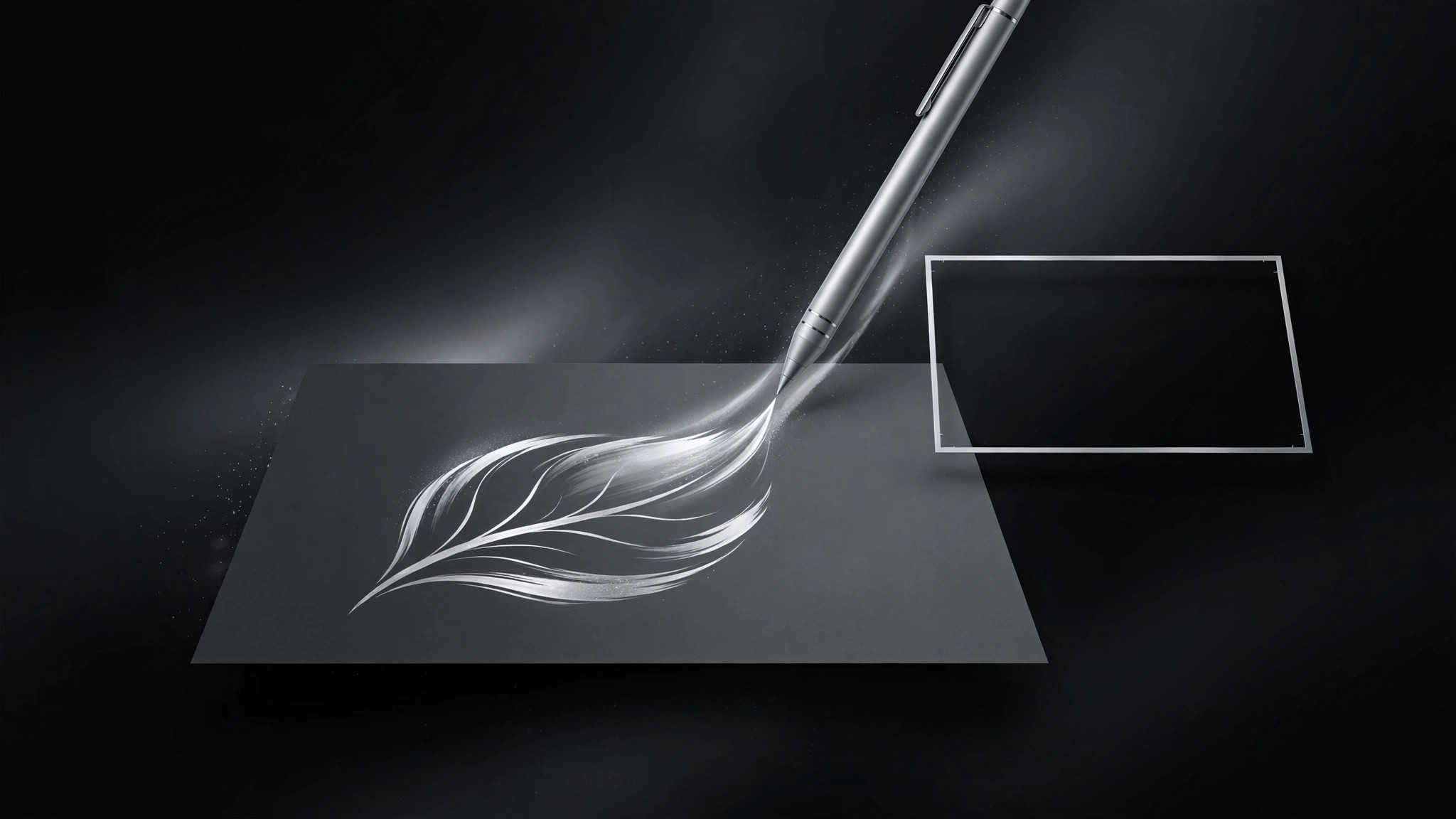
Turns your AI into a social preview designer for drawing and illustration apps — builds a sharp 1200×630 OG image with a stylus-and-canvas motif, one message, and type that stays legible at thumbnail size.
Install it in 3 steps
No sign-up. No CLI tools. Pick your AI, copy one line, paste it over.
Prefer doing it yourself? Buy the skill ($4.99), download the ZIP from your checkout confirmation, unzip it into the directory shown above, restart your AI session — same result. Already bought it? Your AI assistant can download it for you.
What’s inside
One SKILL.md (the playbook) + one starter template. A preview:
Drawing App OG Image
When to use
- You're sharing a drawing, sketching, or illustration app's homepage, feature page, or launch post and the link preview is blank or generic
- Your app's preview needs to say "drawing" in one glance — stylus, canvas, brushstroke — without a paragraph
- You want one OG image per page (homepage, features, pricing, blog) that stays on-brand and readable at thumbnail size
- Your current preview crops badly in messaging apps, or its headline is unreadable at small sizes
- You're launching on a platform where the link card is the first impression (social feeds, chat apps, forums)
Workflow
- Pick the one message (input: the page → output: one message + one visual)
Read the page and reduce it to one message of six words or fewer: what the app does, for whom, or what's new. Pair it with one visual: a stylus over a canvas, a single brushstroke forming a shape, a hand-drawn mark becoming a finished illustration. One message, one visual — an OG image that tries to say three things says nothing at thumbnail size. If the page is a feature announcement, the message is the feature; if it's the homepage, the message is the app's core promise. - Lay out the three zones (input: message + visual → output: 1200×630 layout)
Build the standard three-zone layout at exactly 1200×630: headline zone (the message, large, high contrast), visual zone (the stylus/canvas motif, one hero element), brand zone (app name or logo mark, small, in a corner). Keep the headline to two lines maximum, set in a weight that survives being shrunk to a chat thumbnail. Keep all critical content inside the central safe area — roughly 60px of margin on every side — because messaging apps and social platforms crop edges unpredictably. Never put the only copy at the very edge. - Draw the motif (input: layout → output: canvas motif)
Draw the drawing-app motif with restraint: a stylus angled over a canvas or a single confident brushstroke that resolves into a recognizable shape (a leaf, a face, a star). The stroke should look made by a hand — slight variation in width, a natural taper — not a perfect vector curve. Use the app's real brand colors; if the app has none yet, pick a paper-white or ink-black ground with one accent color for the stroke. No screenshots of the full app UI inside the OG image — at thumbnail size a UI screenshot becomes grey noise. One motif, drawn large, beats a collage.
Template preview
Drawing App OG Image — Build Template
One message, one motif, readable at thumbnail size. One image per page.
Page + message
- Page this image serves: {URL / page name — e.g. homepage, features, pricing}
- One message (≤6 words): "{message}"
- File name: og-{page}.jpg
Three zones (1200×630)
Safe area: ~60px margin on all sides — nothing critical at the edges.
Motif
- Motif: {stylus angled over canvas / single brushstroke becoming a {leaf / face / star}}
- Stroke feel: hand-drawn — slight width variation, natural taper, not a perfect vector curve
- Ground: {paper-white / ink-black}
- Accent: {real brand color, or one accent color}