Slate Admin Console
A back office your team can actually operate
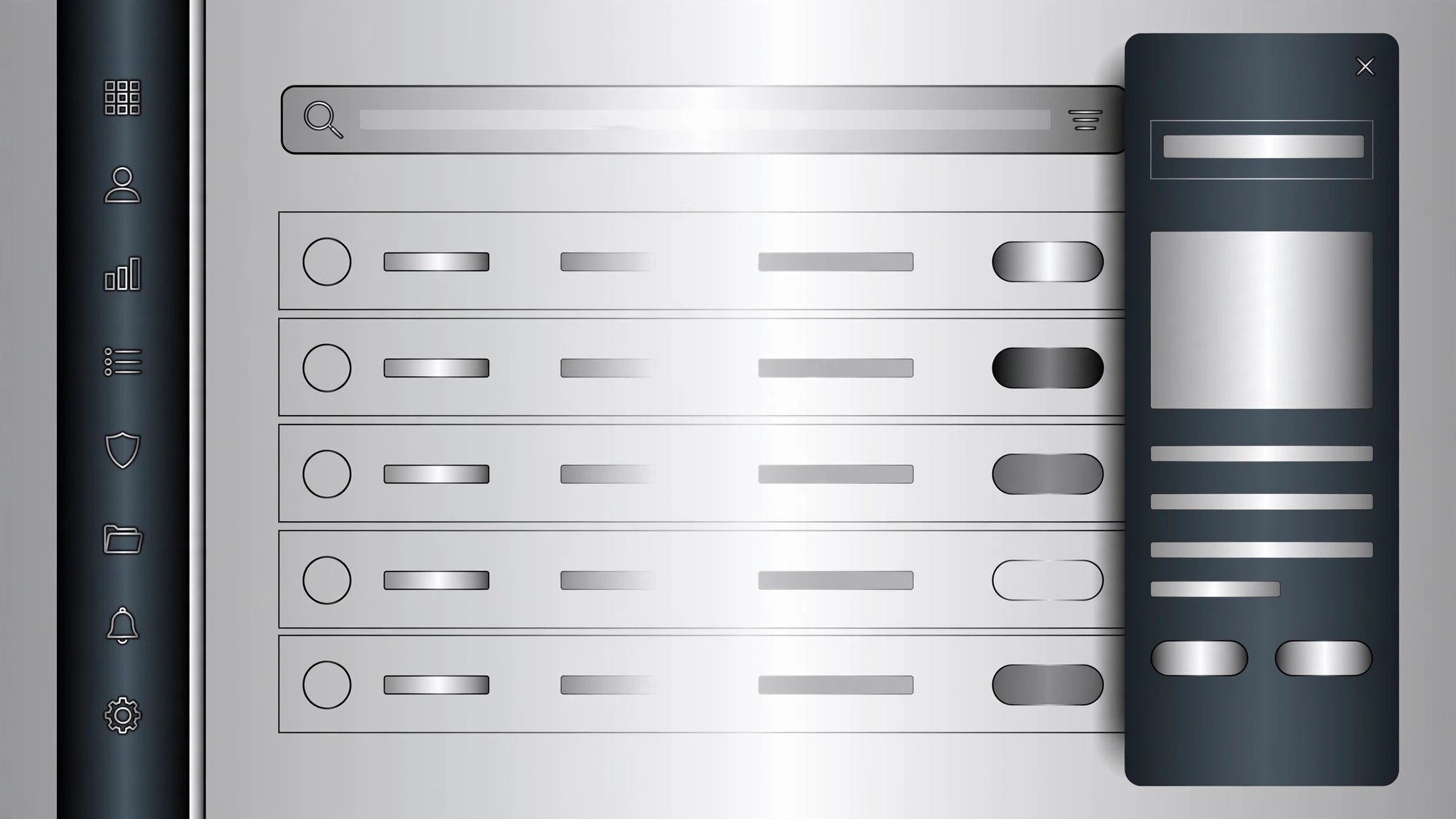
Lays out a clean slate-gray admin console with sidebar navigation, filterable data tables, slide-over detail panels, and a full design spec a developer can build from without guessing.
Install it in 3 steps
No sign-up. No CLI tools. Pick your AI, copy one line, paste it over.
Prefer doing it yourself? Buy the skill ($4.99), download the ZIP from your checkout confirmation, unzip it into the directory shown above, restart your AI session — same result. Already bought it? Your AI assistant can download it for you.
What’s inside
One SKILL.md (the playbook) + one starter template. A preview:
Slate Admin Console
When to use
- You're building an internal admin console — users, orders, content moderation, support tickets — and the current UI is a pile of unstyled tables
- Your team keeps asking "where do I find X?" because navigation grew organically and nothing is grouped
- A dashboard shows the right numbers but nobody can act on them — no filters, no bulk actions, no drill-down
- You're redesigning a legacy back office that only its original author can operate
- You need a console design spec a developer can build from without a week of back-and-forth
Workflow
- Map the jobs (input: who uses the console → output: job list + primary screens)
List every user role (admin, support agent, moderator, finance) and the 2–3 jobs each does daily. Each job becomes a screen or a view: "find a user and refund an order" beats "user management module". Cut anything no role does weekly — admin consoles bloat because every edge case gets a permanent menu item. The output is a short job list with the primary screen for each, not a feature wishlist. - Structure the navigation (input: job list → output: sidebar map)
Group screens into 4–6 sidebar sections max, each with 2–5 items. Put the daily jobs at the top, settings and audit logs at the bottom. Use plain nouns ("Users", "Orders", "Content", "Settings") — no clever labels, no jargon. Add a global search in the top bar that jumps to any record by ID, email, or name: in a console, search is navigation. The sidebar collapses to icons on narrow screens but never hides search. - Design the list views (input: sidebar map → output: table spec per screen)
Every list screen follows the same pattern: filter bar on top (search + 2–4 most-used filters + date range), a table with the columns people actually scan, row actions on hover, and bulk actions when rows are selected. Default sort is newest-first or most-urgent-first — never alphabetical by ID. Cap visible columns at 6–8; the rest live in the detail panel. Status gets a colored pill (one color per status, consistent across the whole console), never bare text. - Design the detail panels (input: table spec → output: detail panel spec)
Clicking a row opens a side panel (slide-over), not a full page reload — the list stays visible behind it so context survives. The panel leads with identity (name, ID, status, created date), then the fields grouped in sections, then the timeline of everything that happened to this record, then the actions. Destructive actions (delete, ban, refund) sit at the bottom, require a confirmation step, and state exactly what will happen. Every action writes a line to the timeline: who, when, what changed.
Template preview
Slate Admin Console — Design Spec Template
One document per console. A developer should be able to build from this without guessing.
Product: {console name}
Users & their daily jobs:
Cut list (requested but nobody does it weekly): {item} — {why it was cut}
Sidebar map (4–6 sections)
- {Section} — {Item}, {Item}, {Item}
- {Section} — {Item}, {Item}
- {Section} — {Item}, {Item}
- {Section} — {Item}
- Settings — {Item}, {Item}
- Audit log — {Item}
Top bar: global search — "Jump to {record}, {record}, {email}…" · Collapse: icons on narrow screens, search always visible.