Records Data Grid
A records grid that stays fast and readable at thousands of rows.
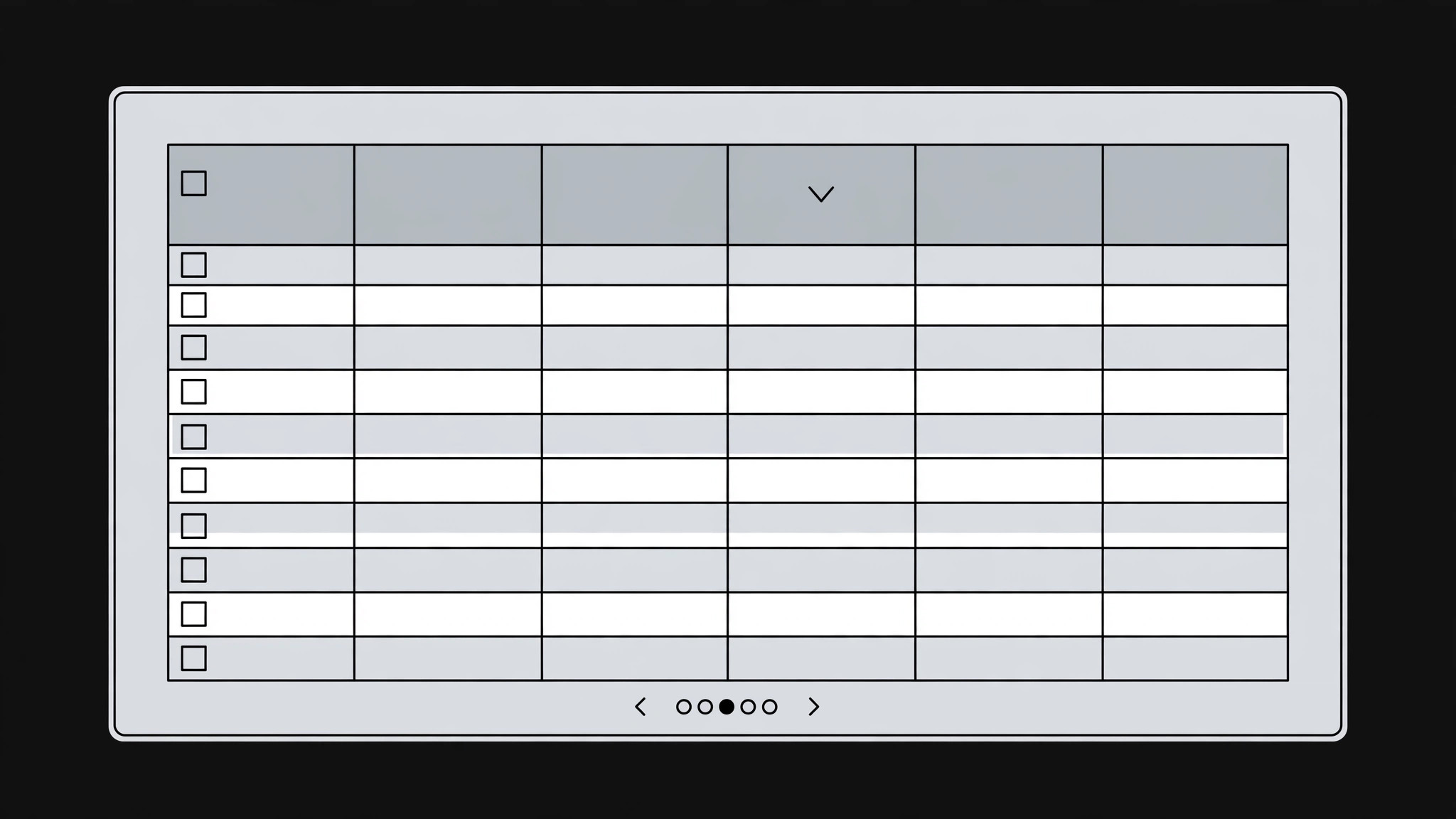
Turns your AI into a product designer that builds a records data grid — sortable columns, filters, bulk actions, and pagination that stays fast and readable at thousands of rows.
Install it in 3 steps
No sign-up. No CLI tools. Pick your AI, copy one line, paste it over.
Prefer doing it yourself? Buy the skill ($4.99), download the ZIP from your checkout confirmation, unzip it into the directory shown above, restart your AI session — same result. Already bought it? Your AI assistant can download it for you.
What’s inside
One SKILL.md (the playbook) + one starter template. A preview:
Records Data Grid
When to use
- Your app shows lists of records — orders, customers, invoices, tickets, files — and the current list is a plain table with no sorting, no filtering, and no way to act on more than one row
- Users keep exporting to a spreadsheet to do the work your grid should do: find records, compare them, update them in bulk
- A table that worked at 50 rows is collapsing at 5,000: slow loads, endless scrolling, and columns that run off the screen
- You're building an admin panel, CRM view, or operations dashboard and the record list is the screen people will live in
- Stakeholders keep asking for "just one more column" and the grid needs rules for what belongs and what doesn't
Workflow
- Define the record and the columns (input: data model + user tasks → output: column set)
Start from the tasks, not the database: what do people actually do with these records — find one, compare several, update many, export a set? Then pick columns that serve those tasks: an identifier, the two or three fields people scan to recognize a record, one status, one date, and one owner or assignee. Everything else lives in the detail view or a column picker, not on by default. Cap the default column set at six or seven — a grid with fifteen visible columns is a grid nobody can scan. Write the column rules down: each column's field, its alignment (text left, numbers right, dates in one fixed format), and its empty-state text ("—" or "Unassigned", never a blank that looks broken). - Design sorting and filtering (input: column set → output: sort + filter behavior)
Every column that holds an ordered value (dates, numbers, status in a defined order) gets sorting — click the header to sort, click again to reverse, with a visible arrow showing the active sort. Filtering gets two layers: a search box that matches across the recognisable fields (name, ID, email — say which), and per-column filters for the fields people actually narrow by (status, date range, assignee). Filters must be visible, removable one at a time, and clearable all at once — a filter a user can't see is a filter that makes records "disappear". Always show the result count ("Showing 24 of 5,312") so people trust the grid is showing them the truth.
Template preview
Records Data Grid — Build Template
Tasks first, columns second. Fill this in before designing the grid.
Record + tasks
Record type: {e.g. invoice / order / ticket}
What people do with these records:
- {task — e.g. find one record fast}
- {task — e.g. compare several}
- {task — e.g. update many at once}
Column set (≤7 default)
Columns in the picker (not default): {field, field, …}
Sorting + filtering
- Sortable columns: {which columns, and their sort order for status}
- Search box matches: {fields — state them, e.g. name, ID, email}
- Per-column filters: {status / date range / assignee / …}
- Result count format: "Showing {X} of {Y}"