Topic Cloud Behind Presenter
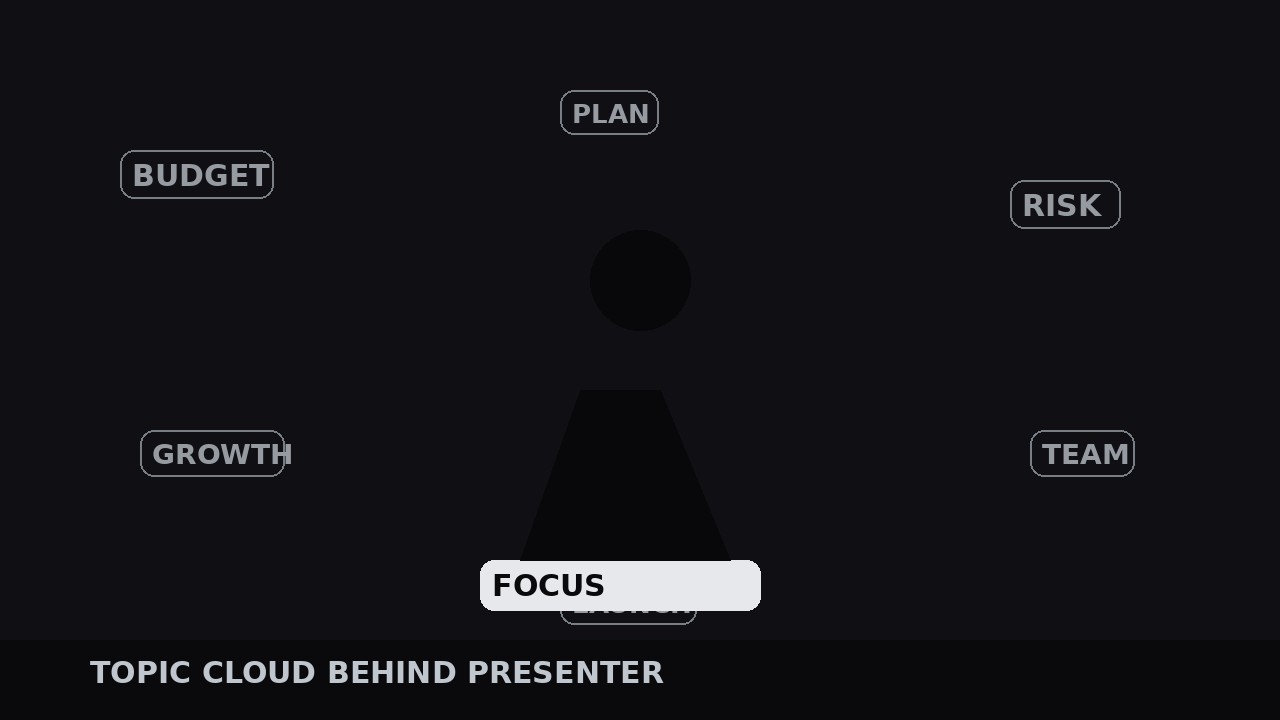
A living word map behind the speaker — the active topic glows, the rest drift dim.
Floats a talk's keyword labels behind the presenter as a slowly drifting cloud, lighting up one topic at a time as it is discussed. Covers topic extraction, layout, drift animation, highlight cues, and the closing recap.
Install it in 3 steps
No sign-up. No CLI tools. Pick your AI, copy one line, paste it over.
Prefer doing it yourself? Buy the skill ($4.99), download the ZIP from your checkout confirmation, unzip it into the directory shown above, restart your AI session — same result. Already bought it? Your AI assistant can download it for you.
What’s inside
One SKILL.md (the playbook) + one starter template. A preview:
Topic Cloud Behind Presenter
When to use
- Your talk covers several named topics and viewers lose the thread halfway through ("wait, which point is this?")
- The presenter is on camera against a clean background — a studio wall, a blurred room, a solid backdrop — with space around them for words to float
- You want a visual table of contents that stays on screen without becoming a slide deck: the structure is ambient, not a bullet list
- The talk is 5 minutes or longer, with at least three distinct topics that get named out loud
- You are editing a lecture, a webinar, a podcast video, or a keynote where the presenter's face carries the energy and the cloud carries the map
Workflow
- Extract the topic list (input: script or transcript → output: 4–10 topic labels)
Read the script and pull out every topic the presenter names as a section: not every noun, just the labeled beats — the phrases the presenter says when starting something new ("Now the budget...", "The second risk is..."). Aim for 4–10 labels, each 1–3 words. Fewer than 4 and the cloud looks empty; more than 10 and it becomes wallpaper. Rank them in talk order, and give each a short form for display: "Supply-chain delays" becomes "Supply Chain". Write the labels exactly as the presenter says them — if the cloud says "Monetization" while the presenter says "making money", the mismatch nags the viewer. This list is the whole design; everything after this step is placement and timing. - Lay out the cloud (input: topic labels → output: static cloud composition)
Place the labels in the space around the presenter — sides and upper corners first, never over the face or the mouth. Vary the size by importance: the talk's central topic gets the largest size (roughly 5–6% of frame height), supporting topics 3–4%. Use one typeface in one weight, with size and opacity doing all the hierarchy work; mixing fonts turns a cloud into a ransom note. Keep every label inside a safe margin (5% from frame edges) and leave a clear halo around the presenter's head and shoulders — the cloud frames the person, it does not crowd them. Set the inactive state now: dim labels at 25–35% opacity in a neutral gray or silver, so the cloud reads as texture when nothing is active.
Template preview
Topic Cloud Behind Presenter — Build Template
A living word map, not a slide. Fill this in from the script before placing any labels.
Talk: {title} | Runtime: {mm:ss} | Presenter frame: {center / left / right}
Topic list (4–10 labels, talk order, presenter's own wording)
Central topic (largest label): {label}
Layout
Typeface: {one family, one weight} | Central topic size: {5–6% of frame height} | Other topics: {3–4%} Inactive state: opacity {25–35%}, color {neutral gray / silver} Edge margin: 5% | Halo around head/shoulders: [ ] clear | No label over face/mouth: [ ]


