Shortcut Target
One shortcut, one reticle, one press viewers can copy.
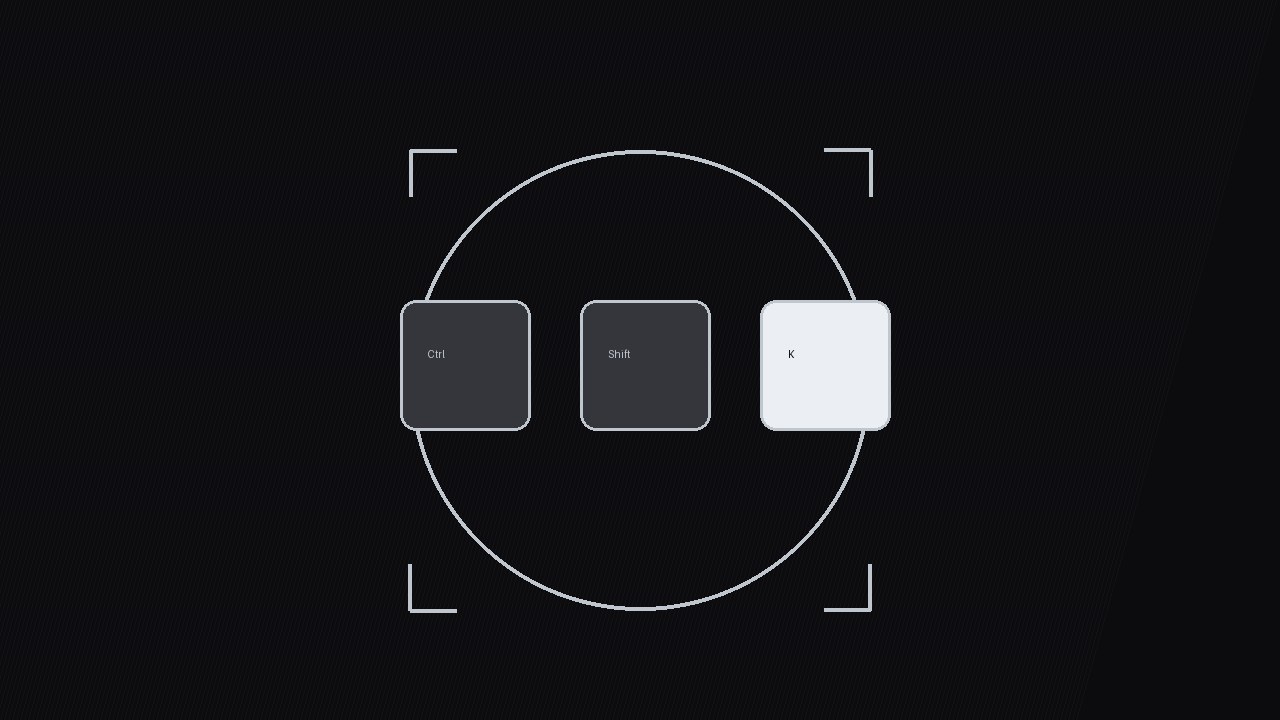
Turns a keyboard shortcut into a motion graphic viewers can actually learn: a targeting reticle locks onto the keys, the keys press in sync with the on-screen action, and a ghost replay confirms the muscle memory.
Install it in 3 steps
No sign-up. No CLI tools. Pick your AI, copy one line, paste it over.
Prefer doing it yourself? Buy the skill ($4.99), download the ZIP from your checkout confirmation, unzip it into the directory shown above, restart your AI session — same result. Already bought it? Your AI assistant can download it for you.
What’s inside
One SKILL.md (the playbook) + one starter template. A preview:
Shortcut Target
When to use
- You're recording a software tutorial and the shortcut is the whole point — "press Cmd+Shift+K" — but viewers miss it because it flashes by in a caption
- Your screen recording shows a menu action that takes three clicks, and you want to teach the one-key alternative instead
- You're making a "5 shortcuts you didn't know" video and every shortcut needs the same crisp, repeatable treatment so viewers can compare them
- Your audience is beginners who need to see which fingers go where, not just which letters appear on screen
- You want a reusable shortcut-callout style that stays consistent across a whole tutorial series
Workflow
- Pick the shortcut and its payoff (input: the action you teach → output: one shortcut + one payoff sentence)
One graphic = one shortcut. Write down the exact keys (including modifiers, in the order fingers press them: modifiers first, then the action key), the platform variant if it differs (Cmd on Mac, Ctrl on Windows), and the payoff in one sentence: "Deletes the whole line, no selecting." If the shortcut has no visible payoff on screen, pick a different demo clip — the payoff shot is what makes the graphic teach instead of decorate. - Stage the keys (input: shortcut + payoff → output: key layout with press order)
Lay out the keys left to right in press order, modifiers first:⌘⇧K. Modifier keys get a slightly muted fill; the action key gets the bright treatment because it's the one viewers must remember. Keycap size: minimum 72 px tall at 1080p so the letter is readable on a phone. Spacing between keycaps: 16–24 px — tight enough to read as one chord, loose enough that each key is distinct. Add a small finger hint under the action key only if your audience is absolute beginners ("right index finger") — otherwise skip it, it clutters the frame. - Lock the reticle (input: key layout → output: 0.0–0.8s reticle animation)
The signature move: a thin targeting reticle (circle + four corner ticks) scales down from 140% to 100% and settles around the key cluster over 0.5s with an ease-out cubic curve, with a faint ring pulse at the moment of lock (0.3s, fading from 40% to 0% opacity). The reticle arrives 0.2s before the keys press — it tells the eye where to look before anything happens. Never let the reticle drift after lock; a locked target that wobbles reads as a mistake. Keep the reticle stroke at 2–3 px, silver/white on dark, so it reads as a UI element, not decoration.
Template preview
Shortcut Target — Graphic Template
One shortcut per graphic. Fill in every field before animating.
Shortcut: {⌘/Ctrl + ⇧ + key} — {payoff in one sentence}
Platform: {Mac / Windows / both — show variant if both} Demo clip: {file / timestamp — the action the shortcut triggers} Payoff shot: {what the viewer sees when it works, e.g. "whole line deletes"}
Key layout (press order, left → right)
Keycap size: {≥72 px tall at 1080p} | Gap: {16–24 px} Finger hint (beginners only): {e.g. "right index finger" / none}
Animation timing
Keystroke click: {at dip frame, −18 dB under voiceover}


