Response Line Spotlight
One reply lights up while the whole thread dims
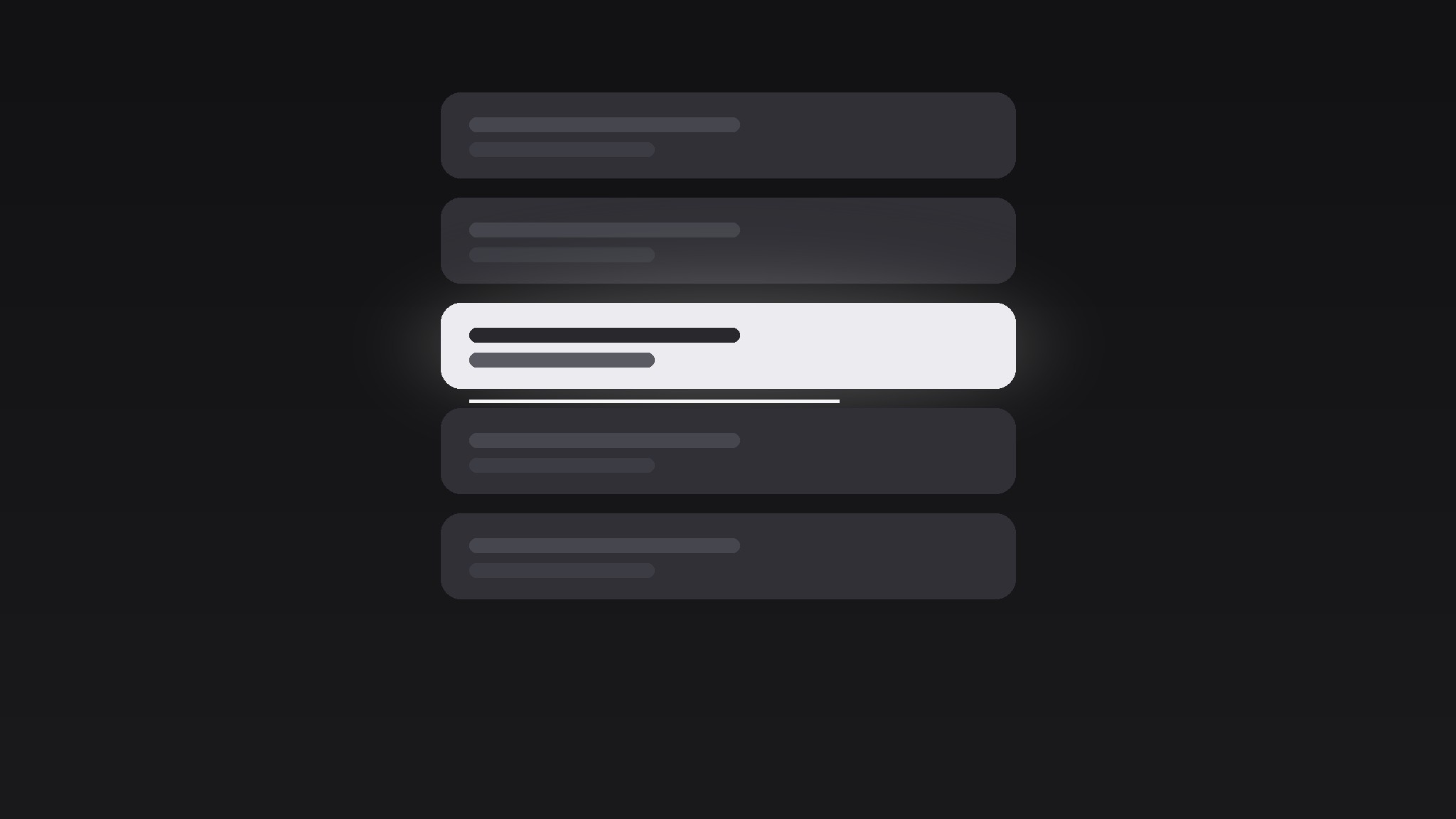
Turns your AI into a motion-graphics director for the response-line-spotlight pattern — dims a whole chat thread to grey, then lights up one reply line with a soft spotlight and a reading beat, so the viewer reads exactly the line that matters and nothing else.
Install it in 3 steps
No sign-up. No CLI tools. Pick your AI, copy one line, paste it over.
Prefer doing it yourself? Buy the skill ($4.99), download the ZIP from your checkout confirmation, unzip it into the directory shown above, restart your AI session — same result. Already bought it? Your AI assistant can download it for you.
What’s inside
One SKILL.md (the playbook) + one starter template. A preview:
Response Line Spotlight
When to use
- A screen recording shows a long chat thread, and only one reply carries the decision, the joke, or the twist
- A testimonial video quotes one customer message out of a busy support conversation
- A tutorial needs the viewer to read one specific bot or teammate reply before the next step makes sense
- A reaction video pauses on the single comment that changed the argument
- A product demo shows an AI assistant answering, and the answer itself — not the interface — is the hero
Workflow
- Pick the line (input: full chat screenshot or recording → output: one chosen line)
Choose exactly one line: the reply that carries the payload. It must fit on one or two wrapped lines at the final font size — if it needs three, trim the quote or split the moment into two spotlights. Note the line's position, its sender colour, and the two lines directly above and below it (they stay visible but dimmed, so the viewer keeps context). Everything else in the thread is set dressing. - Build the dim (input: chosen line → output: dimmed thread frame)
Drop the whole thread to 25–35% brightness and 0% saturation except the chosen line, which stays at full colour. Add a soft radial glow behind the chosen line (radius ~1.6× the line height, feathered edge, white at 12–18% opacity). The dim must read as "the room lights went down", not "the screenshot broke": keep message bubbles, avatars, and timestamps faintly legible. If the thread scrolls, lock the scroll before the dim starts — motion plus dimming at once makes viewers seasick. - Spotlight the line (input: dimmed frame → output: spotlight animation)
Animate in three beats over 1.2–1.6 seconds: (a) 0–0.3s, the glow fades in from 0 to full opacity with an ease-out; (b) 0.2–0.9s, the line itself scales from 98% to 100% and shifts from its dimmed state to full brightness — never a pop, always a settle; (c) 0.7–1.2s, a thin underline (2px, sender colour or white) draws left to right beneath the line, 0.4s, ease-in-out. The underline is the "read this now" signal. If the line is long, draw the underline only under the key phrase, not the whole bubble. - Hold for reading (input: spotlighted frame → output: timed hold)
Hold the spotlight still for reading time: count the words in the line and allow ~3 words per second, minimum 1.5s, maximum 4s. No pulsing, no shimmer, no camera drift during the hold — the viewer's eyes are doing the work, and any motion competes with reading. If the line is a punchline, add a 0.3s beat of silence before the next cut; if it is instructions, cut the moment the reading time ends.
Template preview
Response Line Spotlight — Template
Fill in the line, then let the dim + glow + underline do the focusing.
The thread
Source: {screenshot / screen recording of chat thread} Platform look: {iMessage / WhatsApp / Slack / in-app chat / other}
The line (exactly one)
> {the full reply text, 1–2 wrapped lines max}
Sender: {name} | Sender colour: {bubble colour hex} Why this line: {decision / punchline / key instruction / twist} Word count: {n} → Hold time: {n ÷ 3, clamped to 1.5–4s}s
Dim settings
Spotlight-in (1.2–1.6s total)
Underline scope: {whole line / key phrase only: "{phrase}"}


