Polygon Scene Wipe
One scene shatters into shards and lands as the next
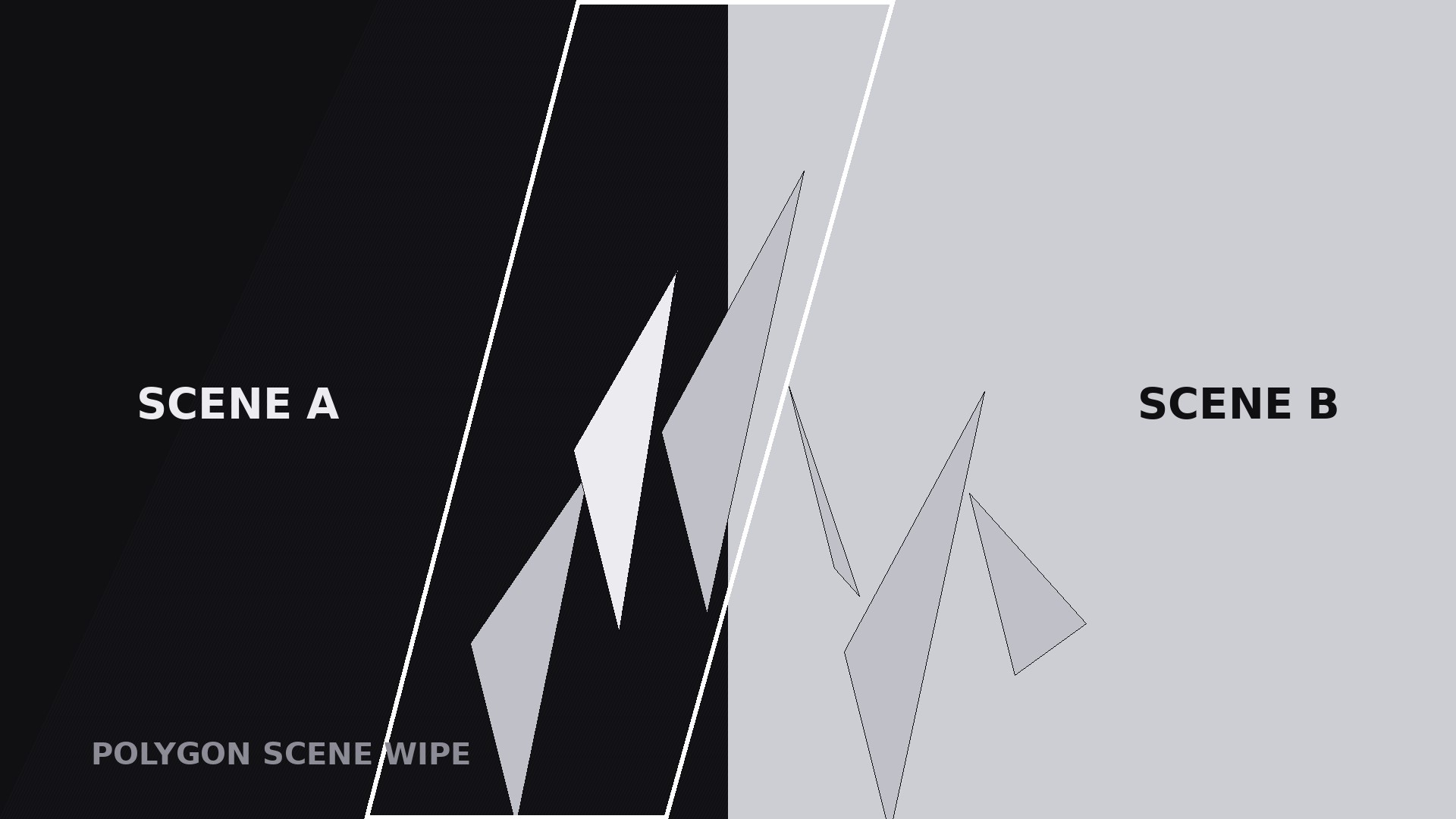
Turns your AI into a motion-graphics director for the polygon scene wipe pattern — one scene shatters into triangular shards that sweep across frame and reassemble as the next scene, so a cut feels like a transformation instead of a jump.
Install it in 3 steps
No sign-up. No CLI tools. Pick your AI, copy one line, paste it over.
Prefer doing it yourself? Buy the skill ($4.99), download the ZIP from your checkout confirmation, unzip it into the directory shown above, restart your AI session — same result. Already bought it? Your AI assistant can download it for you.
What’s inside
One SKILL.md (the playbook) + one starter template. A preview:
Polygon Scene Wipe
When to use
- A transition between two scenes that need to feel connected — before/after, problem/solution, old/new, sketch/finished — where a hard cut would feel abrupt
- A montage where each scene hands off to the next with energy: travel videos, process videos, product evolutions
- A reveal where the second scene is the payoff and the wipe builds a half-second of anticipation before it lands
- A stylised explainer where the visual language is geometric — low-poly art, data visualisation, architectural visualisation
- A title or chapter transition where the wipe itself carries the brand: the same shard pattern, reused, becomes a recognisable signature
Workflow
- Pick the two scenes (input: your video → output: scene A + scene B)
Choose two shots with a clear relationship: A becomes B, A contrasts B, or A hands off to B. The wipe works hardest when the two scenes differ visibly — different colour, different subject, different mood — because the shards carry the difference across the frame. If A and B look nearly identical, the wipe is decoration on a cut nobody needed; use a straight cut instead. Lock both shots' framing before building the wipe: same aspect, same horizon or subject position where possible, so the reassembly feels like the same world transforming rather than two unrelated images colliding. - Set the shard geometry (input: scenes → output: shard layout)
Divide the frame into triangles — 12 to 30 shards, never more than 30, or the wipe reads as static noise. Larger shards (12–18) feel bold and architectural; smaller shards (20–30) feel energetic and shattering. Draw the shard grid from a diagonal: shards should tile the frame along the wipe's travel direction, so each shard has a clear path from its A-position to its B-position. Keep one consistent shard style: all triangles, all the same stroke weight (or none), no mixed shapes. A useful rule: no shard smaller than 5% of the frame width — tiny shards alias and flicker on phone screens. - Choose the wipe direction and order (input: geometry → output: travel plan)
Pick one travel direction: left-to-right, right-to-left, diagonal (bottom-left to top-right reads most naturally), or centre-outward. Shards travel in sequence along that direction, not all at once: the leading edge carries scene B, the trailing edge still shows scene A, and the band of shards between them is the transition itself. Stagger the shards by 0.02–0.05 s each along the direction of travel, so the wipe reads as a wave rather than a wall. The leading shard should start moving first and the trailing shard last; if they all move together, it is a flash, not a wipe.
Template preview
Polygon Scene Wipe — Starter Template
One scene becomes the next through shards. Pick the scenes first, then the geometry.
The two scenes
Scene A (outgoing): {shot description} — Scene B (incoming): {shot description}
Relationship: {A becomes B / A contrasts B / A hands off to B}
Framing check: same aspect [ ]; horizon/subject position aligned where possible [ ]
Voiceover bridge (optional, one line): "{line spoken across the wipe}"
Shard geometry
Shard count: {12–30} (12–18 bold/architectural, 20–30 energetic)
Smallest shard: ≥5% of frame width [ ]
Style: {all triangles / stroke weight / feather 0–2 px}


