Pipeline to Output Fan
One thing in, many things out — the fan is the proof
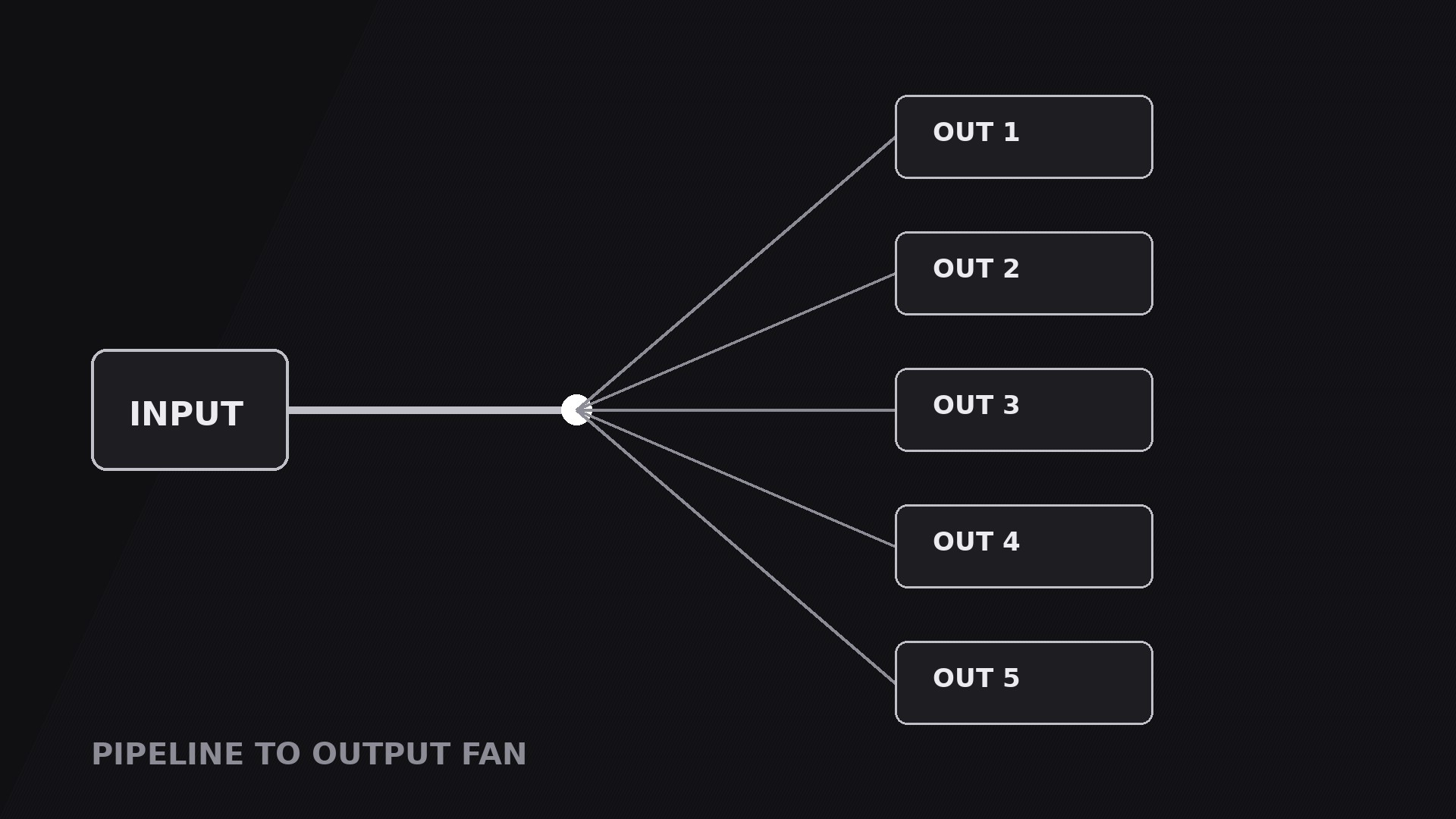
Turns your AI into a motion-graphics director for the pipeline-to-output-fan pattern — one input travels through a pipeline, then fans out into many parallel outputs, so viewers see breadth: one thing in, many things out.
Install it in 3 steps
No sign-up. No CLI tools. Pick your AI, copy one line, paste it over.
Prefer doing it yourself? Buy the skill ($4.99), download the ZIP from your checkout confirmation, unzip it into the directory shown above, restart your AI session — same result. Already bought it? Your AI assistant can download it for you.
What’s inside
One SKILL.md (the playbook) + one starter template. A preview:
Pipeline to Output Fan
When to use
- An explainer showing that one source feeds many channels: one video becomes clips, shorts, posts, and a newsletter
- A product demo where a single upload, prompt, or recording produces several deliverables at once
- A workflow video where the point is parallel output — the same input processed into different formats for different audiences
- A launch video showing one feature branching into many use cases, one per audience or platform
- A comparison video where one input is run through several variants side by side and the fan is the comparison itself
Workflow
- Lock the one input (input: your topic → output: a single input block)
Define exactly one thing entering the pipeline: one video file, one prompt, one dataset, one recording. Show it as a single block on the left of frame with a short label (1–3 words) and one recognisable visual — a thumbnail, a document icon, a waveform. If the story has two inputs, either merge them into one block ("Raw footage + script") or use a different pattern; a fan with two sources reads as two fans colliding. The input block is the anchor the whole shot refers back to, so make it the most solid-looking element on screen. - Define the outputs (input: input block → output: 3–6 output cards)
List the outputs the pipeline produces — three to six, never more than six, or each card shrinks past readability. Each output gets one card: a label (1–3 words), one icon or thumbnail, and one line of at most 5 words naming what it is for ("Short clip — for Reels"). The outputs must be genuinely different from each other — different formats, different channels, different audiences. If two outputs would look alike, merge them. Arrange the outputs as a vertical fan on the right of frame, spread evenly, with the middle output aligned to the pipeline's centreline. - Draw the pipeline (input: input + outputs → output: pipe geometry)
Draw one horizontal pipe from the input block to a junction point at about 60% of the frame width, then one branch line from the junction to each output card. The junction is where one becomes many — mark it with a dot or a small node so the split has a visible moment. Keep the pipe and branches as clean straight or gently curved lines of equal weight; varying line weights make the fan look accidental. The fan shape itself should read at a glance: lines spreading like ribs from one hub to many endpoints, evenly spaced, none crossing another.
Template preview
Pipeline to Output Fan — Starter Template
One input in, many outputs out. Define the input first, then the fan.
The input
Input (one thing only): {one video / one prompt / one dataset / one recording}
Input label (1–3 words): {label}
Input visual: {thumbnail / document icon / waveform}
Voiceover line: "Start with {input} — and it fans out into {number} outputs."
The outputs (3–6, genuinely different)
Cut check: if two outputs differ only in name, merge them. Difference must be visible at a glance.
Order: {top-to-bottom in voiceover order / ranked biggest first}


