Notification to Log
Every alert pops, then files itself into the log.
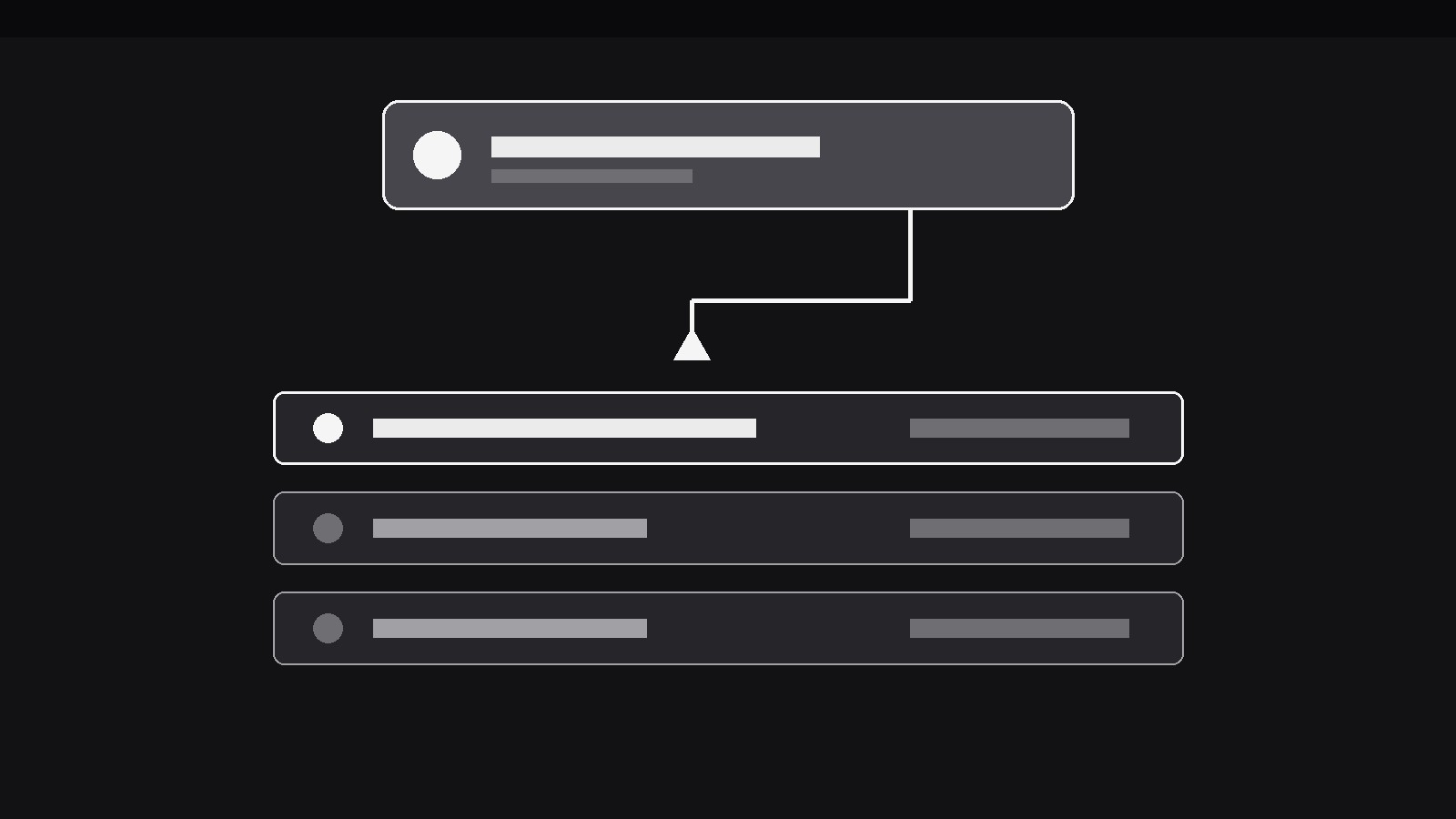
Turns your AI into a motion designer for one specific pattern — a notification pops into view, then slides, shrinks, and settles into its place in a running log, so the viewer sees both the alert and the record it becomes. For app demos, incident reviews, and activity feeds where alerts must not vanish without a trace.
Install it in 3 steps
No sign-up. No CLI tools. Pick your AI, copy one line, paste it over.
Prefer doing it yourself? Buy the skill ($4.99), download the ZIP from your checkout confirmation, unzip it into the directory shown above, restart your AI session — same result. Already bought it? Your AI assistant can download it for you.
What’s inside
One SKILL.md (the playbook) + one starter template. A preview:
Notification to Log
When to use
- An app demo shows notifications arriving (messages, alerts, approvals) and the viewer needs to see where each one goes after it pops — into the log, not into the void
- An incident review reconstructs a sequence of alerts and needs each notification to land visibly in the timeline that the review will read back
- An activity-feed explainer shows how a live feed accumulates: each new event arrives as a notification, then becomes one row of history
- A monitoring or ops video shows alerts firing and wants the audience to trust that every alert is recorded, in order, with its time
- A messaging or collaboration demo shows a notification arriving while the user is elsewhere, then filed into the conversation's history
- A tutorial teaches a log screen (audit log, notification centre, history tab) by showing how entries get there, one notification at a time
Workflow
- Define the notification and the log (input: your event → output: pair)
Write the notification as it will appear — icon, title (≤6 words), one-line body (≤10 words), timestamp — and define the log it will join: a vertical list, newest on top or oldest on top, each row showing the same fields in compact form. The notification and its log row must carry identical content (same title, same time); the log row is the notification filed, not a summary of it. If the notification's body is too long to fit a log row, shorten the notification — the pair must match, or the filing reads as a rewrite. Decide the log's order now and never change it mid-video. - Stage the live scene (input: pair → output: opening frame)
Open on the live scene the notification interrupts: the app's main view, a dashboard, a document — with the log visible or reachable in the same frame (a side panel, a drawer, the lower half of the screen). Hold the calm scene for at least 800ms before the first notification arrives, so the interruption reads as an interruption. If the log is not on screen, show its tab or affordance clearly ("History" tab, log icon with a count) so the notification has a visible destination to travel toward.
Template preview
Notification to Log — Starter Template
Define the pair first: the notification and its log row must carry identical content.
The pair
Notification: Icon { } | Title (≤6 words): {e.g. Payment failed} | Body (≤10 words): {e.g. Card expired — update payment method} | Timestamp: {e.g. 14:32}
Log row (identical content, compact form): {same title, body, timestamp}
Log order (fixed for the whole video): [ ] Newest on top | [ ] Oldest on top
Opening frame
- Live scene: {e.g. Dashboard main view}
- Log: {visible side panel / drawer / lower half} or affordance: {e.g. History tab with count}
- Calm hold before first notification: {≥800ms}


