Morning Brief
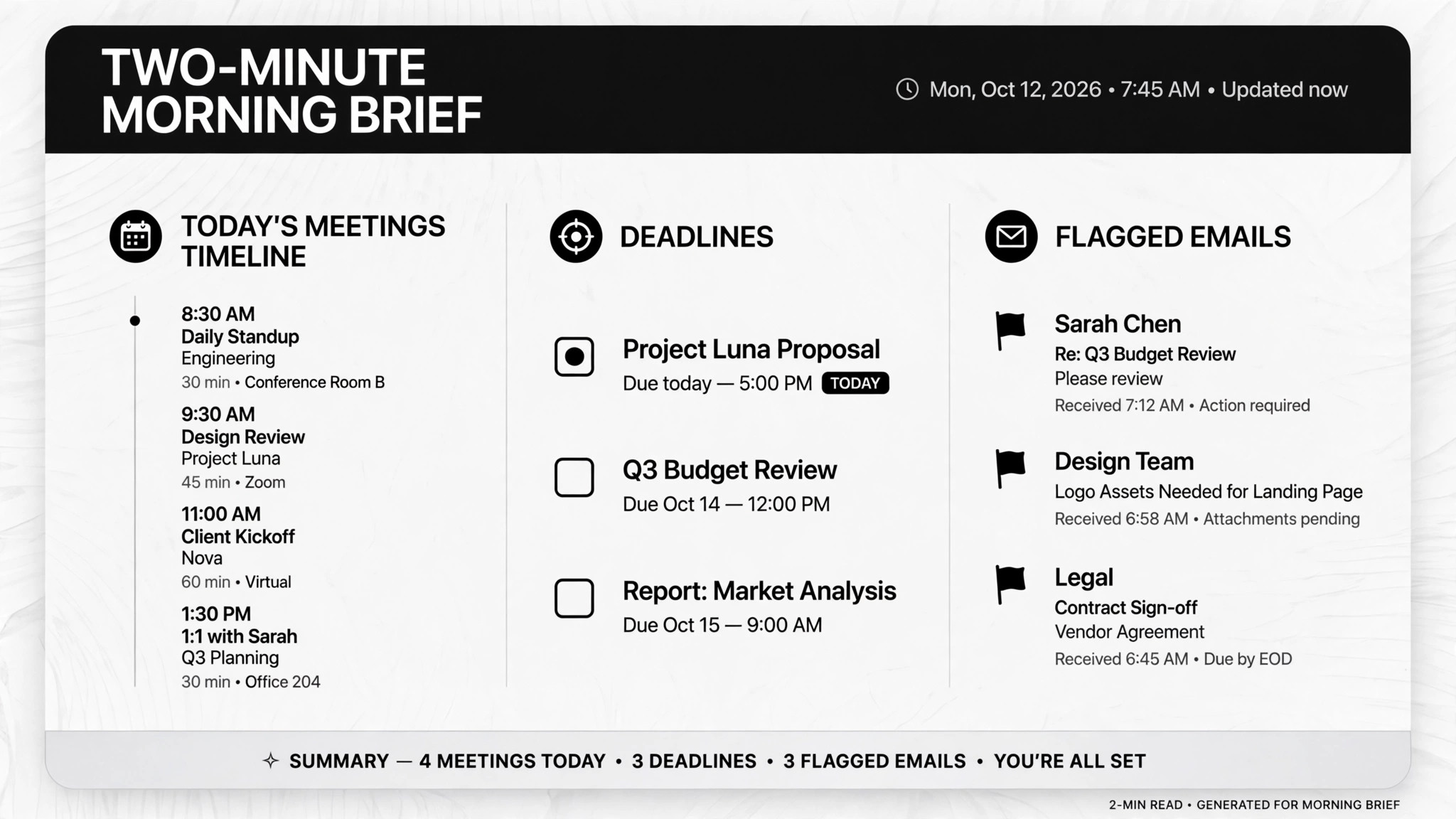
Wake up to a two-minute brief: meetings, deadlines, flagged mail.
Helps AI turn your email, calendar, and task lists into one two-minute morning brief — today's meetings, due tasks, and the emails that actually need you. For daily planning, meeting prep, and starting the day without drowning in your inbox.
Install it in 3 steps
No sign-up. No CLI tools. Pick your AI, copy one line, paste it over.
Prefer doing it yourself? Buy the skill ($4.99), download the ZIP from your checkout confirmation, unzip it into the directory shown above, restart your AI session — same result. Already bought it? Your AI assistant can download it for you.
Real-world proof
Real people did this exact job with AI agents.
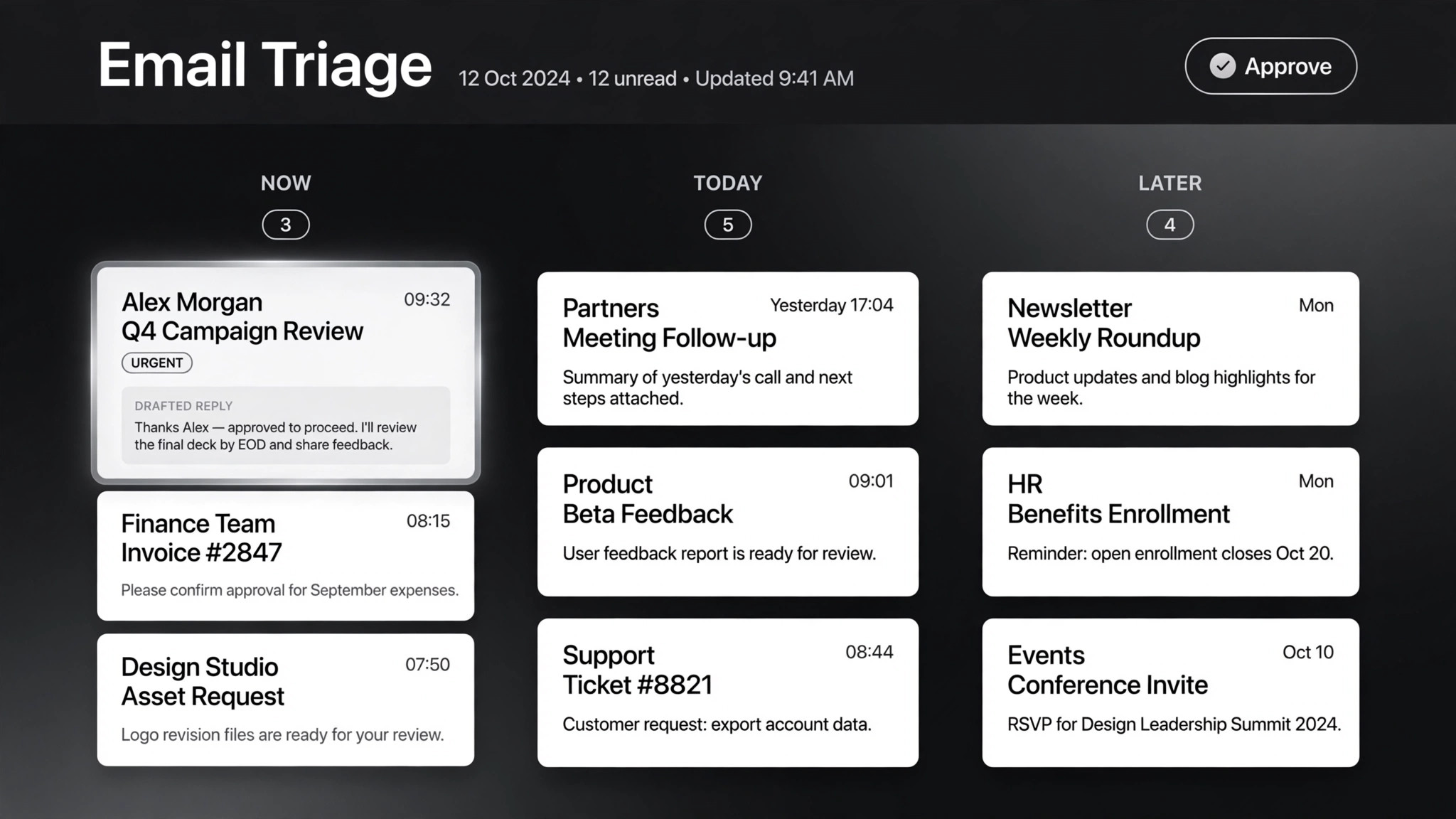
Send a 7am daily brief from email, calendar and Todoist
Read case →Use caseRun an overnight chief of staff for email and calendar
Read case →Use caseSummarize email and prep briefings from your phone
Read case →What’s inside
One SKILL.md (the playbook) + one starter template. A preview:
Morning Brief
When to use
- You wake up to an overflowing inbox and need one short read that tells you what today holds
- You walk into back-to-back meetings and want a prep note for each one before you leave the house
- You run your life from Todoist, your calendar, and email, and need them merged into a single view
- You want an overnight pass over email that pre-sorts, pre-drafts, and waits for your approval
- You're traveling or between devices and need to pull the same brief from your phone
Workflow
- Connect the three feeds (input: email / calendar / task-list access → output: working connection checklist)
Link email, calendar, and a task list (Todoist, Apple Reminders, whatever you use) with read access. Confirm the connections work and note what each feed contains — an unread calendar invite isn't useful if the AI can't read it. Do this once; everything below runs on top of it. - Set the delivery schedule (input: your morning routine → output: run time + delivery channel)
Pick a fixed trigger time — 7am works for most people — and where the brief lands: phone, chat, or email. The overnight version does heavier work first (email triage, calendar prep, travel time from traffic), then the brief is the last thing produced. - Define what "important" means (input: your priorities → output: filter rules)
Tell the AI who your boss is, which projects are active, which senders are never important. Start loose — the real cases show the first week is mostly correction feedback, and the filter gets sharp fast. Write the rules down so they survive app updates. - Run the overnight pass (input: filter rules + three feeds → output: sorted email, prepped calendar)
Overnight, the AI triages email (acts, preps, yours, skip), reads tomorrow's meetings, adds travel time from traffic data, and pre-drafts anything worth answering. It drafts — it never sends. Accepting calendar invites and sending email always needs your approval. - Compose the brief (input: overnight pass results → output: one short brief)
One screen: today's meetings with one-line prep each, tasks due today, and the 2–3 emails that need a reply — with draft replies attached where useful. Nothing else makes the cut. If it takes more than two minutes to read, cut it again. - Correct and tune (input: your feedback → output: updated filter rules)
When the brief includes junk or misses something, say so. That correction goes straight into the filter rules. One real case got to a reliable daily brief purely through this correction loop in the first two weeks.
Output spec
Template preview
Morning Brief — Daily Setup Template
Fill this in once. The brief runs on top of it. Correct it whenever the brief misses or includes junk.
Delivery
- Run time: {e.g. 7:00am daily}
- Lands in: {chat / email / phone app}
- Reads in: ≤ 2 minutes (hard ceiling)
My filter rules
Always in the brief:
- {e.g. emails from my manager, maya@company.com}
- {e.g. calendar invites with external clients}
Never in the brief:
- {e.g. newsletters, marketing senders, automated notifications}
Red flags (label these):
- {e.g. "invoice" over $500 → red}
- {e.g. any email mentioning "contract" or "renewal" → yellow}