Mobile Step Pointer
A pointer walks the viewer through every tap, in order.
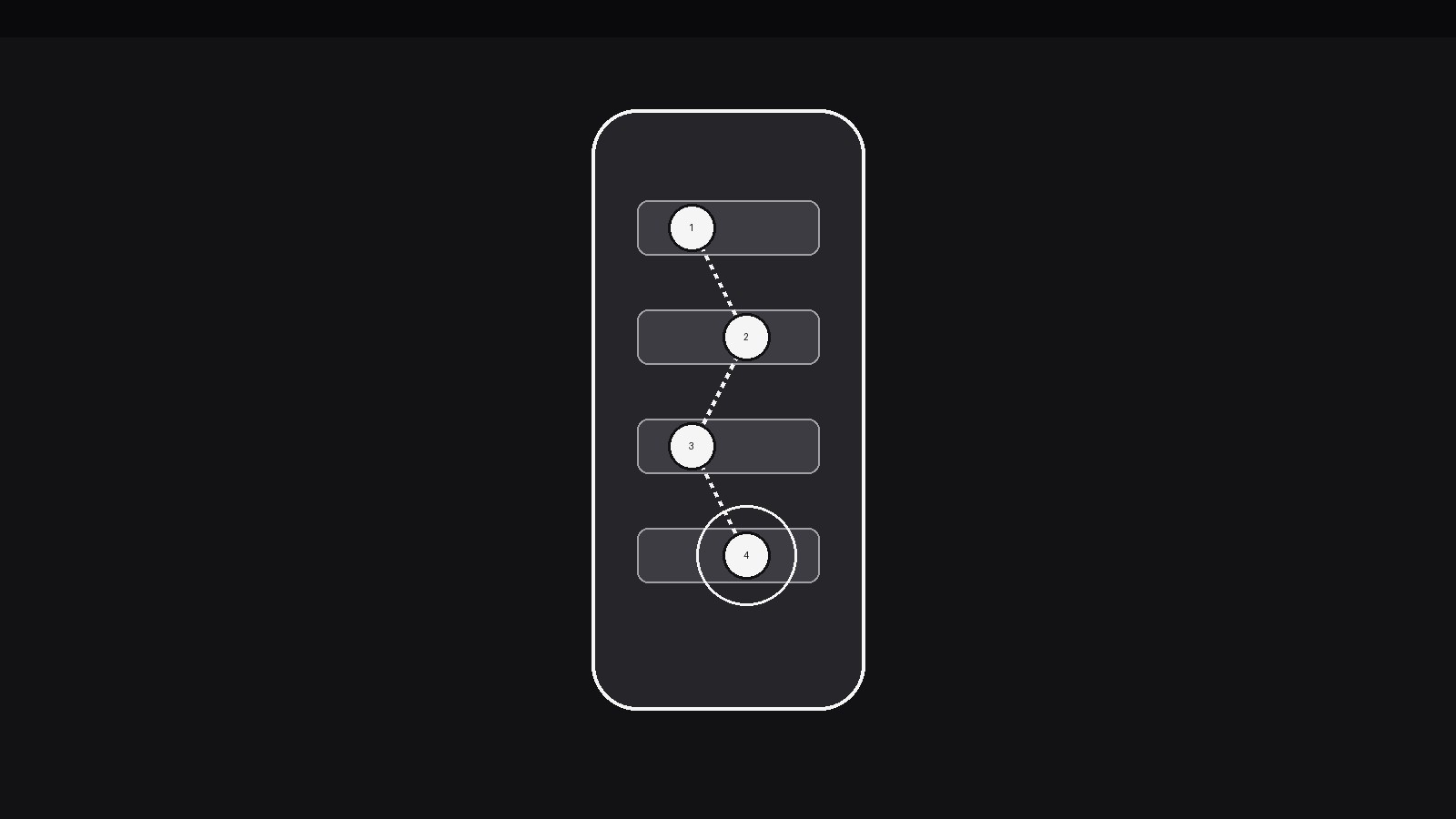
Turns your AI into a motion designer for one specific pattern — a pointer glides across a mobile screen, tapping and highlighting each step of a flow in order, so the viewer can follow an app task without reading a manual. For app tutorials, onboarding walkthroughs, and feature demos where the next tap has to be obvious.
Install it in 3 steps
No sign-up. No CLI tools. Pick your AI, copy one line, paste it over.
Prefer doing it yourself? Buy the skill ($4.99), download the ZIP from your checkout confirmation, unzip it into the directory shown above, restart your AI session — same result. Already bought it? Your AI assistant can download it for you.
What’s inside
One SKILL.md (the playbook) + one starter template. A preview:
Mobile Step Pointer
When to use
- An app tutorial must show a multi-tap task (set up an account, book a ride, file an expense) and the viewer needs to see exactly where each tap lands
- An onboarding walkthrough introduces a new screen and has to guide the eye through its controls in the order a new user would use them
- A feature demo shows a flow that is easy to miss in a static screenshot — the pointer makes the path through the screen visible
- A support or help video answers "where do I tap?" for one specific task, with no voiceover required
- A product marketing clip wants to show an app's key flow in 10–15 seconds, with the pointer doing the narrating
- A usability walkthrough needs to show the intended path through a screen, step by numbered step, so the viewer can compare it with what they would have done
Workflow
- Script the tap sequence (input: the task → output: step list)
Write the task as a numbered list of taps, each one naming the exact control ("Tap the + button, bottom right") — 3–6 steps per screen. One step = one tap = one pointer move; if a step needs two taps, it is two steps. Cap the sequence at 6 steps per screen; beyond that, split across screens with a clean transition between them. Read the list aloud as a user would do it: if any step makes you say "then you have to…", you have missed a step. The pointer can only teach a sequence the script has fully spelled out. - Frame the phone (input: step list → output: phone frame)
Show the phone at a size where every tappable control in the sequence is legible — on a 16:9 frame, the phone typically occupies 45–60% of frame height, centred or slightly off-centre with room for step labels on the side. Use a real screenshot or a faithful mock of the app's screen, never a generic wireframe: the viewer must be able to match what they see to their own phone. Keep the screen static during the pointer's travel — the phone frame does not wobble, tilt, or parallax while the pointer moves, because a moving target teaches nothing.
Template preview
Mobile Step Pointer — Starter Template
Script the taps first. One step = one tap = one pointer move.
Task
Task (one line): {e.g. Create an account and add a first trip}
Step list (3–6 per screen)
> If a step needs two taps, split it into two steps. If a screen needs 7+ steps, split it across screens.
Phone frame
- Screen: {real screenshot / faithful mock — never a generic wireframe}
- Phone size: {45–60% of frame height} | Position: {centred / off-centre with label room}
- Phone stays static during pointer travel: [ ]
Pointer
- Pointer style: {fingertip dot / ring / small arrow}
- Glide: {350–500ms, ease-in-out, gentle arc} | Arrival pause: {150–200ms}


