Keyword Caption Build
One keyword at a time, landing exactly when it's spoken.
Turns your AI into a motion designer for keyword-driven captions — one keyword at a time builds on screen in sync with the spoken word, so viewers read the point exactly when they hear it. For talking-head videos, tutorials, and social clips where retention depends on the words landing.
Install it in 3 steps
No sign-up. No CLI tools. Pick your AI, copy one line, paste it over.
Prefer doing it yourself? Buy the skill ($4.99), download the ZIP from your checkout confirmation, unzip it into the directory shown above, restart your AI session — same result. Already bought it? Your AI assistant can download it for you.
What’s inside
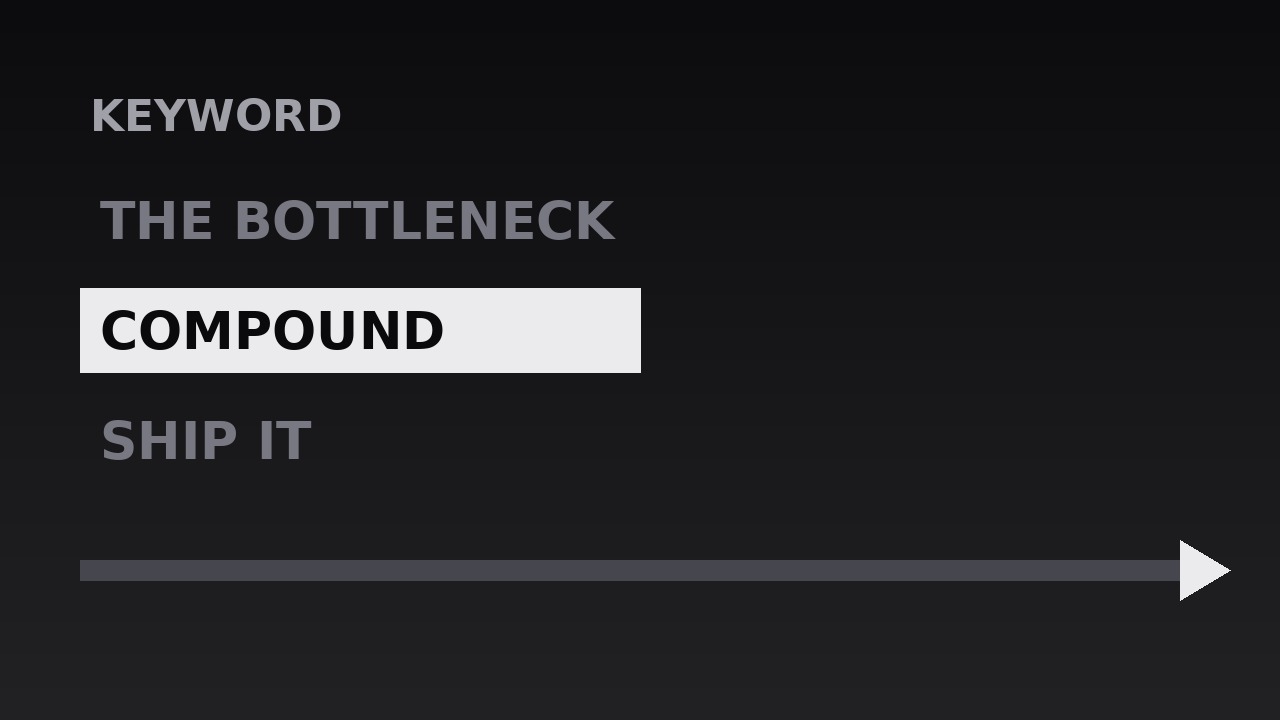
One SKILL.md (the playbook) + one starter template. A preview:
Keyword Caption Build
When to use
- A talking-head video where the speaker's key terms need to land visually, not just wash past in audio
- A tutorial or explainer where each new concept arrives as a named keyword before it gets explained
- A social clip watched mostly on mute, where captions carry the argument and keywords carry the hook
- A lecture, sermon, or conference talk being repurposed into short clips, where one idea per beat keeps viewers oriented
- A sales or pitch video where the three or four claims that matter must be seen as well as heard
- Any edit where full-sentence subtitles feel like reading a transcript, but no captions at all loses the skimmers
Workflow
- Extract the keywords from the script (input: your script or transcript → output: keyword list)
Read the script and underline the words a viewer must remember after the video ends — usually nouns and verbs that carry the claim, not filler. Aim for one keyword per spoken beat: a 60-second clip supports 5–9 keywords, a 3-minute explainer 12–18. Each keyword is 1–3 words long ("compound interest", "ship it", "the bottleneck"). If a keyword needs four words, it is a phrase, not a keyword — shorten it or split it into two beats. Order the list in spoken order and note the timestamp where each word is said; the build lives or dies on that timing. - Set the caption system (input: keyword list → output: type and layout rules)
Fix one typeface, one size, and one position before animating anything. Keywords sit in the lower third or centre-lower frame, large enough to read on a phone at arm's length — typically 8–12% of frame height for the keyword itself, with a smaller supporting line beneath if needed. One accent colour (or one weight change, in monochrome) marks the keyword; everything else stays quiet. Decide the rules once: keyword in bold, supporting words in regular weight, maximum two lines, never crossing the speaker's face. A consistent system reads as design; a different treatment per keyword reads as chaos. - Time each keyword to the voice (input: audio + keyword list → output: timed caption track)
Place each keyword so it appears on the exact frame the word is spoken — not a beat early, not a beat late. The human ear forgives a caption that is 2–3 frames late; it notices one that is half a second early, because the eye reads ahead and spoils the line. If the speaker pauses before the keyword, hold the previous frame empty for the pause; the silence makes the keyword's arrival feel deliberate. Each keyword stays on screen until the next one arrives, or for at least 600ms after its spoken beat — anything shorter is a flash, not a caption.
Template preview
Keyword Caption Build — Starter Template
One keyword per spoken beat. Fill in the keyword list in spoken order, then set the system once and reuse it for the whole video.
Video: {title} — {runtime} — {platform: e.g. Reels / YouTube / TikTok}
Speaker / voice: {name or "voiceover"} | Caption position: {lower third / centre-lower} | Accent: {one colour or "bold weight only"}
Keyword list (in spoken order)
Cut test: every keyword above is 1–3 words and states one claim. Any 4+ word entry: [ ] shortened [ ] split into two beats


