Calendar Reschedule
Lift, drag, drop — and watch the old slot close up.
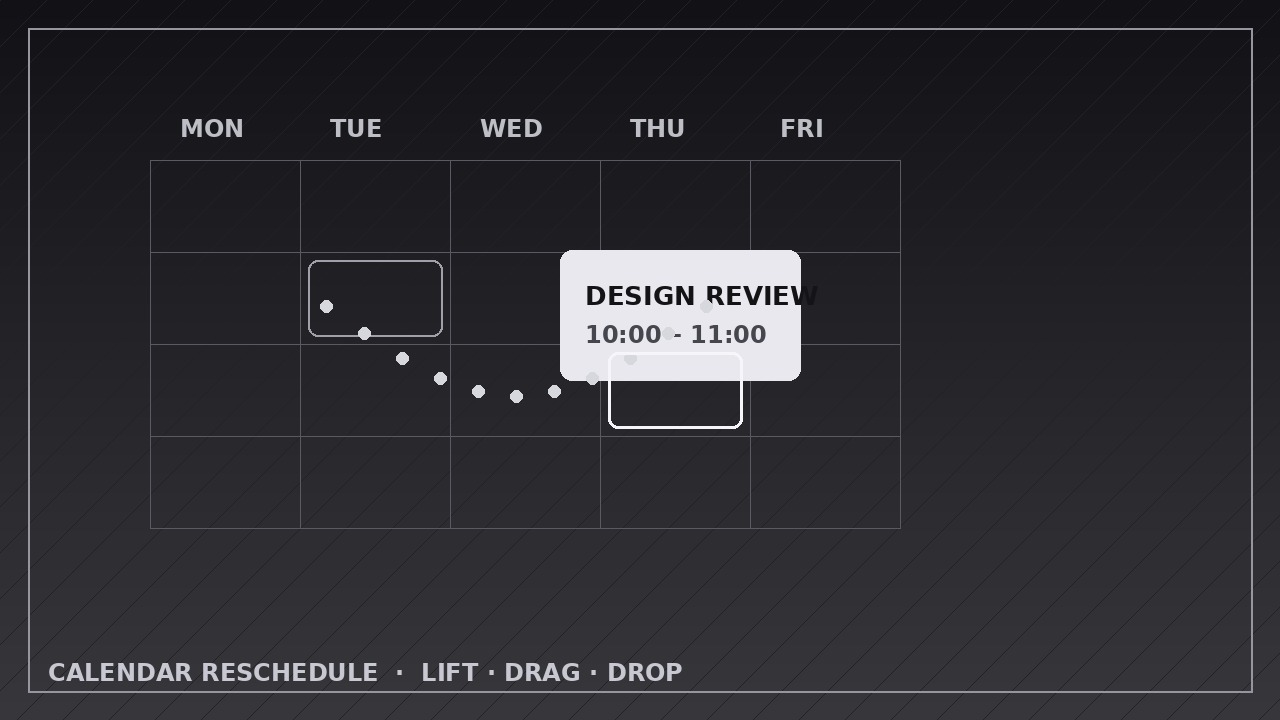
Teaches your AI to animate a calendar event lifting off its slot, dragging along a smooth path, and dropping onto a new time while the old slot reflows.
Install it in 3 steps
No sign-up. No CLI tools. Pick your AI, copy one line, paste it over.
Prefer doing it yourself? Buy the skill ($4.99), download the ZIP from your checkout confirmation, unzip it into the directory shown above, restart your AI session — same result. Already bought it? Your AI assistant can download it for you.
What’s inside
One SKILL.md (the playbook) + one starter template. A preview:
Calendar Reschedule
When to use
- Demoing a calendar or scheduling product's drag-to-reschedule interaction
- Explaining how a meeting moved: from Tuesday 10:00 to Thursday 14:00, and what filled the gap
- Teaching time-blocking or calendar hygiene: moving a task to a better slot instead of deleting it
- Showing a booking flow where a customer picks a new appointment time
- Visualizing a timetable change (class, shift, delivery window) and its knock-on effects
- Animating "before vs. after" of a day plan where one event moves and the rest of the day reflows
Workflow
- Define the move (input: old and new times → output: move spec with event, old slot, new slot, and neighbors)
Write down the event (title, duration, color), its old slot (day + start/end time), its new slot, and which neighboring events sit around each slot. Confirm the event's duration stays identical — a reschedule moves the block, it never stretches or shrinks it. If the move crosses days, name both days explicitly; if it stays in one day, keep the view on that day. Note what happens to the old slot: does it close up (neighbors slide together), stay empty (a visible gap), or get filled by something else — decide before animating. - Build the calendar stage (input: move spec → output: calendar grid with the event in its old slot)
Build a clean week or day grid: day headers, hour lines, and event blocks as rounded rectangles with a title and time. The event to be moved gets a distinct color; everything else stays neutral. Show the event resting in its old slot for at least 1 second before anything moves — the viewer must register "before" before they can appreciate "after". Keep the grid static: no scrolling, no zooming, no view switching during the move. - Lift the event (input: staged calendar → output: lift keyframes)
The lift takes 0.3–0.4 seconds: the block scales up 3–5%, gains a soft shadow, and rises slightly above the grid (a 4–8 px lift at 1080p), ease-out. This is the "picked up" signal — it tells the viewer the block is now draggable. The old slot shows a ghost outline of the block at ~30% opacity left behind, so the origin stays visible throughout the move. Nothing else moves during the lift.
Template preview
Calendar Reschedule — Animation Spec Template
Fill in the move before animating. Duration never changes in a reschedule — the block moves, it never stretches.
Move: {event title}
Canvas: {1920×1080 / 1080×1080 / 1080×1920} | Frame rate: 30 fps | Export: H.264 View: {day / week} | Event color: {distinct} | Other events: {neutral}
Move spec
Timeline
Layers (bottom → top)
- Calendar grid — {day headers, hour lines — static}
- Neighbor events — {neutral, move only in reflow phase}
- Ghost outline — {~30% opacity in old slot, fades at close-up}
- Moving event block — {top layer during drag}


