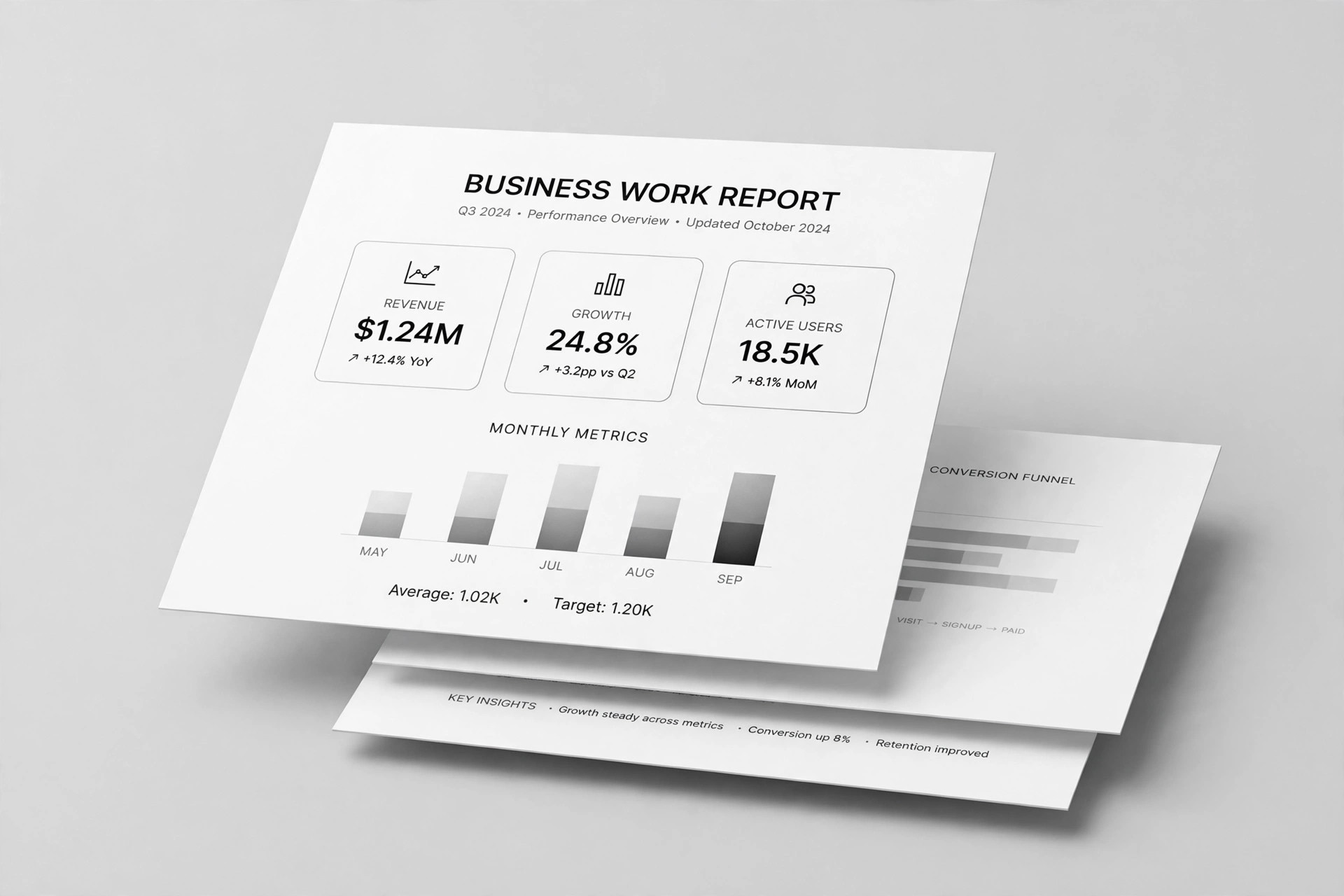
Mint Marker Deck
A mint canvas with marker emphasis — slides that feel like a good whiteboard.
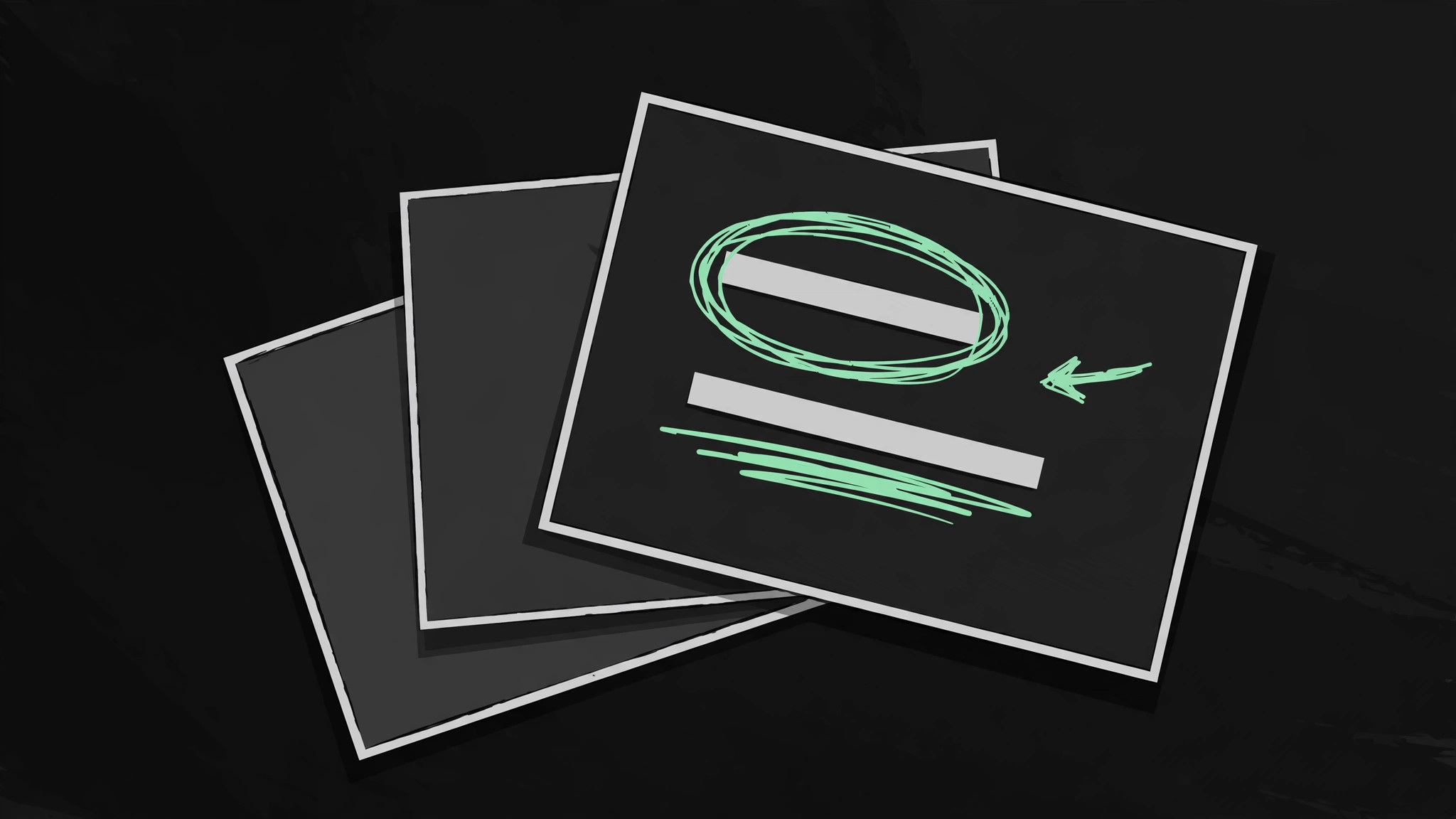
Turns your AI into a presentation-deck designer — builds a slide deck in a fresh mint palette with hand-drawn marker accents: circled key words, underlined numbers, and arrows that point at what matters.
Install it in 3 steps
No sign-up. No CLI tools. Pick your AI, copy one line, paste it over.
Prefer doing it yourself? Buy the skill ($4.99), download the ZIP from your checkout confirmation, unzip it into the directory shown above, restart your AI session — same result. Already bought it? Your AI assistant can download it for you.
What’s inside
One SKILL.md (the playbook) + one starter template. A preview:
Mint Marker Deck
When to use
- You need a pitch, update, or lesson deck that feels human and approachable instead of corporate and templated
- A standard slide deck reads as flat and forgettable, and you want a visual voice — marker annotations over a clean mint canvas
- You are presenting to a small room (team, classroom, investor meeting) where a hand-drawn feel builds warmth and attention
- A workshop or training deck needs slides that look like a good whiteboard: clear structure, emphasis you can see, nothing fussy
- You have solid content but no designer, and need a deck with one consistent look you can build in an afternoon
Workflow
- Outline the story before opening slides (input: your message → output: a slide outline)
Write the deck as a list of one-line slide ideas before designing anything: one idea per slide, in the order you will say them. A 10-minute talk is roughly 8–12 slides; a 30-minute pitch, 12–18. Every slide earns its place by carrying one idea the audience must remember — if two slides say the same thing, merge them; if a slide says nothing new, cut it. The outline is the deck; the slides are just its visual form. - Set the mint canvas (input: outline → output: the deck's visual system)
Define the look once and reuse it on every slide: a soft mint background (light, easy on the eyes), near-black ink for text, one deeper mint or teal for emphasis, and a hand-drawn marker style for annotations — slightly rough circles, underlines, arrows, and checkmarks in a contrasting marker color. Pick two typefaces at most: one bold, friendly sans for headlines and one plain sans for body. Every slide uses the same margins, the same title position, and the same footer — consistency is what makes a hand-drawn style look deliberate instead of messy. - Build slides as one idea + one annotation (input: outline + visual system → output: slide drafts)
Each slide carries one idea and at most one marker annotation: a circled key word, an underlined number, an arrow from cause to effect, a checkmark beside the conclusion. The annotation is the slide's emphasis — it tells the audience where to look, the way a teacher's marker does on a whiteboard. If a slide needs two circles, an arrow, and a starburst, the slide is carrying two ideas: split it. Body text stays short (a headline, up to three short lines or one small visual); the spoken talk carries the detail, not the slide.
Template preview
Mint Marker Deck — Deck Template
A fresh mint canvas with hand-drawn marker emphasis. One idea per slide, one annotation per slide.
Talk
Topic: {what this deck is about} Audience: {who is in the room} Length: {minutes} → roughly {8–12 slides per 10 min}
Visual system (set once, reuse everywhere)
- Background: soft mint {hex}
- Ink: near-black {hex}
- Emphasis: deeper mint / teal {hex}
- Marker: {contrasting marker color + rough hand-drawn style}
- Headline typeface: {one bold, friendly sans}
- Body typeface: {one plain sans}
- Layout: same margins, title position, and footer on every slide