Orbit Admin Dashboard
すべてのモジュールが、ひとつのライブステータスハブを周回するダッシュボード。
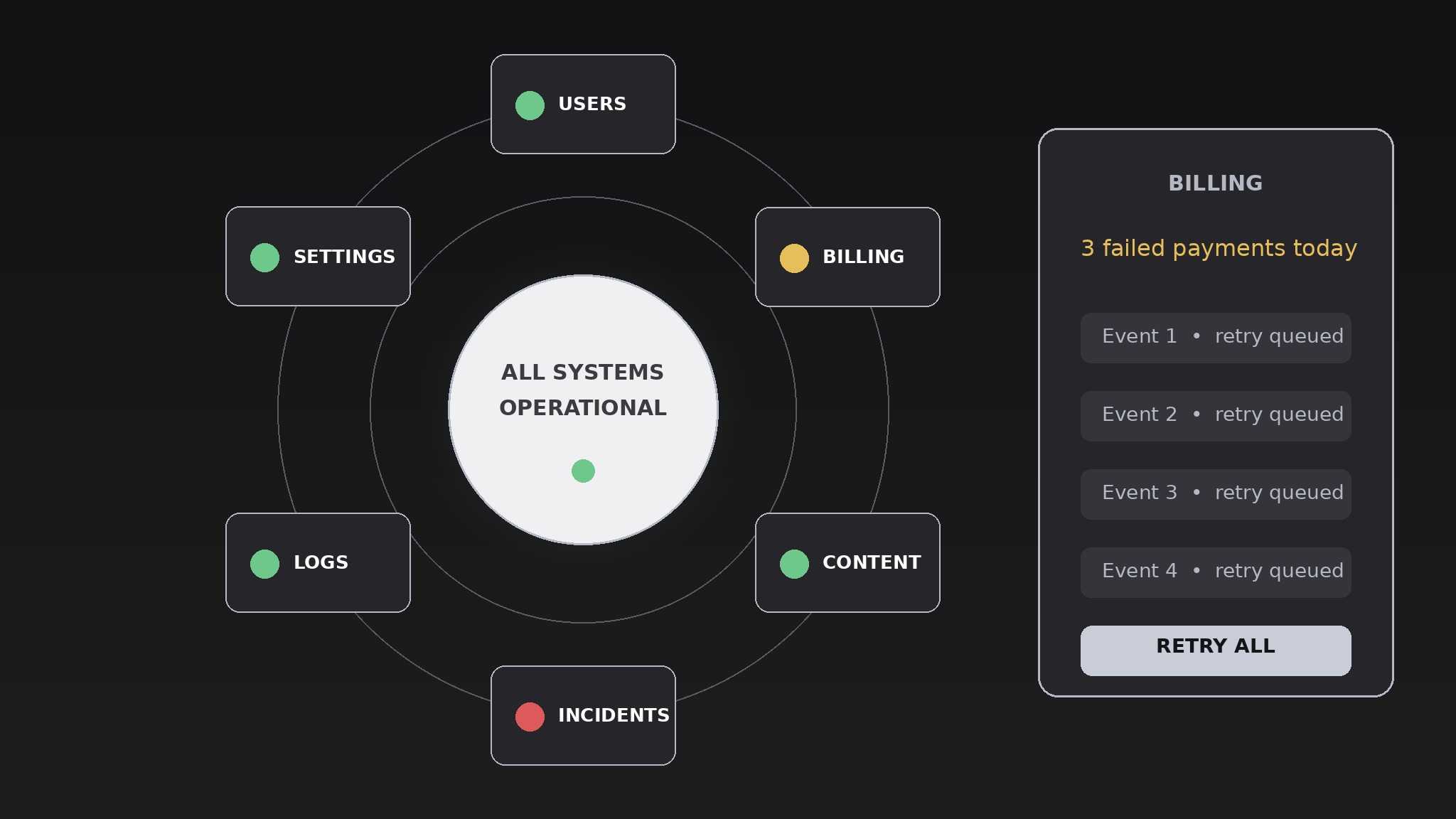
AIがダッシュボードデザイナーになります。監視モジュールを中央のライブステータスハブの周りに配置し、管理者がまずシステムの健全性を確認し、文脈を見失わずに各モジュールを掘り下げられるようにします。
3ステップでインストール
登録不要。CLIツールも不要です。お使いのAIを選んで、1行コピーして貼るだけです。
ご自分で入れたい場合は、スキルを購入($4.99)し、購入完了画面からZIPをダウンロードして、上のディレクトリに展開し、AIのセッションを再起動してください。結果は同じです。すでに購入済みの場合は、AIアシスタントにダウンロードしてもらうこともできます。
パックの内容
SKILL.md(手順書)1点とスターターテンプレート1点が入っています。プレビューはこちらです:
Orbit Admin Dashboard
When to use
- You're designing an admin console for a product and the first screen is currently a wall of tables nobody reads
- Admins keep missing outages because the health signal is buried three clicks deep
- Your dashboard has grown to a dozen modules and navigation has become a scavenger hunt
- You need one screen that answers "is everything OK?" in three seconds and "what exactly is wrong?" in two clicks
- You're redesigning an existing admin panel and want a layout that scales as modules get added
Workflow
- Name the hub metric (input: what the product does → output: one hub status)
Pick the single status the hub shows: overall system health, active incidents, or the one number the business lives by (orders flowing, users online, jobs queued). The hub is one glanceable answer, not a dashboard-in-miniature — a green/amber/red state, a headline number, and a one-line note ("2 incidents open, both acknowledged"). If you can't pick one hub metric, the product's priorities aren't settled yet, and no layout will fix that. - Sort modules by urgency (input: all admin modules → output: ranked module list)
List every module the dashboard needs — users, billing, content, incidents, logs, settings, analytics — and rank them by how often an admin opens them in a hurry. The top four to six become the orbit ring; the rest become a secondary shelf or a menu. A module nobody opens in a hurry doesn't earn a permanent orbit slot, however important it feels in a planning meeting. - Design the orbit layout (input: ranked module list → output: layout spec)
Place the hub at the center and the orbit modules around it in a ring, ordered by urgency clockwise from the top. Each orbit module shows its own mini-status (a count, a sparkline, a dot) so the ring itself is informative — an admin should spot the one red module without clicking anything. Keep the ring to six modules maximum; beyond that the orbit becomes a crowded carousel and the glance value collapses. The layout spec states the hub content, the ring order, what each module's mini-status shows, and the behavior at narrow widths (ring collapses to a stacked list, hub stays pinned to the top). - Define drill-down behavior (input: layout spec → output: interaction spec)
Clicking an orbit module opens its detail panel beside the hub — never as a full-page replacement that hides the hub. The hub stays visible so the admin never loses the overall picture while investigating one module. Define the return path too: one click (or the Escape key) closes the panel and restores the ring. Every detail panel gets the same three-part shape — current state, the five most recent events, and the one or two actions admins actually take — so no module feels like a different product. - Stress-test with real data (input: interaction spec + real data → output: verified dashboard design)
Render the design with the ugliest real data you have: a module with zero events, a module with 400 alerts, a 40-character username, an incident title that runs three lines. The orbit must survive all of them without overlapping, truncating meaning away, or pushing the hub off screen. Test the all-red state too — if three modules go red at once, the design must still show which one is worst, not just paint everything the same alarming color.
テンプレートのプレビュー
Orbit Admin Dashboard — Design Template
One hub, one ring. Fill in the hub before placing any module.
Hub
Hub status: {overall system health / open incidents / the one number the business lives by} Hub states: 🟢 {what green means} / 🟡 {what amber means} / 🔴 {what red means} Headline number: {number + label} One-line note: {e.g. "2 incidents open, both acknowledged"}
Module ranking (by how often an admin opens it in a hurry)
Orbit ring (max 6): {modules 1–6, in urgency order clockwise from top} Secondary shelf: {remaining modules + how they're reached}
Orbit layout
スキルパック本体(SKILL.md とテンプレート)は英語で書かれています。