Fashion Show OG Image
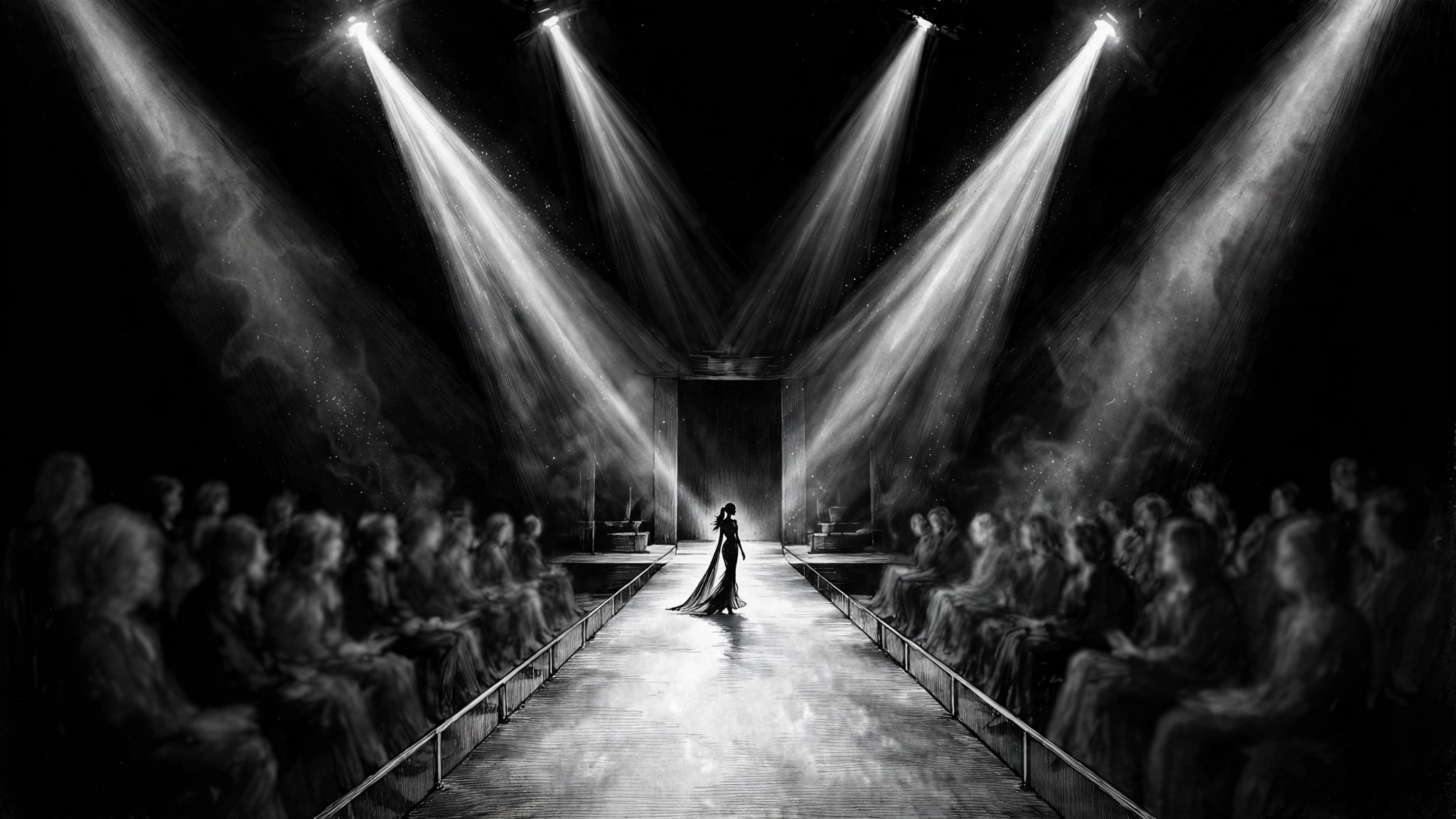
Der Laufsteg-Shot, der auch in Miniaturgröße lesbar bleibt.
Verwandelt Ihre KI in einen Social-Preview-Designer — erstellt ein 1200×630 Fashion-Show-OG-Bild aus Ihrem Event-Namen, Datum und Hero-Foto, mit lesbarer Schrift in Miniaturgröße und Safe-Area-Rändern, die jeden Plattform-Zuschnitt überstehen.
In 3 Schritten installieren
Keine Anmeldung. Keine CLI-Tools. Wählen Sie Ihre AI, kopieren Sie eine Zeile und fügen Sie sie ein.
Lieber selbst machen? Kaufen Sie den Skill ($4.99), laden Sie die ZIP-Datei aus Ihrer Kaufbestätigung herunter, entpacken Sie sie in das oben angezeigte Verzeichnis und starten Sie Ihre AI-Sitzung neu — gleiches Ergebnis. Haben Sie ihn schon gekauft? Ihr AI-Assistent kann ihn für Sie herunterladen.
Was ist enthalten
Eine SKILL.md (die Anleitung) + eine Startvorlage. Eine Vorschau:
Fashion Show OG Image
When to use
- You are announcing a fashion show, runway event, or collection presentation and the link preview is the first thing people see
- A lookbook or show page keeps getting shared with a blank gray box or a randomly cropped photo
- You are promoting ticket sales and the date and venue keep getting cut off in messaging-app previews
- A collection drop announcement needs one image that works on social feeds, chat apps, and search results alike
- You have a great runway photo but the model's face or the headline text gets cropped by the platform
Workflow
- Collect the raw ingredients (input: event name, date, venue, one hero photo, optional ticket link → output: ingredient sheet)
Gather exactly five things before any design starts: the event name as it should appear, the date and time, the venue or city, one hero photo (a runway shot with clear space around the subject works best), and the one link the preview must point to. Write them down in one place and check the spelling of every name — a typo baked into an image cannot be clicked or corrected later. If the hero photo is low resolution or the subject touches the frame edge, pick a different photo now; no layout trick fixes a bad source image. - Pick the composition (input: ingredient sheet → output: layout choice)
Choose one of three layouts and commit to it: full-bleed photo with a dark bottom band for text, a split panel with photo on one side and a solid color block for text on the other, or a centered photo card on a solid background. Full-bleed suits strong runway shots; split panels suit long event names; centered cards suit photos with busy backgrounds. The choice is driven by the photo and the length of the event name, not by taste — a long name on a full-bleed photo will fight the image for space. - Set the type (input: layout choice → output: type-locked draft)
Set the event name largest, the date and venue second, and anything else smallest — one size step per level, no more than three text sizes total. Keep all text inside the central safe area (roughly the middle 90% of the width and the middle 80% of the height) so platform crops never eat a letter. Use a high-contrast pairing: light text on a darkened photo area, or dark text on a light solid block. If the text is hard to read at a glance, darken the photo behind it or move the text onto the solid block — never add a drop shadow and call it done. - Check the crops (input: type-locked draft → output: crop-proof image)
Preview the draft at full size, at 240 pixels wide (roughly a chat-app thumbnail), and in a simulated square-ish crop, because different platforms trim the edges differently. Check three things at every size: the event name is still readable, no face is cut in half, and the date is not clipped. If anything fails, adjust the layout — shrink the photo's crop box, move the text band, or shorten the event name — and re-check. A preview that only looks right at full size is a preview that fails everywhere it actually appears. - Export and ship (input: verified draft → output: final JPG plus alt text)
Export at exactly 1200×630 pixels as a JPG, keeping the file under roughly 300 KB so it loads fast in feeds. Name the file after the event and date so it can be found again. Write one line of alt text that states the event name, date, and venue for screen readers and for platforms that show alt text when the image fails. Then paste the link into a chat or a fresh post and look at the actual preview before announcing anything — the live preview is the only test that counts.
Vorschau der Startvorlage
Fashion Show OG Image — Brief Template
Fill this in before any design starts. One event = one brief.
Event
Event name (as it should appear): {event name} Date and time: {date, time} Venue / city: {venue, city} Link the preview must point to: {URL}
Hero photo
Photo file: {filename} Why this photo: {runway shot / detail / portrait — what makes it the hero} Check: [ ] Subject has clear space around it · [ ] No face touching the frame edge · [ ] High enough resolution for 1200×630
Layout (pick one)
- [ ] Full-bleed photo with dark bottom band for text
- [ ] Split panel — photo one side, solid color block for text on the other
Das Skill-Paket selbst (SKILL.md + Vorlage) ist auf Englisch verfasst.