AI Services Market › スキルファクトリー › 動画 › Status Focus Sidebar
$4.99 · サインイン不要v1.0.0– 回表示
Status Focus Sidebar
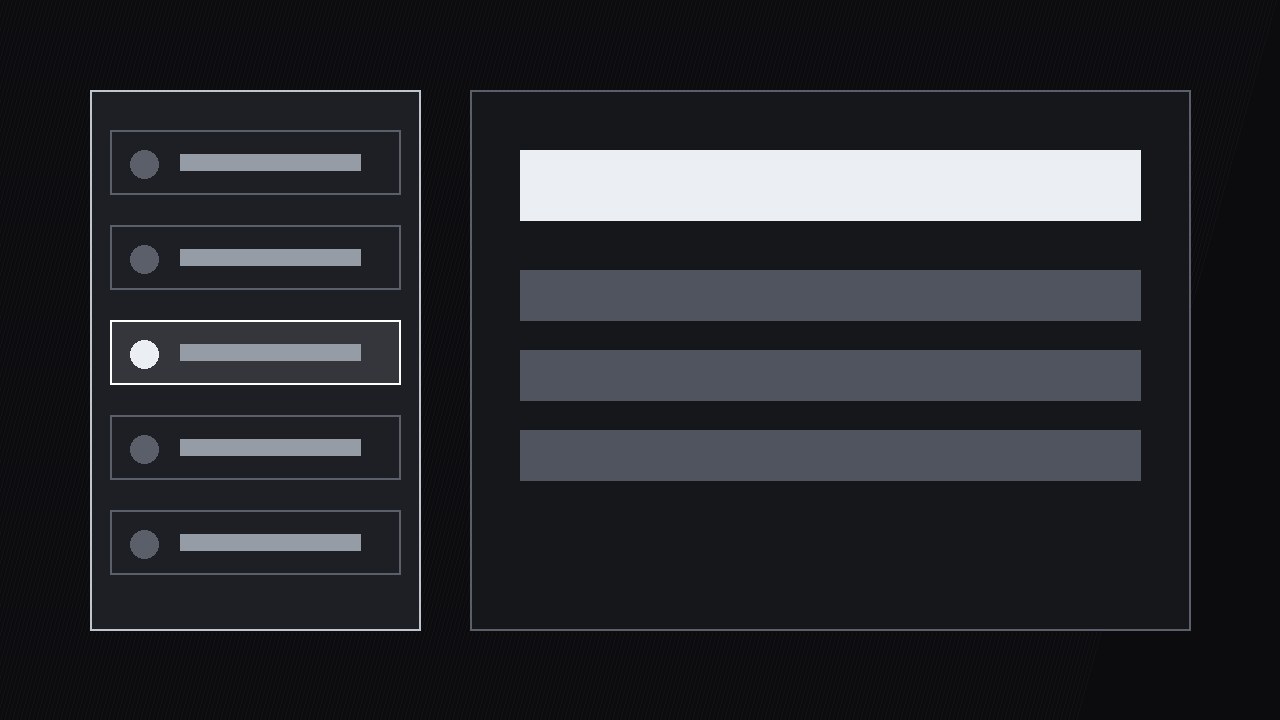
ひとつの項目にフォーカスしながら、リスト全体が常に見え、誰も現在地を見失いません。
ステータスリストをガイド付きツアーに変えます。サイドバーが全項目のステータスを追跡し、メインビューがひとつずつ項目へズームインするので、視聴者は常に現在地と残りが分かります。
こんな方におすすめ
長いステータスリストを持つプロジェクトリーダーと進捗動画制作者
所要時間
30分
レベル
中級
3ステップでインストール
登録不要。CLIツールも不要です。お使いのAIを選んで、1行コピーして貼るだけです。
ご自分で入れたい場合は、スキルを購入($4.99)し、購入完了画面からZIPをダウンロードして、上のディレクトリに展開し、AIのセッションを再起動してください。結果は同じです。すでに購入済みの場合は、AIアシスタントにダウンロードしてもらうこともできます。
パックの内容
SKILL.md(手順書)1点とスターターテンプレート1点が入っています。プレビューはこちらです:
Status Focus Sidebar
When to use
- You're walking through a project update with 8–20 items — tasks, tickets, servers, orders — and a flat list makes viewers lose their place by item four
- You're presenting a dashboard where each row needs a moment of explanation, but the audience also needs the whole list in view to judge the overall health
- Your video reviews a queue (support tickets, bug backlog, shipments) and the story is "here's the one that matters, and here's where it sits among the rest"
- You're recording a standup-style update where each item has a status and an owner, and viewers need to follow along without rewinding
- You want a consistent status-review format across weekly updates so regular viewers can skim to the items that changed
Workflow
- Build the status list (input: items + statuses → output: sidebar list)
List every item with three fields: name, status (one of a fixed set — on track, at risk, blocked, done), and owner or next action. Fix the status vocabulary before building: four statuses maximum, each with a distinct shape (dot, triangle, square, check) as well as a distinct shade. Sort the list by the order you'll discuss it — usually blocked first, then at risk, then on track, then done — not by creation date. Cap the list at 20 items; beyond that, split the review into two videos or group items under headers. A sidebar with 47 rows is a spreadsheet, not a guide. - Lay out the sidebar (input: status list → output: sidebar layout)
The sidebar sits on one side (left for left-to-right audiences is the safe default) at 28–34% of frame width, full height, with rows tall enough to read at a glance (minimum 44 px row height at 1080p). Each row shows the status mark, the item name (one line, truncated with ellipsis if needed), and nothing else — owners and details live in the main view, not the sidebar. The sidebar stays on screen for the entire review: it is the map, and a map that disappears mid-journey is useless. Keep the sidebar background a flat dark panel with a 1 px divider from the main view so the two zones never bleed into each other. - Focus one item at a time (input: sidebar + item details → output: focus transitions)
When the voiceover moves to an item, three things happen in sequence over 0.6s: the sidebar row highlights (background lightens, status mark scales up 120%, a thin focus bar slides in at the row's edge), the main view cross-fades to that item's detail (chart, screenshot, or detail card), and the item's name appears as a header in the main view. One item in focus at a time, always. The highlight moves down the list as the review progresses, so a viewer who looks away for ten seconds can rejoin by finding the highlighted row. Never highlight two rows at once, and never leave the highlight on the previous item while discussing the next — a stale highlight is a wrong map. - Update statuses live (input: focus transitions → output: status-change animations)
When an item's status changes during the review — a blocked item gets unblocked, an at-risk item is resolved — animate the change in the sidebar, not just in the voiceover. The old status mark flips out (0.2s scale-down + fade) and the new one flips in (0.2s scale-up from 80%), with the row flashing once (background brightens for 0.3s then settles). The change happens at the moment the voiceover announces it, and the row keeps a small "updated" tick for the rest of the video so viewers scanning the list can see what moved. If nothing changed since last week, say so — a review where every status is identical to last time is still useful, but only if the video admits it. - Summarize with the sidebar (input: reviewed items → output: 3–4s summary frame)
At the end, pull back to the full sidebar with all final statuses visible, and overlay a one-line summary in the main view: counts by status ("3 blocked · 2 at risk · 8 on track · 4 done") plus the single most important next action. Hold for 3–4s. The summary is the screenshot moment — the frame viewers capture to remember the review. Don't add new information here: the summary restates what the review already showed, in the sidebar's own language. - Carry the format across episodes (input: finished review → output: reusable template)
Save the sidebar layout, status shapes, highlight animation, and summary format as a template. Next week's review reuses it with only the list contents changed. Returning viewers should be able to read the second episode's sidebar without relearning anything — the format is the product, and consistency compounds: by episode four, viewers skim your sidebar the way they skim a news homepage.
テンプレートのプレビュー
Status Focus Sidebar — Review Template
One list per review. Fill in the list before animating.
Review: {title} | Date: {date} | Previous review: {link / "first episode"}
Status vocabulary (frozen across episodes — max 4)
Rule: shape + shade together, never color alone.
Sidebar list (max 20, sorted: blocked → at risk → on track → done)
Sidebar layout: {left, 28–34% width, full height, flat dark panel + 1 px divider, rows ≥44 px}
Focus transitions (per item)
Rule: one item in focus at a time; highlight moves with the voiceover, never stale.
Status changes during the review
Closing summary (hold 3–4s, screenshot moment)
スキルパック本体(SKILL.md とテンプレート)は英語で書かれています。


