AI Services Market › スキルファクトリー › 動画 › Slide Focus Presenter
$4.99 · サインイン不要v1.0.0– 回表示
Slide Focus Presenter
スライドが教え、プレゼンターは映り続け、視線の行き先が明確です。
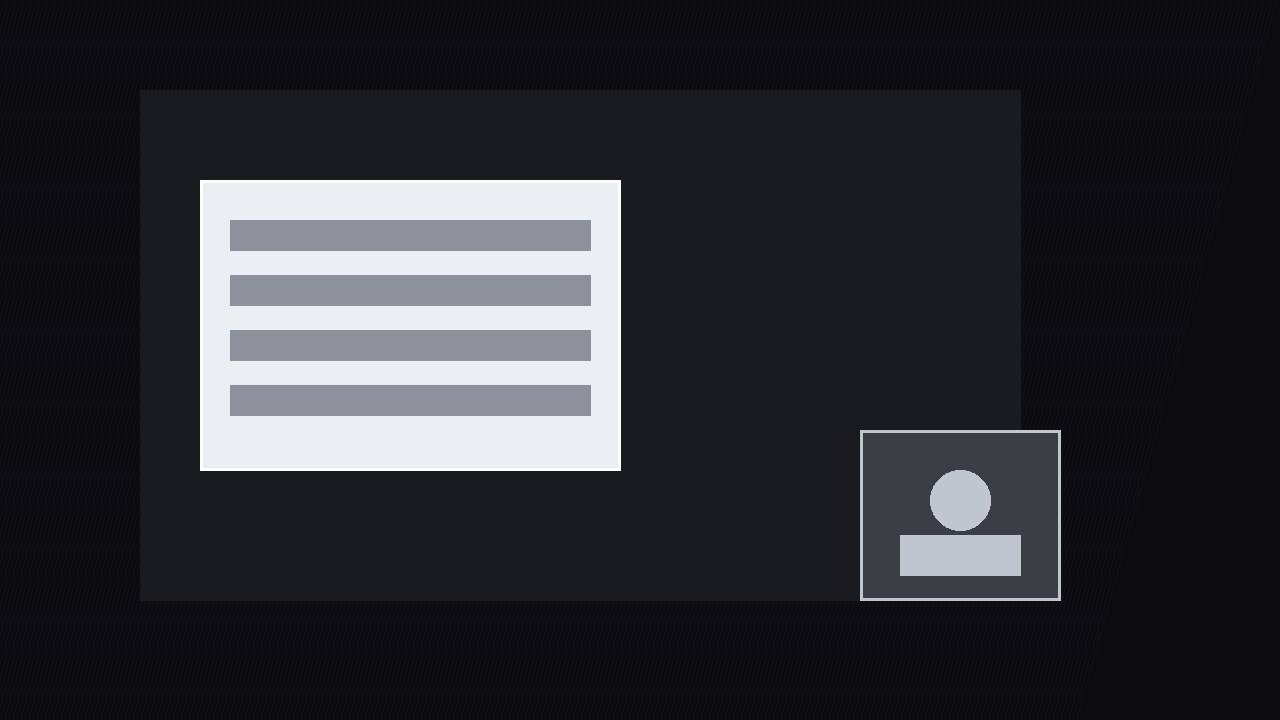
スライドが教える間もプレゼンターを表示し続けます。スライドはひとつのフォーカス領域以外が暗くなり、プレゼンターの映像は重要な部分を決して覆わない隅でライブに保たれます。
こんな方におすすめ
スライドの多い動画を持つプレゼンターとコース制作者
所要時間
30分
レベル
初心者向け
3ステップでインストール
登録不要。CLIツールも不要です。お使いのAIを選んで、1行コピーして貼るだけです。
ご自分で入れたい場合は、スキルを購入($4.99)し、購入完了画面からZIPをダウンロードして、上のディレクトリに展開し、AIのセッションを再起動してください。結果は同じです。すでに購入済みの場合は、AIアシスタントにダウンロードしてもらうこともできます。
パックの内容
SKILL.md(手順書)1点とスターターテンプレート1点が入っています。プレビューはこちらです:
Slide Focus Presenter
When to use
- You're recording a slide-heavy lesson and the usual choice — full-screen slides with no face, or tiny slides beside a talking head — both feel wrong
- Your slide has one chart or diagram that matters and the rest is context; you want the audience's eye on that one region while you talk about it
- You're presenting remotely and the audience keeps asking "which number are you talking about?" because your cursor is the only pointer
- Your deck is dense (a dashboard screenshot, a comparison table) and you need to walk viewers through it region by region without rebuilding the deck
- You want a consistent presenter-plus-slide layout across a course so viewers always know where to look
Workflow
- Mark the focus region (input: slide + script → output: one focus rectangle per beat)
For each spoken beat, draw exactly one rectangle around the region you're discussing — one chart, one table row group, one diagram quadrant. The rectangle should cover 15–40% of the slide: smaller and the audience can't read it, larger and the "focus" is meaningless. If a beat genuinely needs two regions, split it into two beats. Write the focus rectangles into the script as stage directions ("[focus: Q3 bar]") so the edit follows the words instead of guessing. - Dim everything else (input: focus rectangle → output: 0.0–0.5s dim animation)
Everything outside the focus region dims to 35–45% brightness over 0.4s with an ease-out curve, while the focus region stays at full brightness with a 2 px silver border that fades in over the same 0.4s. The dim is a scrim, not a blur — blur makes viewers think the video broke. Keep slide text outside the focus region still faintly readable: the dim should say "not now," not "deleted." When the beat ends, the dim lifts over 0.3s before the next focus region lands — never snap directly from one focus to another, or the eye gets whiplash. - Place the presenter (input: slide layout + focus region → output: presenter position per beat)
The presenter's video sits in a rounded-corner box (16:9 or 4:3, ~22–28% of frame width) in the corner farthest from the current focus region — focus top-left means presenter bottom-right. The presenter box never overlaps the focus region, and never covers slide text that the script references. Add a 2 px border and a soft drop shadow so the box reads as a layer above the slide, not a hole in it. If the focus region moves to the presenter's corner, the presenter box glides to the opposite corner over 0.5s — one smooth move, announced by the dim lifting first so the move doesn't fight the focus change. - Sync the pointer (input: presenter position + focus region → output: pointer moves matched to speech)
The presenter's job during a focus beat is to point, not to perform. A cursor highlight, a hand gesture toward the focus region, or a brief underline animation on the key number — one pointer at a time. The pointer lands within 0.3s of the spoken reference ("this 18% jump") and holds still while the number is discussed. A pointer that circles, wiggles, or chases the presenter's own handwriting is worse than no pointer: it teaches viewers to ignore pointers. - Handle transitions between slides (input: focus beats → output: slide-change choreography)
On a slide change, cut the presenter box to its new corner first (if it moves), then fade the new slide in under the dim over 0.3s, then land the first focus region. Three steps in that order, each under half a second — the audience should feel one continuous move, not three edits. Never change slide, focus region, and presenter position on the same frame; staggering them is what makes the layout feel calm. - Close with full slide + full presenter (input: finished beats → output: 1–2s closing frame)
At the end of each slide's beats, lift the dim completely for 1–2s so viewers see the whole slide once with context restored, presenter still in the corner. This is the "now you've seen the parts, here's the whole" beat, and it prevents the common complaint that focus-style videos never show the full picture. Then cut to the next slide.
テンプレートのプレビュー
Slide Focus Presenter — Focus Map Template
One row per spoken beat. Fill in the focus map before editing.
Video: {title} | Slide deck: {file}
Presenter box size: {22–28% of frame width} | Border: {2 px + soft shadow} | Corners: {rounded}
Focus map
Dim settings
Outside focus: {35–45% brightness} | Dim in: {0.4s ease-out} | Dim lift: {0.3s} Focus border: {2 px silver, fade in 0.4s} Dim style: {scrim — never blur}
Slide-change choreography (in this order)
- Presenter box moves to new corner (if needed): {0.5s glide}
- New slide fades in under dim: {0.3s}
- First focus region lands: {after fade}
スキルパック本体(SKILL.md とテンプレート)は英語で書かれています。


