Shortcut Target
ひとつのショートカット、ひとつのレティクル、真似できるひとつのキー操作。
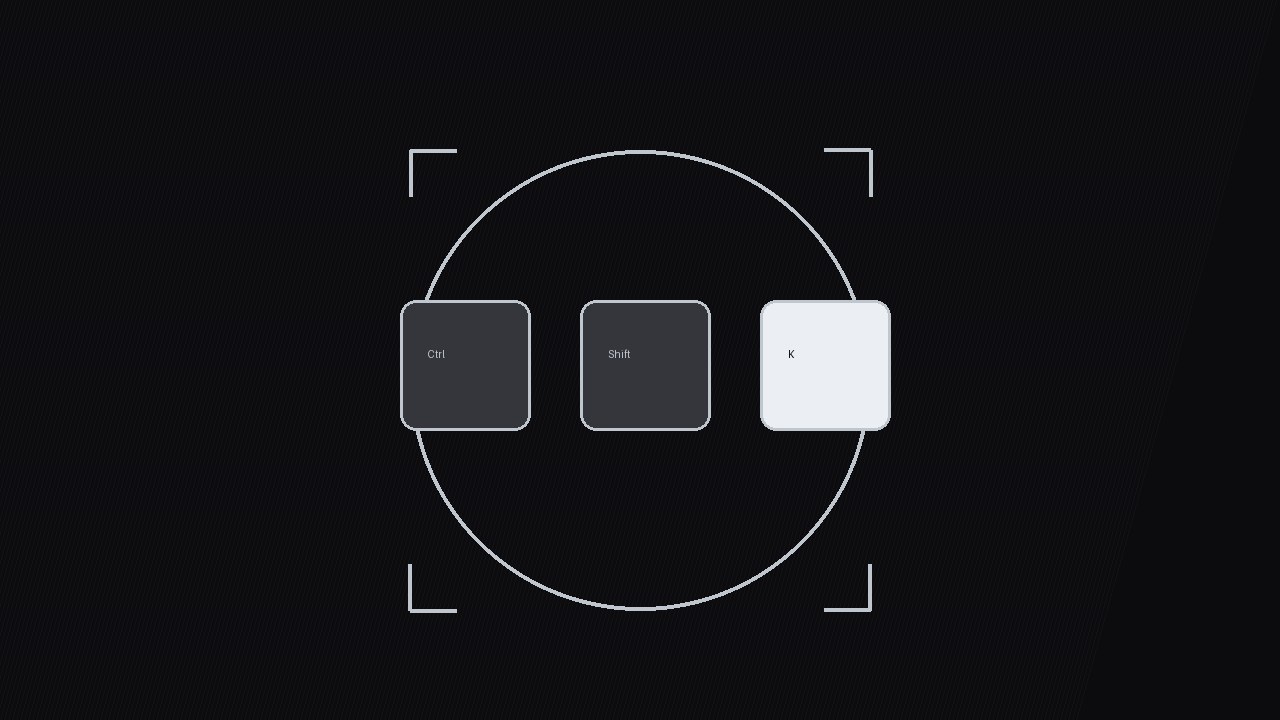
キーボードショートカットを、視聴者が実際に覚えられるモーショングラフィックスに変えます。照準レティクルがキーにロックオンし、キーが画面のアクションと同期して押され、ゴーストリプレイが身体の記憶を定着させます。
3ステップでインストール
登録不要。CLIツールも不要です。お使いのAIを選んで、1行コピーして貼るだけです。
ご自分で入れたい場合は、スキルを購入($4.99)し、購入完了画面からZIPをダウンロードして、上のディレクトリに展開し、AIのセッションを再起動してください。結果は同じです。すでに購入済みの場合は、AIアシスタントにダウンロードしてもらうこともできます。
パックの内容
SKILL.md(手順書)1点とスターターテンプレート1点が入っています。プレビューはこちらです:
Shortcut Target
When to use
- You're recording a software tutorial and the shortcut is the whole point — "press Cmd+Shift+K" — but viewers miss it because it flashes by in a caption
- Your screen recording shows a menu action that takes three clicks, and you want to teach the one-key alternative instead
- You're making a "5 shortcuts you didn't know" video and every shortcut needs the same crisp, repeatable treatment so viewers can compare them
- Your audience is beginners who need to see which fingers go where, not just which letters appear on screen
- You want a reusable shortcut-callout style that stays consistent across a whole tutorial series
Workflow
- Pick the shortcut and its payoff (input: the action you teach → output: one shortcut + one payoff sentence)
One graphic = one shortcut. Write down the exact keys (including modifiers, in the order fingers press them: modifiers first, then the action key), the platform variant if it differs (Cmd on Mac, Ctrl on Windows), and the payoff in one sentence: "Deletes the whole line, no selecting." If the shortcut has no visible payoff on screen, pick a different demo clip — the payoff shot is what makes the graphic teach instead of decorate. - Stage the keys (input: shortcut + payoff → output: key layout with press order)
Lay out the keys left to right in press order, modifiers first:⌘⇧K. Modifier keys get a slightly muted fill; the action key gets the bright treatment because it's the one viewers must remember. Keycap size: minimum 72 px tall at 1080p so the letter is readable on a phone. Spacing between keycaps: 16–24 px — tight enough to read as one chord, loose enough that each key is distinct. Add a small finger hint under the action key only if your audience is absolute beginners ("right index finger") — otherwise skip it, it clutters the frame. - Lock the reticle (input: key layout → output: 0.0–0.8s reticle animation)
The signature move: a thin targeting reticle (circle + four corner ticks) scales down from 140% to 100% and settles around the key cluster over 0.5s with an ease-out cubic curve, with a faint ring pulse at the moment of lock (0.3s, fading from 40% to 0% opacity). The reticle arrives 0.2s before the keys press — it tells the eye where to look before anything happens. Never let the reticle drift after lock; a locked target that wobbles reads as a mistake. Keep the reticle stroke at 2–3 px, silver/white on dark, so it reads as a UI element, not decoration. - Press the keys in sync (input: locked reticle + demo clip → output: 0.8–2.0s press animation)
Animate the press in two beats: modifiers dip first (translate down 6 px + brightness drop, 0.12s), then the action key dips harder (translate down 10 px + a 0.15s glow pulse) at the exact frame the on-screen action happens. The on-screen action — the line deleting, the panel opening — must land within ±2 frames of the action-key dip, or viewers will feel the disconnect even if they can't name it. Hold the pressed state for 0.25s so the eye registers it, then release all keys together over 0.2s with a soft ease-out. Add a subtle keystroke click sound at the dip frame, at −18 dB under the voiceover — audible but never competing. - Ghost-replay the chord (input: press animation → output: 2.0–3.5s replay strip)
Immediately after the live press, run a ghost replay: the same key cluster replays at 60% opacity and 1.25× speed in a smaller strip (bottom third or corner), with a "try it" label. This is the learning beat — viewers who missed the first press get a second, quieter chance without rewinding. The ghost replay runs exactly once, then fades. Never loop it: a looping replay turns a teaching moment into a screensaver. - Tag and file (input: finished graphic → output: captioned, filed clip)
Burn in the shortcut as text beside the keys for the full duration (⌘⇧K — Delete line), because many viewers watch muted or screenshot the frame. File the clip under the shortcut's name, not the video's name, so you can reuse it:shortcut-target_cmd-shift-k.mp4. If the same shortcut appears in a later video, reuse this exact clip — consistency is what turns one graphic into a series language.
テンプレートのプレビュー
Shortcut Target — Graphic Template
One shortcut per graphic. Fill in every field before animating.
Shortcut: {⌘/Ctrl + ⇧ + key} — {payoff in one sentence}
Platform: {Mac / Windows / both — show variant if both} Demo clip: {file / timestamp — the action the shortcut triggers} Payoff shot: {what the viewer sees when it works, e.g. "whole line deletes"}
Key layout (press order, left → right)
Keycap size: {≥72 px tall at 1080p} | Gap: {16–24 px} Finger hint (beginners only): {e.g. "right index finger" / none}
Animation timing
Keystroke click: {at dip frame, −18 dB under voiceover}
Burned-in caption
スキルパック本体(SKILL.md とテンプレート)は英語で書かれています。


