Ecommerce Platform OG Image
店名、本物の商品、正直なオファーひとつ。シェア先のどこでも読めます。
AIがSNSプレビューデザイナーになります。オンラインストアやECプラットフォーム向けに、店名、本物の商品写真、正直なオファーひとつを載せた1200×630のOG画像を作成し、すべてがサムネイルサイズで読めるようにします。

3ステップでインストール
登録不要。CLIツールも不要です。お使いのAIを選んで、1行コピーして貼るだけです。
ご自分で入れたい場合は、スキルを購入($4.99)し、購入完了画面からZIPをダウンロードして、上のディレクトリに展開し、AIのセッションを再起動してください。結果は同じです。すでに購入済みの場合は、AIアシスタントにダウンロードしてもらうこともできます。
パックの内容
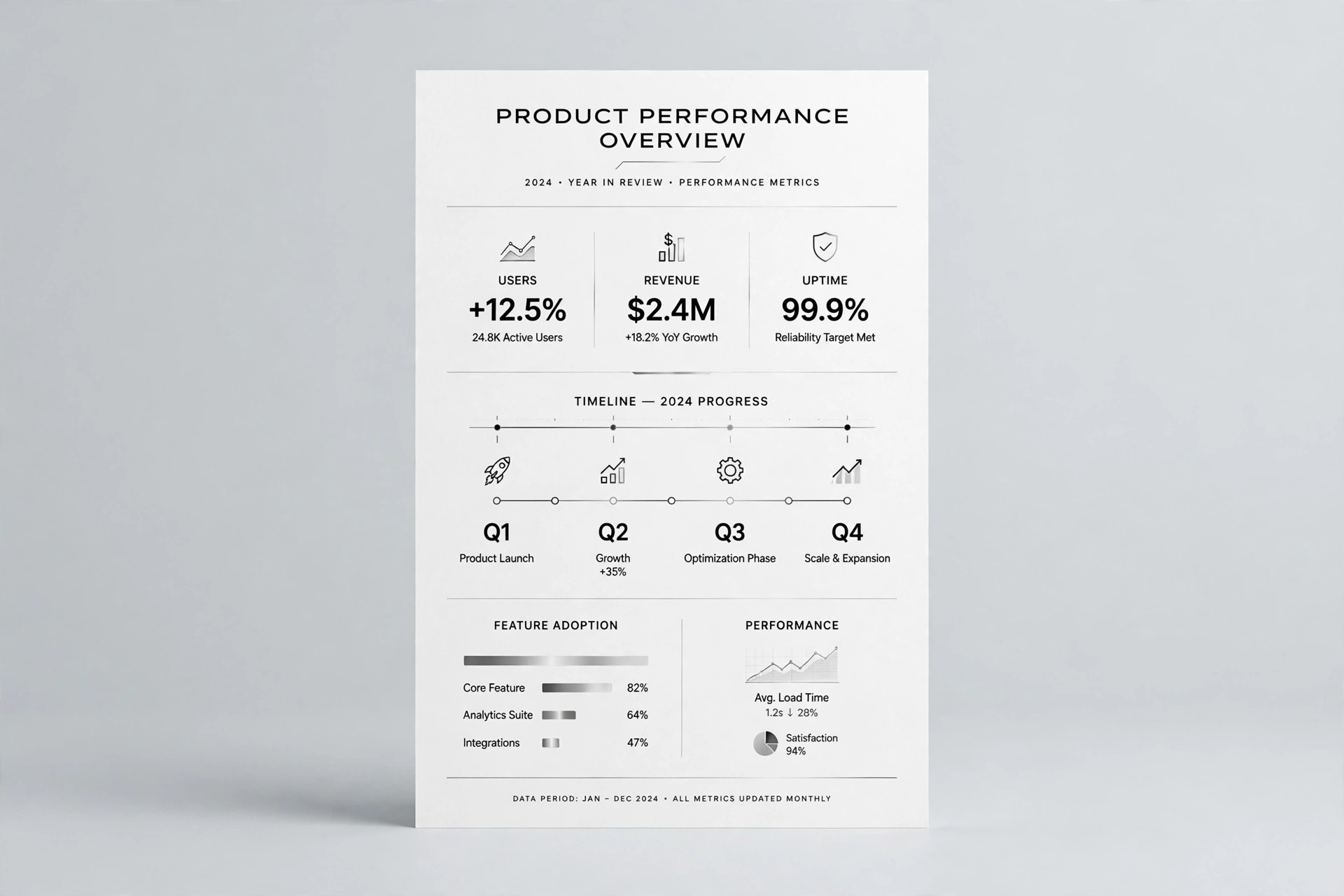
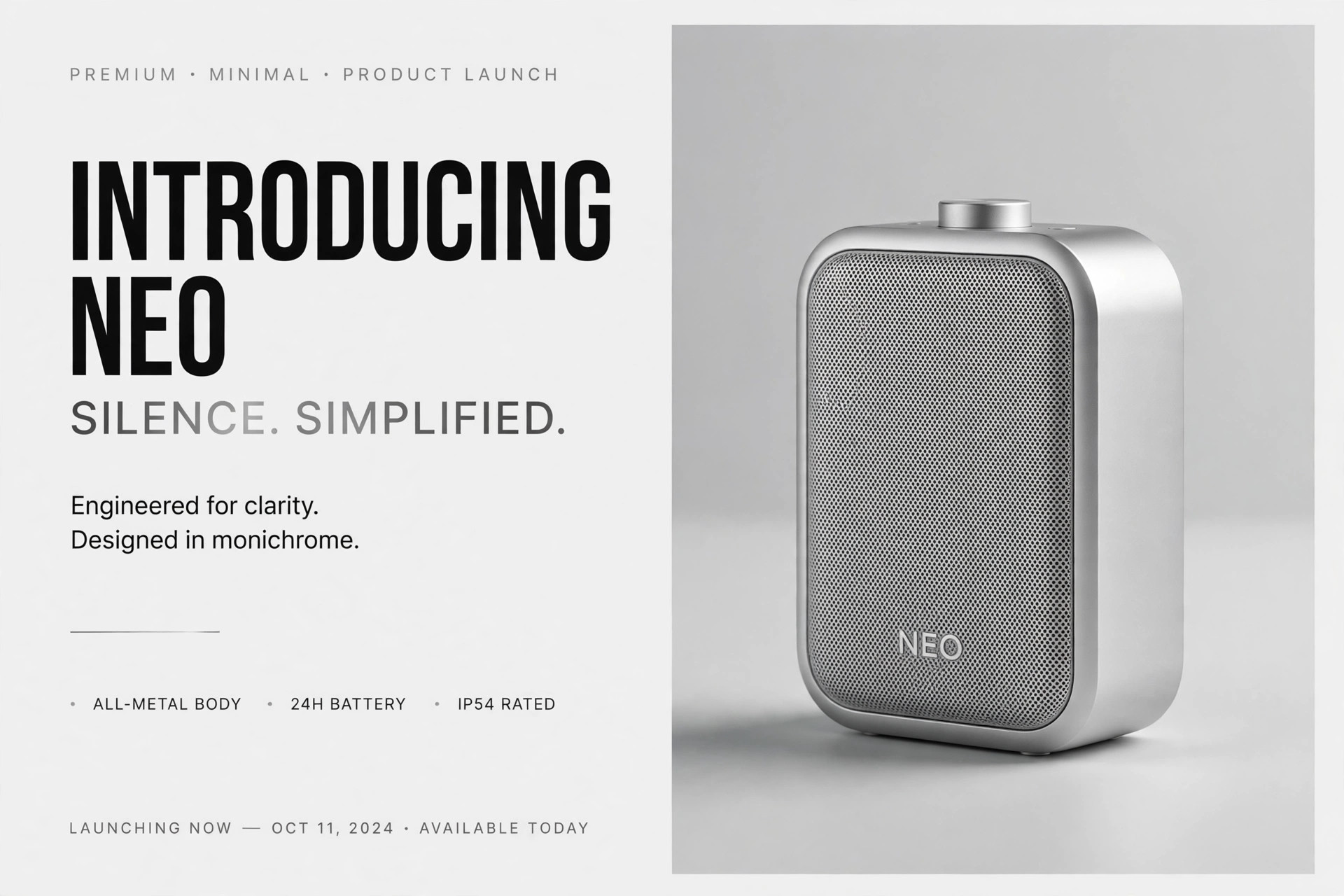
SKILL.md(手順書)1点とスターターテンプレート1点が入っています。プレビューはこちらです:
Ecommerce Platform OG Image
When to use
- Your online store's links get shared with a blank preview, a cropped logo, or a random product photo
- You are announcing a store launch, a sale, or a new product range and the link preview is doing the selling
- Shoppers in chat apps see your link before they see your site — the preview has to earn the click
- A marketplace or storefront page needs one image that works on social feeds, messaging apps, and search results
- A previous OG image cut off the store name, hid the product, or advertised an offer that had already ended
Workflow
- Collect the raw ingredients (input: store name, one product photo, offer details, link → output: ingredient sheet)
Gather four things before designing: the store name as it should appear, one product photo that represents what you sell, the single offer or message (if any), and the link the preview must point to. Write the offer exactly as it will be honored — "20% off orders over $50 until Sunday" is an offer; "Huge sale!" is not. Check the product photo: it must show the actual product you sell, in focus, with space around it. If the offer has conditions, note them now; they will appear on the page, and the image must not contradict them. - Pick the composition (input: ingredient sheet → output: layout choice)
Choose one of three layouts and commit: product photo on one side with a solid color block for text on the other, a full-bleed product photo with a dark band for text, or a centered product shot on a clean background with text underneath. Split panels suit long store names and offers with numbers; full-bleed suits a single striking product shot; centered shots suit small products that need a clean background to read. The product must stay fully visible in every layout — a half-cropped product photo reads as a mistake, not a design choice. - Set the type (input: layout choice → output: type-locked draft)
Set the store name largest, the offer or product name second, and any supporting line smallest — one size step per level, no more than three text sizes total. Keep all text inside the central safe area (roughly the middle 90% of the width and the middle 80% of the height) so platform crops never eat a letter or a digit. Prices and percentages get the most careful treatment: a clipped "2" in "20% off" becomes a different offer. If the text fights the photo, darken the photo behind the text or move the text onto the solid block — never shrink the price to fit a busy background. - Check the crops (input: type-locked draft → output: crop-proof image)
Preview the draft at full size, at 240 pixels wide (roughly a chat-app thumbnail), and in a simulated tighter crop, since platforms trim edges differently. Check at every size: the store name is readable, the product is recognizable, and the offer — if present — reads exactly as it will be honored. If anything fails, adjust the layout: widen the text block, pick a less busy photo, or shorten the offer line. A preview that only looks right at full size fails everywhere it actually appears. - Export and ship (input: verified draft → output: final JPG plus alt text)
Export at exactly 1200×630 pixels as a JPG, keeping the file under roughly 300 KB so it loads fast in feeds. Name the file after the store and the campaign so it can be found again. Write one line of alt text stating the store name and what the image shows, for screen readers and for platforms that show alt text when the image fails. Then paste the link into a chat or a fresh post and look at the actual preview before any campaign goes out — the live preview is the only test that counts. When the offer ends, replace the image the same day.
テンプレートのプレビュー
Ecommerce Platform OG Image — Brief Template
Fill this in before any design starts. One store or campaign = one brief.
Store
Store name (as it should appear): {store name} Link the preview must point to: {URL}
Product
Product photo file: {filename} What it shows: {actual product being sold} Check: [ ] Real product, in focus · [ ] Fully visible, not half-cropped · [ ] Space around it
Offer (if any — write it exactly as it will be honored)
Offer line: {e.g. 20% off orders over $50 until Sunday} Conditions (appear on the page, must not be contradicted by the image): {…} Offer ends: {date} — image will be replaced that day: [ ]
スキルパック本体(SKILL.md とテンプレート)は英語で書かれています。