Image Text Swap
Cambia le parole su qualsiasi immagine — senza file sorgente
Sostituisci il testo incorporato in un'immagine — un titolo su un poster, un'etichetta su uno screenshot, un prezzo su una grafica social — senza il file di progettazione originale. Il tuo assistente IA legge l'immagine, abbina font e sfondo, copre il vecchio testo, renderizza il nuovo con Python (Pillow) e verifica il risultato al 200% di zoom. Sostituzioni pulite su fondi piatti; rifiuti onesti su texture fotografiche complesse. Include un rapporto di sostituzione da compilare per tracciare ogni modifica.
Installala in 3 passaggi
Nessuna registrazione. Nessuno strumento da riga di comando. Scegli la tua AI, copia una riga e incollala.
Preferisci fare da te? Acquista la skill ($4.99), scarica lo ZIP dalla conferma d'acquisto, decomprimilo nella cartella mostrata sopra e riavvia la sessione della tua AI — stesso risultato. L'hai già acquistata? Il tuo assistente AI può scaricarla per te.
Cosa contiene
Un file SKILL.md (la guida operativa) + un modello di partenza. Un'anteprima:
Image Text Swap
The facts this skill runs on (verified 2026-11-01)
- The job is real and testable. Swapping text on a flat-background image was verified end to end with Python's Pillow (PIL): measure the old text's bounding box with
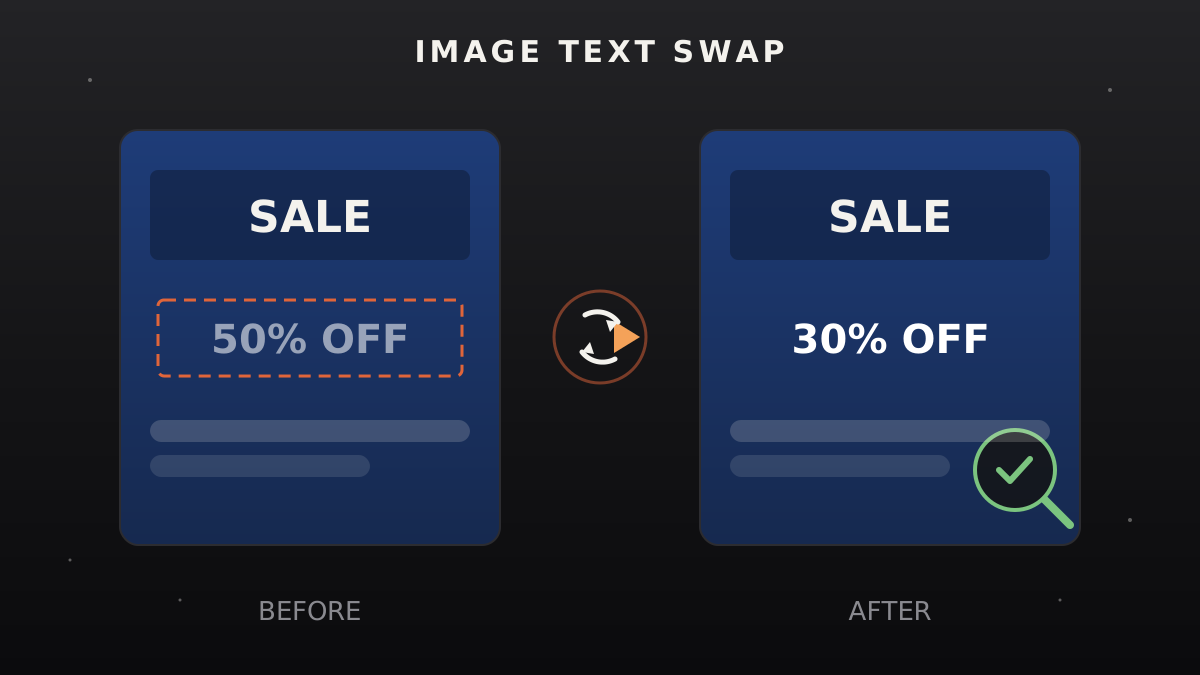
ImageDraw.textbbox, sample the background color from a clean pixel, paint a rectangle over the old text, draw the new text. A test image reading "SALE 50% OFF" was changed to "SALE 30% OFF" with no visible artifacts. - You read the image; the code does the surgery. There is no OCR dependency in this workflow — your own vision locates the text, notes its position, size, color, and the background around it. Pillow does the pixel work. Do not claim an OCR tool is involved.
- Flat backgrounds swap cleanly; textured ones don't. Solid colors, simple gradients, and blurred backdrops: reliable. Photographs, busy textures, text over faces or detailed objects: the cover-up will show. The skill tells you how to assess this *before* promising a result, and what to offer instead when it won't work.
- Fonts are matched, not magically identified. You pick the closest available font by weight and style (bold sans, serif, mono, etc.), size it against the measured bounding box, and color-match from the original pixels. DejaVu ships with most Linux Python setups; the user's machine may have more. CJK text needs a CJK font present — check first, don't assume.
When to use
- A poster, flyer, or social graphic says "50% OFF" and the sale changed to 30% — the designer is gone and there is no source file.
- A screenshot's label, button text, or annotation needs updating for a new version.
- A slide deck was exported to images and one headline has a typo.
- A product mockup needs the price, date, or promo code changed across variants.
- The user wants the *same* image with different wording — not a redesign, a swap.
Safety rules (non-negotiable)
- Only edit images the user owns or has the right to modify. If ownership is unclear, stop and ask.
- Never alter text to deceive anyone. This means: no ID documents, passports, licenses, certificates, diplomas, contracts, financial statements, medical records, or screenshots presented as evidence of anything. No exceptions, no "it's just a mockup" — if the output could be mistaken for a real document, refuse.
- Never fabricate misleading content. Fake chat screenshots, fake reviews, fake news graphics, doctored "before/after" photos, altered timestamps — all refused, plainly and without lecture.
- Say what you changed. The delivery report lists every text replacement made, so the user — and anyone they show it to — knows the image was edited.
Workflow
- Scope the job (input: image + change list → output: confirmed swap list)
Get the image file and, for each text change: the exact old text, the exact new text. Confirm the user owns the image or has the right to edit it. Run the safety rules first — a forgery-looking request stops here. - Read the image (input: image → output: text map)
Look at the image and record for each target text: its position (rough x/y region), size relative to the image, color, weight/style (bold, light, serif, sans), and what sits behind it (flat color, gradient, texture, photo). This map drives every later decision. - Assess feasibility (input: text map → output: go / caution / no-go per text)
- Go: text on a flat solid background, or a smooth gradient/blur.
- Caution: text on a subtle texture or gradient with a visible direction — doable, but verify closely in step 7.
- No-go: text over a face, detailed photo texture, or warped/perspective text (e.g., text on a curved banner in a photo). Tell the user plainly which items can't be swapped cleanly and offer the honest alternative: recreate that portion as a new graphic, or edit it in a design tool.
- Measure the old text (input: image + target text → output: bounding box)
`python
from PIL import Image, ImageDraw, ImageFont
img = Image.open("input.png")
d = ImageDraw.Draw(img)
font = ImageFont.truetype("/path/to/font.ttf", size)
bbox = d.textbbox((x, y), "OLD TEXT", font=font) # (left, top, right, bottom)`
Pick the starting size by comparing against the text map from step 2, then adjust until the measured box matches the on-image text. The box must cover every pixel of the old glyphs — when in doubt, pad by 2–4 px. - Sample and cover (input: bounding box → output: clean background)
Sample the background color from a clean pixel *adjacent* to the text — never from inside a glyph. For gradients, sample at both ends of the box and blend across it. Paint the rectangle:`python
bg = img.getpixel((clean_x, clean_y))
d.rectangle(bbox, fill=bg)`
Work on a copy. Keep the original file untouched. - Render the new text (input: new text + matched style → output: composited image)
Draw the new text at the same anchor point, in the sampled original color (sample a glyph pixel of the old text *before* covering it), matched weight and size. If the new text is longer than the old, shrink the size untiltextbboxfits the original box — never let it overflow onto the surrounding design. Save as PNG (or the input format) — never re-encode a JPEG more than once. - Verify pixel by pixel (input: output image → output: pass / fix list)
View the result at 100%. Check: no ghost edges of old glyphs, no rectangle seams against the background, baseline alignment matches surrounding text, color and weight look native. Zoom to 200% on each swap region. Fix and re-verify until clean — or tell the user which item couldn't be made clean and why. - Deliver (input: verified image → output: files + swap report in template.md)
Deliver the edited image plus the filled template: what was changed, where, the fonts/colors used, and anything marked no-go. Name files clearly (poster-sale30.png, neverfinal-final-v2.png).
Anteprima del modello
Image Text Swap Report
One report per job. Fill every field — "n/a" is an answer, a blank is not.
Source
- Input file:
- Output file(s):
- Original kept at:
- Date:
Ownership & safety check
- [ ] Image is the user's own or they have the right to edit it
- [ ] No ID / certificate / contract / financial / medical document involved
- [ ] No misleading content created (fake chats, reviews, news, evidence)
Swaps performed
No-go items
Notes for the user
- (Anything about font substitution, size adjustments, or quality caveats.)
- (If any swap was done on a JPEG: single re-encode at high quality.)
Files delivered
- Edited: ____________
Il pacchetto della skill (SKILL.md + modello) è scritto in inglese.
FAQ
What is image text editing?
Image text editing means changing words that are baked into an image file — a headline on a poster, a label on a screenshot, a price on a social graphic — without the original design source. This skill gives your AI assistant the full playbook: read the image, match font and background, cover the old text, render the new text, and verify at 200% zoom.
Can it replace text in a screenshot?
Yes — screenshots are one of the best cases, because UI text usually sits on flat solid backgrounds that swap cleanly. The skill measures the old text's bounding box, samples the background color, covers the old glyphs, and redraws the new text in a matched font and color.
What can't it do?
Text over busy photo textures, faces, or warped/perspective text (like a curved banner in a photo) won't swap cleanly — the cover-up would show. The skill assesses each text item before promising anything and tells you plainly which ones are no-go, with an honest alternative. It also refuses anything deceptive: no ID documents, certificates, financial records, or fake screenshots.