Metric to Interface Detail
Plongez du chiffre vedette vers l’écran qui se cache derrière.
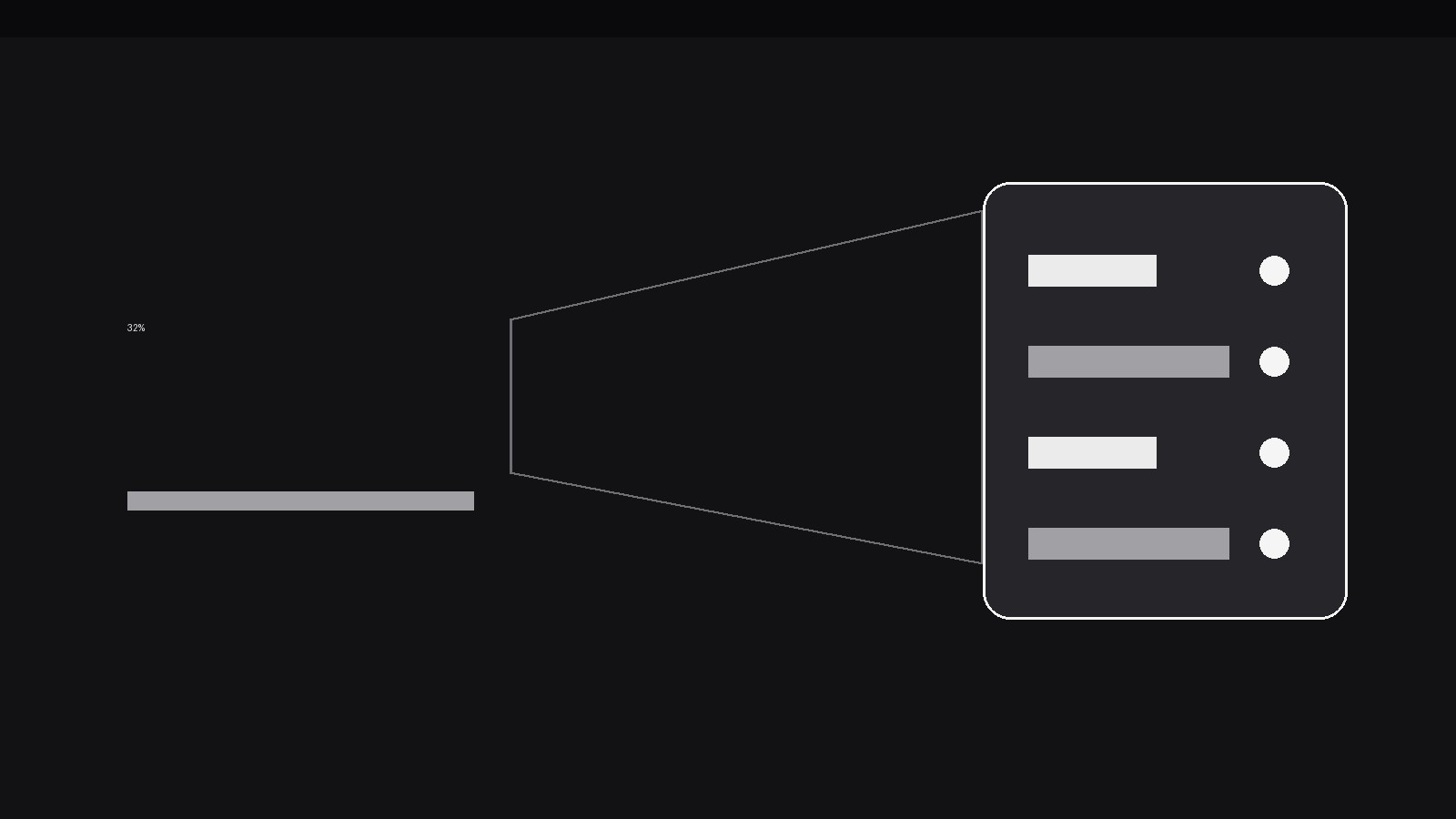
Transforme votre IA en motion designer pour un motif précis — un grand indicateur vedette zoome et se résout en le détail exact de l’interface qui l’a produit, pour que le spectateur voie le chiffre et sa source en un seul mouvement continu. Pour les démos produit, les vidéos explicatives d’analytics et les vidéos KPI où un chiffre seul invite au doute.
Installez-la en 3 étapes
Sans inscription. Sans outils en ligne de commande. Choisissez votre IA, copiez une ligne, collez-la.
Vous préférez le faire vous-même ? Achetez la compétence ($4.99), téléchargez le ZIP depuis votre confirmation d'achat, décompressez-le dans le répertoire indiqué ci-dessus, redémarrez votre session IA — même résultat. Vous l'avez déjà achetée ? Votre assistant IA peut la télécharger pour vous.
Contenu du pack
Un fichier SKILL.md (le guide pratique) + un modèle de départ. Aperçu :
Metric to Interface Detail
When to use
- A product demo quotes a headline metric ("−32% churn") and the viewer immediately wonders where that number came from — the zoom answers before the doubt forms
- An analytics explainer needs to connect an abstract KPI to a concrete screen: the number is the door, the interface detail is the room behind it
- A dashboard tour introduces each metric by showing it first, then diving into the chart, row, or setting that generated it
- A case-study video presents a result, then proves it by landing on the report, filter, or record the result was read from
- A pitch or review video wants to move from "what" to "how" without a hard cut — the continuous zoom keeps the thread unbroken
- A tutorial teaches a metric's definition by showing the exact UI elements that feed into it, one zoom at a time
Workflow
- Pick the metric and its source detail (input: your claim + your product → output: metric-detail pair)
Write the metric as it will appear ("−32% churn, 90 days") and name the single interface detail that is its most direct source — one chart segment, one table row, one toggle, one filter setting. One metric, one detail: if two screens contributed, pick the one that would convince a sceptic and mention the other in voiceover. The detail must be a real, capturable screen element, not a diagram invented for the video. If you can't point at the screen that produced the number, the zoom has nothing to land on — pick a different metric. - Frame the metric as a doorway (input: metric-detail pair → output: opening frame)
Open on the metric huge and centred, with the source screen faintly visible behind it at low opacity (10–15%) or blurred — enough to hint that a real interface is behind the number, not enough to read. Hold 900ms–1.2s. The metric's typography should match the product's own number style where possible (same weight, same tabular figures), so the zoom feels like entering the product rather than leaving the video for it. Keep any supporting text to one short line under the number. - Drive the zoom (input: opening frame → output: zoom move)
The camera move is one continuous push-in lasting 700–900ms with an ease-in-out cubic curve: fast enough to feel like a dive, slow enough that the viewer can track the number growing and resolving into interface. As the zoom progresses, the metric scales up and fades out of legibility (it becomes texture, then disappears — never let a half-legible giant number linger), while the background screen sharpens from blur to full focus. The zoom must end exactly on the source detail, framed with generous margins: the detail should occupy 40–60% of the frame, never the whole frame, so the viewer still sees it as part of a screen. One zoom, one landing — no mid-flight direction changes, no overshoot-and-settle. - Land and label the detail (input: zoom move → output: labelled landing frame)
The moment the zoom settles, the source detail gets a single emphasis treatment: a 200ms outline draw or a soft highlight wash in the accent colour, plus a one-line label naming what it is and how it feeds the metric ("Cancelled accounts, last 90 days → churn"). Hold the labelled landing frame for at least 1.5s — the viewer needs time to read the detail and connect it back to the number they just saw. Do not add a second label, a callout chain, or a tooltip stack on the landing frame; the zoom already did the explaining, and the label is the receipt. - Return or continue (input: landing frame → output: next beat)
Decide the exit before animating: either zoom back out to the metric (reverse move, 500–600ms, slightly faster than the dive, ending on the metric with the detail now remembered) or cut forward to the next section from the landing frame. The return zoom is right when the video will compare several metrics in sequence — each dive starts from the same home frame, so the pattern becomes a rhythm. The forward cut is right when the detail opens a new topic (the detail screen becomes the next scene's subject). Never do both: zooming back out and then cutting away wastes the return. - Keep the chain honest (input: finished sequence → output: verified animation)
Check the chain end to end: does the landing detail actually produce the opening number, by the definition the video states? If the metric says "90 days" but the landed filter reads "30 days", the zoom has certified a mismatch — fix the metric or the screen, never ship the contradiction. Test at phone size: the landing detail must still be readable when the frame is 360px wide, or the zoom lands on a blur. If the detail is too dense to read at that size, crop tighter on the one row or control that matters and let the rest of the screen fall outside the frame.
Aperçu du modèle
Metric to Interface Detail — Starter Template
One metric, one source detail, one continuous zoom. Fill in the pair before animating.
The pair
Metric (as it appears on screen): {e.g. −32% churn, 90 days}
Source detail (the single screen element that produced it): {e.g. Cancelled-accounts chart, 90-day filter row}
Definition check: {Does the landed detail produce this number by the definition the video states? Yes — explain in one line}
Opening frame
- Metric typography: {match product's number style — weight, tabular figures}
- Background screen: {which screen, blurred / 10–15% opacity}
- Supporting line (≤1, optional): {e.g. vs previous quarter}
Le pack de compétence lui-même (SKILL.md + modèle) est rédigé en anglais.


