Calendar Reschedule
Soulevez, glissez, déposez — et regardez l'ancien créneau se refermer.
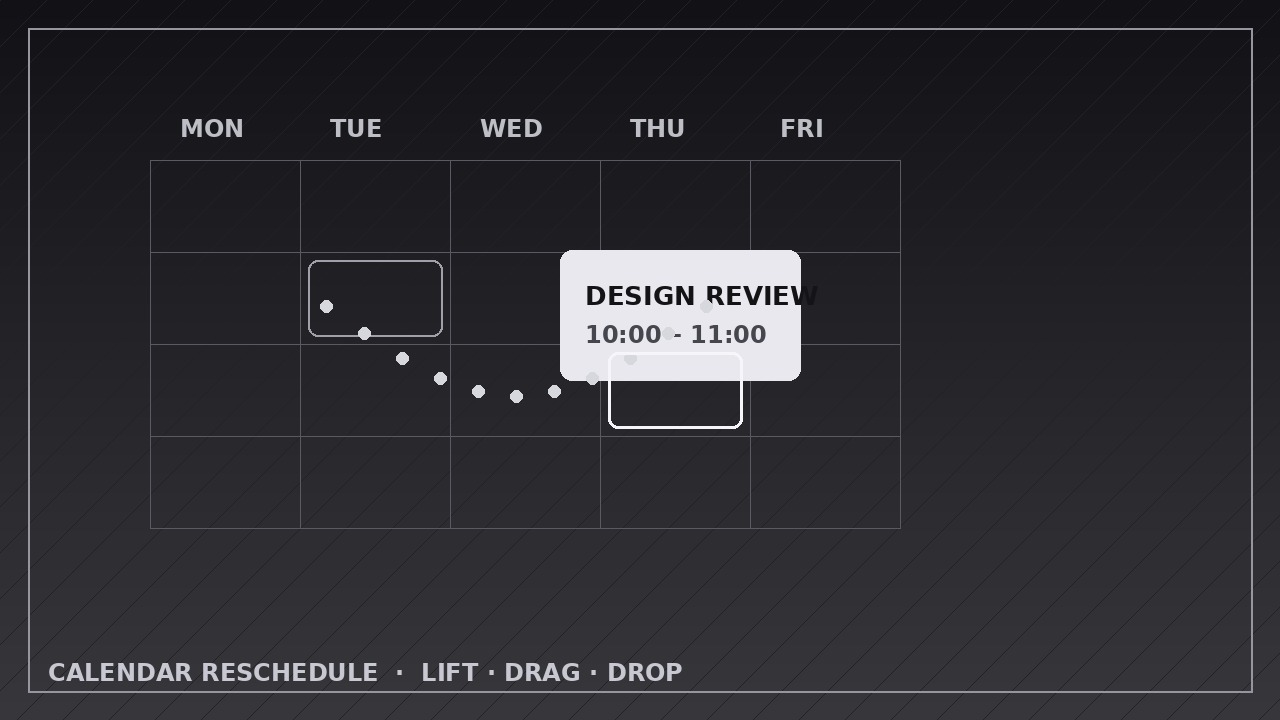
Apprend à votre IA à animer un événement de calendrier qui se détache de son créneau, glisse le long d'une trajectoire fluide et se dépose à un nouvel horaire pendant que l'ancien créneau se réorganise.
Installez-la en 3 étapes
Sans inscription. Sans outils en ligne de commande. Choisissez votre IA, copiez une ligne, collez-la.
Vous préférez le faire vous-même ? Achetez la compétence ($4.99), téléchargez le ZIP depuis votre confirmation d'achat, décompressez-le dans le répertoire indiqué ci-dessus, redémarrez votre session IA — même résultat. Vous l'avez déjà achetée ? Votre assistant IA peut la télécharger pour vous.
Contenu du pack
Un fichier SKILL.md (le guide pratique) + un modèle de départ. Aperçu :
Calendar Reschedule
When to use
- Demoing a calendar or scheduling product's drag-to-reschedule interaction
- Explaining how a meeting moved: from Tuesday 10:00 to Thursday 14:00, and what filled the gap
- Teaching time-blocking or calendar hygiene: moving a task to a better slot instead of deleting it
- Showing a booking flow where a customer picks a new appointment time
- Visualizing a timetable change (class, shift, delivery window) and its knock-on effects
- Animating "before vs. after" of a day plan where one event moves and the rest of the day reflows
Workflow
- Define the move (input: old and new times → output: move spec with event, old slot, new slot, and neighbors)
Write down the event (title, duration, color), its old slot (day + start/end time), its new slot, and which neighboring events sit around each slot. Confirm the event's duration stays identical — a reschedule moves the block, it never stretches or shrinks it. If the move crosses days, name both days explicitly; if it stays in one day, keep the view on that day. Note what happens to the old slot: does it close up (neighbors slide together), stay empty (a visible gap), or get filled by something else — decide before animating. - Build the calendar stage (input: move spec → output: calendar grid with the event in its old slot)
Build a clean week or day grid: day headers, hour lines, and event blocks as rounded rectangles with a title and time. The event to be moved gets a distinct color; everything else stays neutral. Show the event resting in its old slot for at least 1 second before anything moves — the viewer must register "before" before they can appreciate "after". Keep the grid static: no scrolling, no zooming, no view switching during the move. - Lift the event (input: staged calendar → output: lift keyframes)
The lift takes 0.3–0.4 seconds: the block scales up 3–5%, gains a soft shadow, and rises slightly above the grid (a 4–8 px lift at 1080p), ease-out. This is the "picked up" signal — it tells the viewer the block is now draggable. The old slot shows a ghost outline of the block at ~30% opacity left behind, so the origin stays visible throughout the move. Nothing else moves during the lift. - Drag to the new slot (input: lifted event → output: drag keyframes)
Drag the block along a smooth path from the old slot to the new slot over 0.8–1.2 seconds, ease-in-out (gentle start, steady middle, gentle landing). Use a straight line for same-day moves; for cross-day moves, a gentle arc that clears the intervening columns. The block stays on top of the grid (highest z-layer) the whole way, and the ghost outline stays in the old slot. If the drag passes over other events, it glides over them without pushing them — neighbors only react after the drop, never during the drag. - Drop and close up (input: dragged event → output: drop + reflow keyframes)
The drop takes 0.3 seconds: shadow shrinks away, scale returns to 100%, ease-in, landing exactly on the new slot's grid lines — snap to the grid, never float between lines. Then, over 0.4–0.6 seconds ease-out, the old slot closes up: the ghost outline fades out and neighboring events slide to fill the gap (if the design closes gaps), or the gap simply remains as clean empty space. Add a single confirmation cue — a brief checkmark, a subtle pulse on the dropped block, or the new time label updating — applied once, not flashing. Hold the final state for 2 seconds so the viewer can read the new day layout. - Export and check the grid (input: full animation → output: rendered video)
Export at the platform's native size (1920×1080 for YouTube, 1080×1080 or 1080×1920 for social), 30 fps, H.264. Verify frame by frame: the block's duration (height) is pixel-identical before and after, it lands exactly on grid lines, and no two events overlap at any point. A block that changes height or lands half-on a line reads as a bug, not a feature.
Aperçu du modèle
Calendar Reschedule — Animation Spec Template
Fill in the move before animating. Duration never changes in a reschedule — the block moves, it never stretches.
Move: {event title}
Canvas: {1920×1080 / 1080×1080 / 1080×1920} | Frame rate: 30 fps | Export: H.264 View: {day / week} | Event color: {distinct} | Other events: {neutral}
Move spec
Timeline
Layers (bottom → top)
- Calendar grid — {day headers, hour lines — static}
- Neighbor events — {neutral, move only in reflow phase}
- Ghost outline — {~30% opacity in old slot, fades at close-up}
- Moving event block — {top layer during drag}
Keyframes checklist
Le pack de compétence lui-même (SKILL.md + modèle) est rédigé en anglais.


