Workspace App OG Image
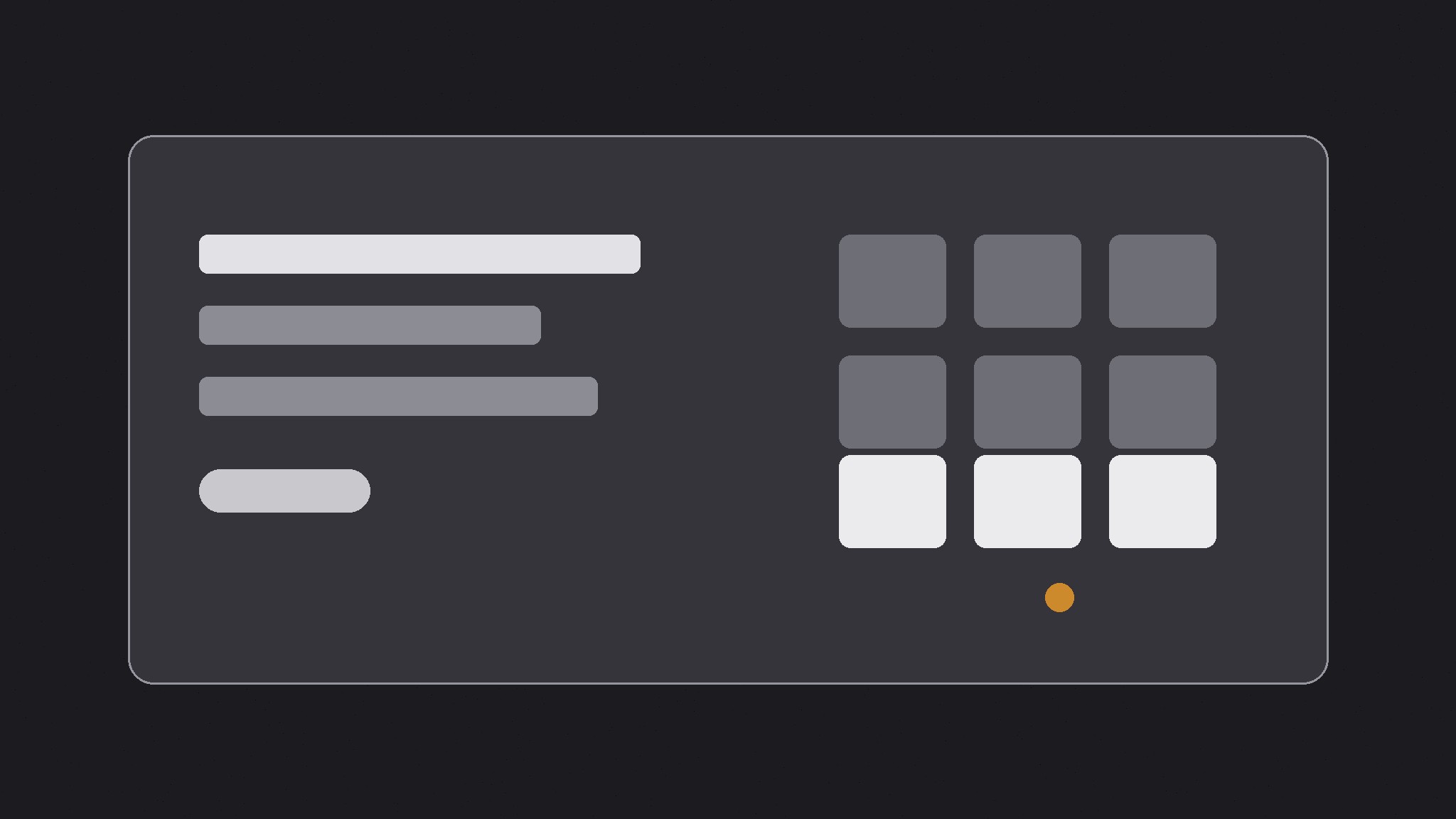
Una vista previa serena que dice «organizado» de un vistazo.
Convierte tu IA en un diseñador de vistas previas sociales para una aplicación de espacio de trabajo: crea una imagen para compartir de 1200×630 con un motivo sereno de espacio de trabajo, una promesa corta sobre organizarse y una tipografía que se mantiene legible en tamaño miniatura.
Instálala en 3 pasos
Sin registro. Sin herramientas CLI. Elige tu IA, copia una línea y pégala.
¿Prefieres hacerlo tú mismo? Compra la habilidad ($4.99), descarga el ZIP desde la confirmación de compra, descomprímelo en el directorio que se muestra arriba y reinicia tu sesión de IA — el mismo resultado. ¿Ya la compraste? Tu asistente de IA puede descargarla por ti.
Qué incluye
Un SKILL.md (la guía paso a paso) + una plantilla inicial. Una vista previa:
Workspace App OG Image
When to use
- Your workspace or notes app's shared links preview as a blank box, a cropped screenshot of a dense page, or a generic logo
- You are launching or announcing a workspace app and want the link preview to say "calm, organized work" at a glance
- A blog post, changelog, template gallery page, or docs page about the app gets shared, and the preview does not distinguish it from any other page
- Your app has many pages and you need one repeatable preview format that works for the product, its features, and its content
- A screenshot of a real workspace keeps failing as a preview because its tiny text and nested blocks turn to noise at thumbnail size
Workflow
- Decide the one promise (input: the page → output: a one-line promise)
A workspace preview carries one promise about what the reader's work will feel like: calmer, clearer, in one place, finally finished. Read the page, then write the sentence in eight words or fewer — "Every project, one calm page," not "A powerful all-in-one workspace for modern teams." If the page is a feature announcement, the promise is the feature's outcome; if it is the homepage, it is the product's core promise. A screenshot is not a promise, and a list of features is not a promise — one sentence is. - Pick the workspace motif (input: the promise → output: a single motif idea)
Choose one calm workspace gesture that embodies the promise: a stack of blocks settling into neat rows, a checklist with items ticking into place, a page outline resolving into clean sections, a tangle of lines straightening into one column. The motif is a symbol, not a real interface — no real sidebar, no real document text, no tiny toolbar icons, no readable notes. Draw it big and flat, in one or two colors, occupying roughly a third to a half of the canvas. A real app screenshot crammed into 1200×630 reads as static at thumbnail size; one clean gesture reads as "this app makes work calm." - Set the type (input: promise + motif → output: the type layout)
Set the promise in one large, bold typeface at a size that stays legible when the image is shown 240 pixels wide — few words, large size, generous line spacing. Put a small product mark or name in one corner, never competing with the promise. Keep all text inside a safe margin (at least 60 pixels from every edge at 1200×630) because platforms crop previews differently, and keep essential text out of the bottom strip, where platforms overlay labels or play buttons. If the motif and the type compete for the same space, shrink the motif — the words carry the click. - Build to spec (input: type layout + motif → output: a finished 1200×630 image)
Produce the image at exactly 1200×630 pixels, exported as a JPEG or PNG under 1 MB so it loads fast in crawlers. Use flat colors and bold shapes — neat white blocks on a warm dark field, for example — rather than photographic detail or fine lines, which turn to mush at thumbnail size. Check contrast between text and background: light text on a dark field or dark text on a light field, never mid-tone on mid-tone. Export once at full size and once at 240 pixels wide to verify the thumbnail read. - Verify the preview (input: finished image → output: a confirmed working preview)
Wire the image into the page's social meta tags (the Open Graph image tag and its width/height companions) and check it with the platform's own link debugger or by pasting the link into a fresh post draft. Confirm three things: the image actually appears (not a cached old one), it is not cropped into unreadability, and the title and description beside it match the image's promise. If a stale preview persists, it is usually a cache — re-scrape the URL through the debugger rather than rebuilding the image.
Vista previa de la plantilla
Workspace App OG Image — Brief Template
One page = one preview. Fill this in before building the image.
Page: {page title + URL}
Page type: {homepage / feature announcement / blog post / changelog / docs page}
One promise (≤8 words)
> {the sentence a reader would repeat to a colleague}
Why this promise: {what the page actually delivers}
Workspace motif
Gesture: {settling blocks / ticking checklist / straightening lines / page outline resolving} What it symbolizes: {calm / clarity / one place / finished} Colors: {field color} + {motif color} (one or two flat colors)
Type layout
El paquete de la habilidad (SKILL.md + plantilla) está escrito en inglés.