Chapter Border Orbit
Un marco fino rodea la pantalla una vez por capítulo: un reloj que tu público lee sin pensar.
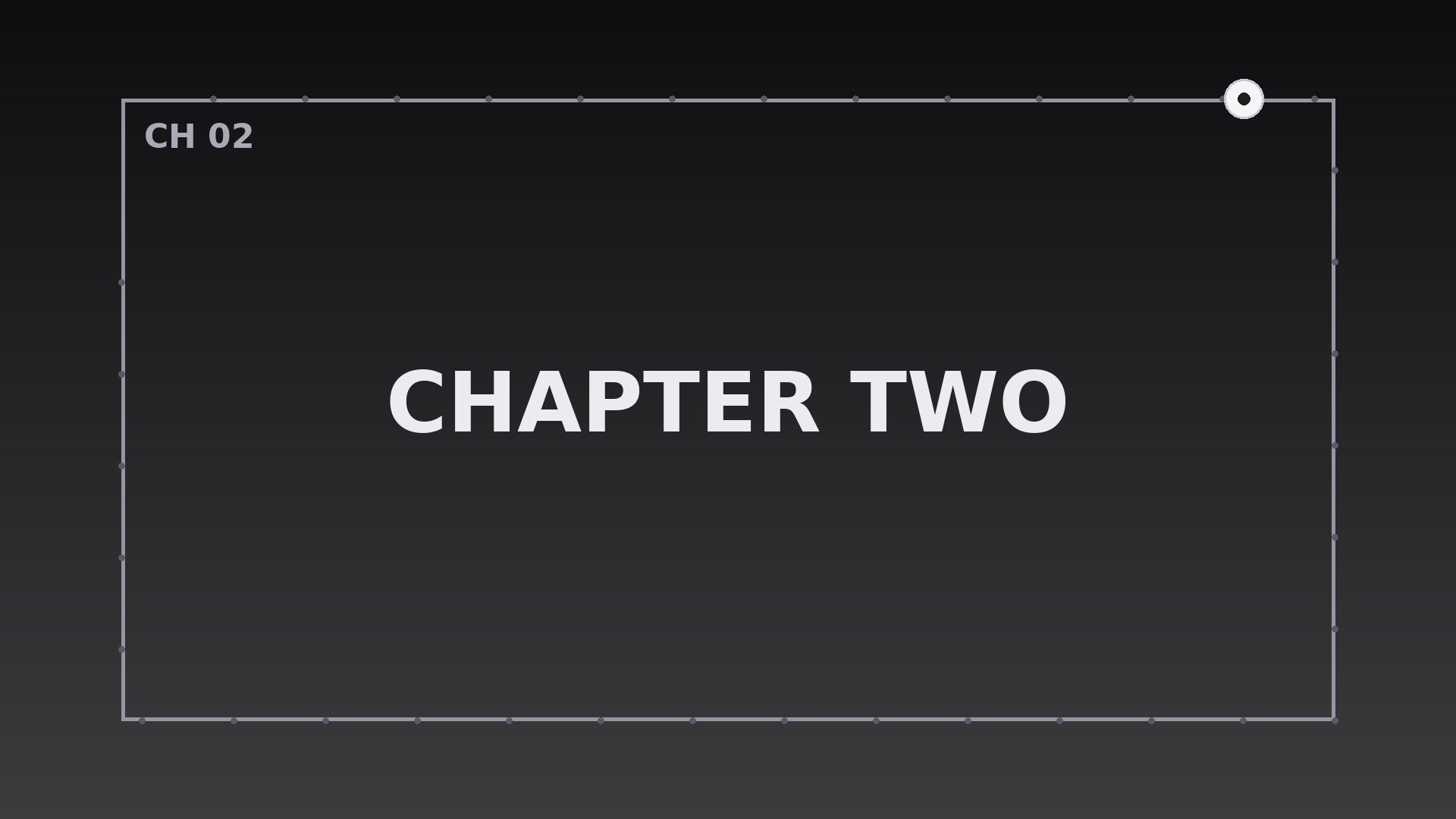
Enseña a tu IA a ejecutar un marco viajero que completa exactamente una órbita por capítulo a velocidad constante, con pulsos en los límites, fundidos de título y reglas para las interrupciones.
Instálala en 3 pasos
Sin registro. Sin herramientas CLI. Elige tu IA, copia una línea y pégala.
¿Prefieres hacerlo tú mismo? Compra la habilidad ($4.99), descarga el ZIP desde la confirmación de compra, descomprímelo en el directorio que se muestra arriba y reinicia tu sesión de IA — el mismo resultado. ¿Ya la compraste? Tu asistente de IA puede descargarla por ti.
Qué incluye
Un SKILL.md (la guía paso a paso) + una plantilla inicial. Una vista previa:
Chapter Border Orbit
When to use
- A multi-chapter explainer where viewers need to feel each chapter start and end without a hard cut
- A tutorial split into clear steps, where the border orbit marks the boundary between one step and the next
- A documentary with distinct segments, where a travelling frame gives each segment its own visual container
- A course lesson with timed chapters, where the orbit doubles as a progress indicator around the content
- A conference talk or keynote recording divided into themes, where the frame signals a theme change
- A long-form video essay where chapters run several minutes and viewers need a quiet sense of place
Workflow
- Define the chapters (input: your script or outline → output: chapter list with durations)
Split the video into chapters with a title and an exact duration for each. Chapters shorter than 45 seconds do not earn an orbit — merge them, or the frame will feel like it never stops moving. Write one short chapter title per chapter (2–5 words); the title appears once, at the orbit's starting point, and then gets out of the way. - Design the frame (input: chapter list → output: border spec)
Draw a single thin rectangular frame inset 3% from the frame edges — a 2–4px stroke in near-white at 80% opacity on dark footage, near-black on light footage. The frame has one travelling element: a brighter segment, dot, or short thick dash (roughly 8% of the perimeter) that moves along the rectangle's path. The rest of the frame stays static and quiet. Never use a thick glowing border: the frame is a container, not the subject. - Choreograph the orbit (input: border spec + chapter durations → output: keyframed orbit timeline)
The travelling element completes exactly one full lap of the rectangle per chapter, moving at a constant speed (linear easing — no ease-in-out, or the orbit will appear to stall and surge). It starts at the top-left corner at the moment the chapter title appears, travels clockwise, and returns to the top-left corner at the exact frame the chapter ends. At the chapter boundary, the frame itself does one subtle pulse — stroke opacity 80% → 100% → 80% over 0.4s — and the next chapter's title appears as the traveller sets off again. The orbit is the chapter clock: one lap, one chapter, no exceptions. - Place the chapter titles (input: orbit timeline → output: title treatment)
Each chapter title sits just inside the top edge of the frame, left-aligned to the frame's left edge, in the same typeface as the rest of the video. It fades in over 0.3s as the traveller leaves the top-left corner and fades out over 0.3s in the final second of the chapter — never present for the whole chapter, never overlapping the content's own lower thirds. If a chapter has an on-screen heading of its own, skip the orbit title for that chapter and let the heading do the job. - Handle boundaries and interruptions (input: full timeline → output: boundary rules)
At every chapter boundary, cut the footage on the same frame the orbit completes — the visual and editorial beats must coincide, or the orbit will look like decoration pasted over unrelated cuts. If a chapter contains an ad break, sponsor read, or aside, freeze the traveller during the interruption and resume it afterward; the orbit measures chapter content, not wall-clock time. If a chapter is split across two recordings, keep the orbit continuous across the join — restarting it mid-chapter breaks the one-lap-per-chapter contract. - Export and verify (input: finished timeline → output: checked renders)
Render at the source frame rate with the frame drawn as a vector overlay (never baked into a compressed still, which will shimmer). Verify by scrubbing: at any chapter's midpoint the traveller must sit near the rectangle's midpoint (bottom-right corner region), and at every chapter end it must be back at the top-left. Check on a phone: the 2–4px stroke must still read at small sizes — if it vanishes, raise opacity, not thickness.
Vista previa de la plantilla
Chapter Border Orbit — Starter Template
Fill in every {placeholder}, then hand this spec to your video tool or motion designer.
Project
- Video title: {video_title}
- Frame size: {width}x{height} @ {fps}fps
- Total runtime: {total_runtime}
Chapters
List every chapter (minimum 45 seconds each — merge shorter ones):
(Add rows as needed.)
Border spec
- Frame inset: 3% from all edges
- Stroke: {stroke_width}px (2–4px), color {stroke_color}, opacity 80%
- Travelling element: {traveller_description — bright segment, dot, or short dash, ~8% of perimeter}, color {traveller_color}, opacity 100%
- Quarter tick marks (for chapters over ~8 min): {yes/no}
El paquete de la habilidad (SKILL.md + plantilla) está escrito en inglés.


