Notification to Log
Jede Benachrichtigung poppt auf — und heftet sich dann selbst ins Protokoll.
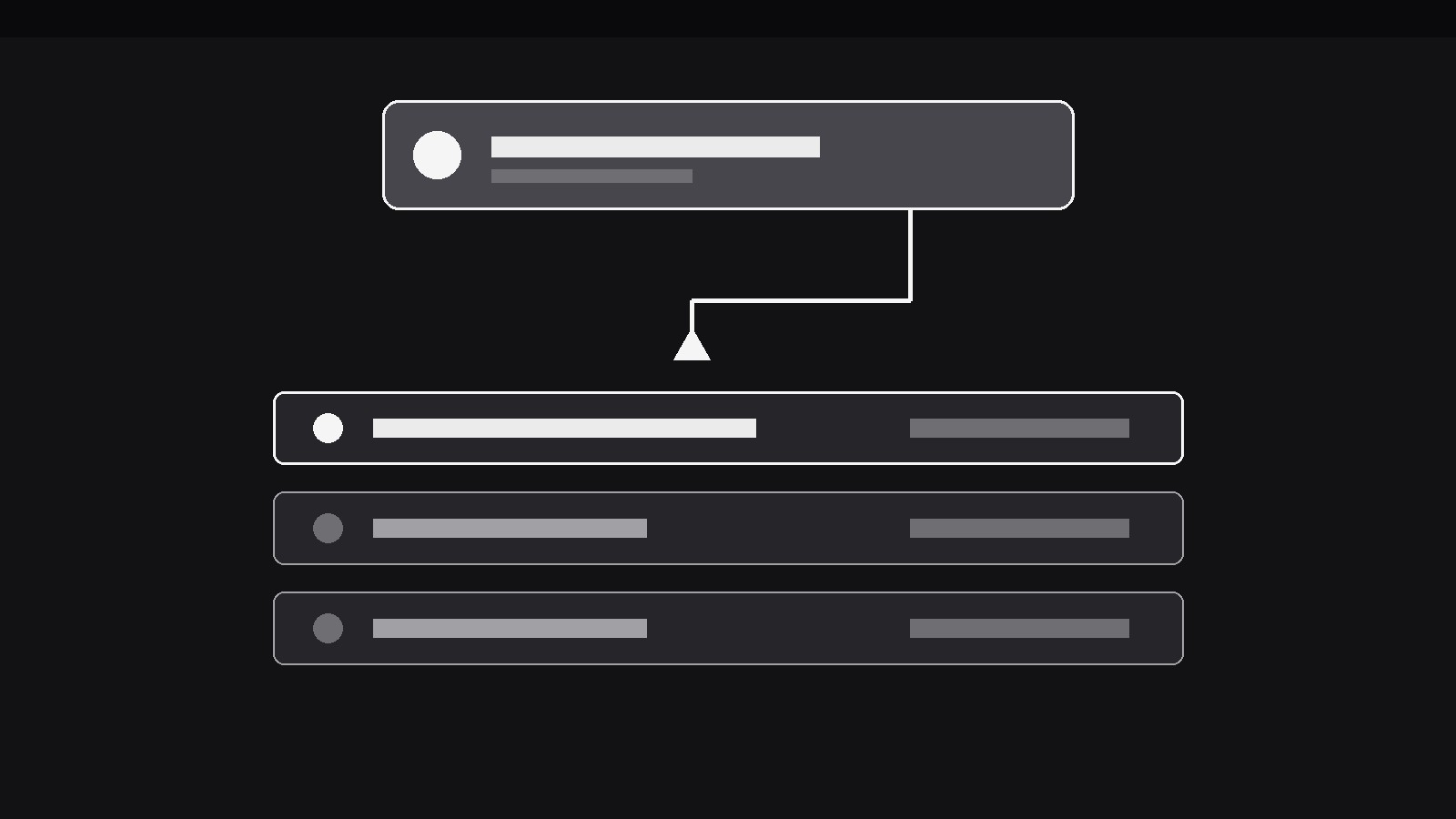
Verwandelt Ihre KI in einen Motion Designer für ein ganz bestimmtes Muster — eine Benachrichtigung poppt ins Bild, gleitet dann, schrumpft und setzt sich an ihren Platz in einem laufenden Protokoll, sodass der Zuschauer sowohl den Alarm als auch den Eintrag sieht, zu dem er wird. Für App-Demos, Incident-Reviews und Aktivitäts-Feeds, bei denen Benachrichtigungen nicht spurlos verschwinden dürfen.
In 3 Schritten installieren
Keine Anmeldung. Keine CLI-Tools. Wählen Sie Ihre AI, kopieren Sie eine Zeile und fügen Sie sie ein.
Lieber selbst machen? Kaufen Sie den Skill ($4.99), laden Sie die ZIP-Datei aus Ihrer Kaufbestätigung herunter, entpacken Sie sie in das oben angezeigte Verzeichnis und starten Sie Ihre AI-Sitzung neu — gleiches Ergebnis. Haben Sie ihn schon gekauft? Ihr AI-Assistent kann ihn für Sie herunterladen.
Was ist enthalten
Eine SKILL.md (die Anleitung) + eine Startvorlage. Eine Vorschau:
Notification to Log
When to use
- An app demo shows notifications arriving (messages, alerts, approvals) and the viewer needs to see where each one goes after it pops — into the log, not into the void
- An incident review reconstructs a sequence of alerts and needs each notification to land visibly in the timeline that the review will read back
- An activity-feed explainer shows how a live feed accumulates: each new event arrives as a notification, then becomes one row of history
- A monitoring or ops video shows alerts firing and wants the audience to trust that every alert is recorded, in order, with its time
- A messaging or collaboration demo shows a notification arriving while the user is elsewhere, then filed into the conversation's history
- A tutorial teaches a log screen (audit log, notification centre, history tab) by showing how entries get there, one notification at a time
Workflow
- Define the notification and the log (input: your event → output: pair)
Write the notification as it will appear — icon, title (≤6 words), one-line body (≤10 words), timestamp — and define the log it will join: a vertical list, newest on top or oldest on top, each row showing the same fields in compact form. The notification and its log row must carry identical content (same title, same time); the log row is the notification filed, not a summary of it. If the notification's body is too long to fit a log row, shorten the notification — the pair must match, or the filing reads as a rewrite. Decide the log's order now and never change it mid-video. - Stage the live scene (input: pair → output: opening frame)
Open on the live scene the notification interrupts: the app's main view, a dashboard, a document — with the log visible or reachable in the same frame (a side panel, a drawer, the lower half of the screen). Hold the calm scene for at least 800ms before the first notification arrives, so the interruption reads as an interruption. If the log is not on screen, show its tab or affordance clearly ("History" tab, log icon with a count) so the notification has a visible destination to travel toward. - Pop the notification (input: opening frame → output: notification entrance)
The notification arrives with a single decisive entrance: slide + fade from the top (or from the edge where the app's notifications live) over 250–300ms with ease-out, plus a one-time 150ms scale settle (1.03 → 1.0). It lands in the notification zone — top centre, top right, or a banner strip — and holds there for 1.2–1.8s, long enough to read the title and body once. While it holds, it gets exactly one attention cue if the event is urgent (a single accent flash or a one-time badge pulse) — never a repeating pulse, which turns an alert into an alarm. The notification must never cover the log's destination area while it holds; the viewer needs to see where it will go. - File it into the log (input: notification entrance → output: filing move)
The filing is one continuous move, 500–650ms, ease-in-out: the notification glides from the notification zone toward its position in the log, shrinking to the log row's size and fading its banner chrome (shadow, rounded banner padding) into the row's flat style as it travels. Existing log rows shift to make room — a 200–300ms push (rows below slide down, or rows above slide up, depending on the log's order) that starts just before the notification arrives, so the gap opens and the new row slots into it rather than overlapping. The new row lands with a 150ms accent flash on its left edge or timestamp, marking it as the fresh entry, then settles to match the other rows exactly. One notification, one filing move — never two notifications filing at once, and never a notification that fades out in the banner zone without travelling to the log. - Repeat with a readable rhythm (input: filing move → output: multi-event sequence)
For a second and third notification, repeat the identical choreography — same entrance, same hold, same filing path — with a 800ms–1.2s gap of calm between filings so each event stays a separate fact. The log grows by one row per event; if the log would overflow the frame, let the oldest rows scroll or fade out at the far end (a 250ms fade), never by deleting a row mid-sequence without motion. Keep the notification zone empty between events: a second notification arriving while the first is still filing tells the viewer the system is queueing chaos, not keeping records. - End on the log (input: multi-event sequence → output: closing frame)
After the last filing, hold the log — now containing every notification from the sequence — for at least 1.5s, with the most recent entry still carrying a faint trace of its fresh-entry flash (a 10% accent wash that fades over the hold, not a permanent highlight). The closing frame is the pattern's proof: every alert that popped is accounted for, in order, in the record. If the video continues into the log itself (reading it back, filtering it), the transition starts from this held frame — the log the viewer just watched being built is the log they are about to read.
Vorschau der Startvorlage
Notification to Log — Starter Template
Define the pair first: the notification and its log row must carry identical content.
The pair
Notification: Icon { } | Title (≤6 words): {e.g. Payment failed} | Body (≤10 words): {e.g. Card expired — update payment method} | Timestamp: {e.g. 14:32}
Log row (identical content, compact form): {same title, body, timestamp}
Log order (fixed for the whole video): [ ] Newest on top | [ ] Oldest on top
Opening frame
- Live scene: {e.g. Dashboard main view}
- Log: {visible side panel / drawer / lower half} or affordance: {e.g. History tab with count}
- Calm hold before first notification: {≥800ms}
Notification entrance
Das Skill-Paket selbst (SKILL.md + Vorlage) ist auf Englisch verfasst.


