Nested Workspace Build
Der Arbeitsbereich baut sich selbst zusammen — Rahmen, Panels, dann Inhalt.
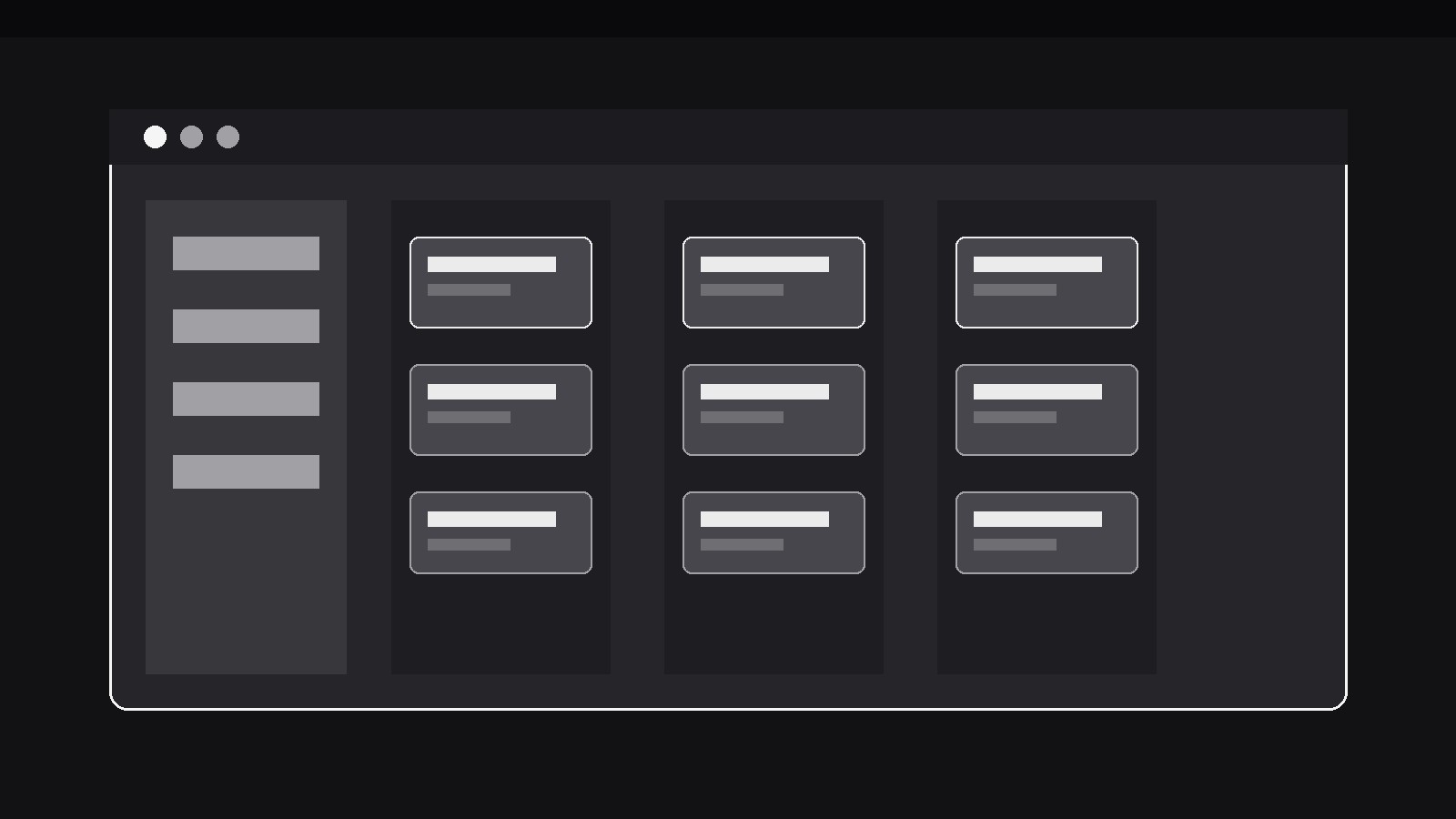
Verwandelt Ihre KI in einen Motion Designer für ein ganz bestimmtes Muster — eine Arbeitsbereich-Oberfläche baut sich auf dem Bildschirm Schicht für Schicht selbst zusammen, erst der äußere Rahmen, dann die Panels, dann der darin verschachtelte Inhalt, sodass der Zuschauer das Layout lernt, indem er ihm beim Entstehen zusieht. Für SaaS-Demos, Workspace-Touren und Onboarding-Videos, bei denen ein fertiger Screenshot neue Nutzer überfordern würde.
In 3 Schritten installieren
Keine Anmeldung. Keine CLI-Tools. Wählen Sie Ihre AI, kopieren Sie eine Zeile und fügen Sie sie ein.
Lieber selbst machen? Kaufen Sie den Skill ($4.99), laden Sie die ZIP-Datei aus Ihrer Kaufbestätigung herunter, entpacken Sie sie in das oben angezeigte Verzeichnis und starten Sie Ihre AI-Sitzung neu — gleiches Ergebnis. Haben Sie ihn schon gekauft? Ihr AI-Assistent kann ihn für Sie herunterladen.
Was ist enthalten
Eine SKILL.md (die Anleitung) + eine Startvorlage. Eine Vorschau:
Nested Workspace Build
When to use
- A SaaS demo opens on a busy workspace (sidebar, boards, panels, widgets) and a new viewer can't tell where to look first — building it layer by layer teaches the layout
- An onboarding video introduces a workspace's structure: what lives in the frame, what lives in the panels, what lives in the content area
- A feature launch shows a new workspace layout and needs the viewer to understand the nesting (workspace → project → view → card) rather than just admire the screenshot
- A product tour must establish the interface's geography before any feature is clicked — the build is the map
- A comparison or review video wants to show how a tool's workspace is organised, panel by panel, without narrating over a static screenshot
- A redesign announcement shows the new layout assembling, so returning users can map the old layout onto the new one
Workflow
- Name the layers (input: your workspace → output: layer list)
Decompose the workspace from the outside in: outer frame (window chrome, top bar), first-level panels (sidebar, main area), second-level containers (project board, detail pane, tab strip), and finally the content (cards, rows, documents) nested inside the innermost container. Cap the build at 3–4 layers; a fifth layer means some containers should be introduced already assembled. Each layer gets a name (1–3 words) and a one-line job description ("Sidebar: navigation between projects"). If a layer's job can't be stated in one line, it is two layers pretending to be one. - Stage the empty frame (input: layer list → output: opening frame)
Open on the outer frame alone — window chrome and top bar, empty inside, at the workspace's real proportions. Hold it for 600–800ms. The empty frame is the pattern's promise: the viewer sees the container before the contents, so every later layer has a place to belong. Keep the frame honest to the product: same corner radius, same top-bar height, same background as the real app. A generic browser window with a fake URL bar teaches nothing about this workspace. - Assemble layer by layer (input: opening frame → output: build sequence)
Add one layer at a time, outside in, with a consistent entrance: each layer fades + scales from 0.97 to 1.0 over 300–400ms with ease-out, and slides 8px in from its natural edge (sidebar from the left, top bar from the top, detail pane from the right). Space layers 400–600ms apart so each gets its own beat. As each layer lands, give it one brief label (its name, small, in its corner, fading out after 1s or persisting in a caption bar — pick one and stay consistent) so the viewer learns the layer's name while watching it arrive. Never animate two layers at once: simultaneous entrances collapse the outside-in lesson into a single pop. - Populate the innermost content last (input: build sequence → output: populated workspace)
The content — cards, rows, documents — arrives only after every container exists, and it arrives in a readable order: top to bottom, or in the order a user would scan it. Content items appear in small groups (2–3 at a time, 100–150ms apart) with a 200ms fade + 6px rise, never all at once. The first content item to appear should be the one the video will use next — the build hands off to the demo, and the handoff lands on the thing the narration is about to touch. If the content is dense (a full board of cards), populate one representative column or section and let the rest be implied by the container's edges; a workspace that fills completely during the build leaves the viewer with nowhere left to look. - Pause on the finished workspace (input: populated workspace → output: readable frame)
Hold the fully built workspace still for at least 1.5s before any interaction begins. This hold is where the viewer assembles the mental map: frame → panels → containers → content. No cursor, no tooltip, no narration racing ahead — the build earns its pause. If the video will next interact with the workspace, the hold can end with the cursor gliding to its first target, but the glide starts only after the hold, never during it. - Collapse for comparison or recap (input: readable frame → output: closing beat)
When the video needs to recap the structure (or compare two layouts), collapse the workspace in reverse — content fades first, then containers, then panels — leaving the outer frame, and hold the frame for 600ms before rebuilding or cutting. The reverse collapse is the pattern's rewind button: it re-teaches the layer order in a second, and it makes a before/after comparison readable (collapse layout A, build layout B). Never collapse only partway and cut: a half-collapsed workspace reads as a broken interface, not a transition.
Vorschau der Startvorlage
Nested Workspace Build — Starter Template
Decompose outside in. Cap at 3–4 layers.
Layer list (outside → in)
Opening frame
- Outer frame: {window chrome + top bar, real proportions, real corner radius}
- Hold: {600–800ms} — empty, before any layer arrives
Build sequence
- Per-layer entrance: {300–400ms fade + scale 0.97→1.0 + 8px slide from natural edge}
- Spacing between layers: {400–600ms}
- Layer labels: {in-layer corner, fade after 1s / caption bar} — one style, consistent
- Content population: {groups of 2–3, 100–150ms apart, 200ms fade + 6px rise}
- First content item (the demo's next subject): {e.g. The card the narration will click next}
Finished hold
Das Skill-Paket selbst (SKILL.md + Vorlage) ist auf Englisch verfasst.


