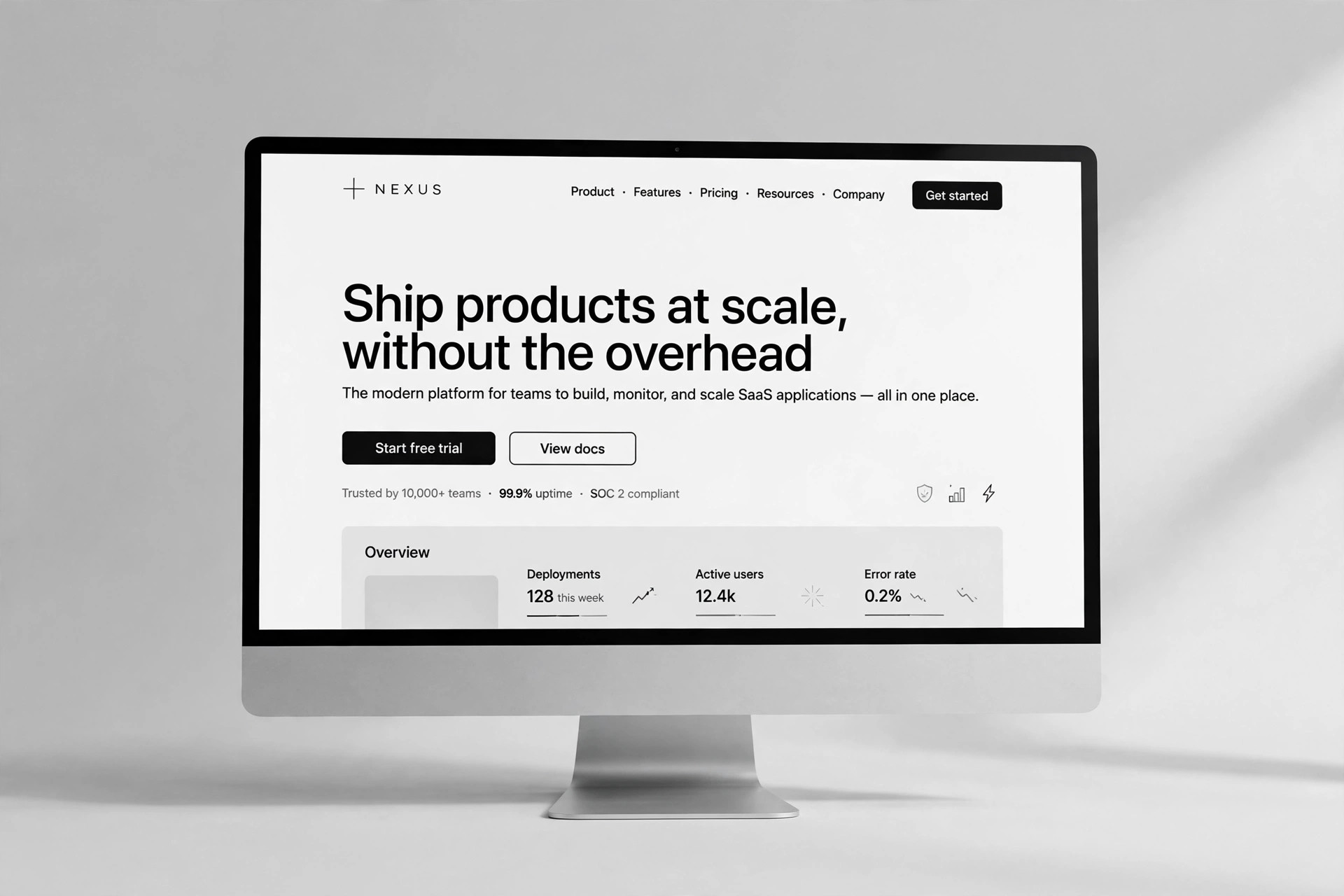
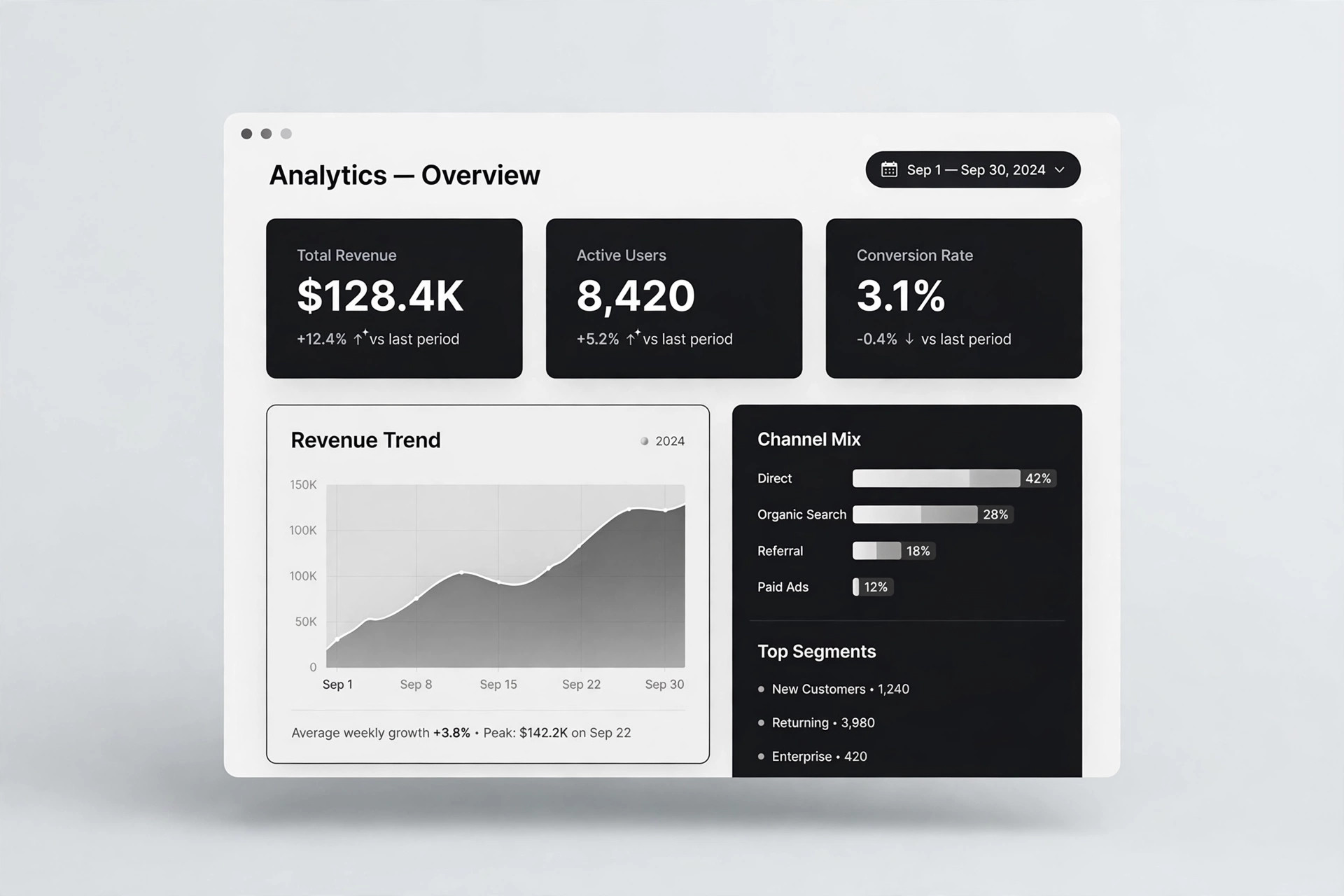
KPI Line Panel
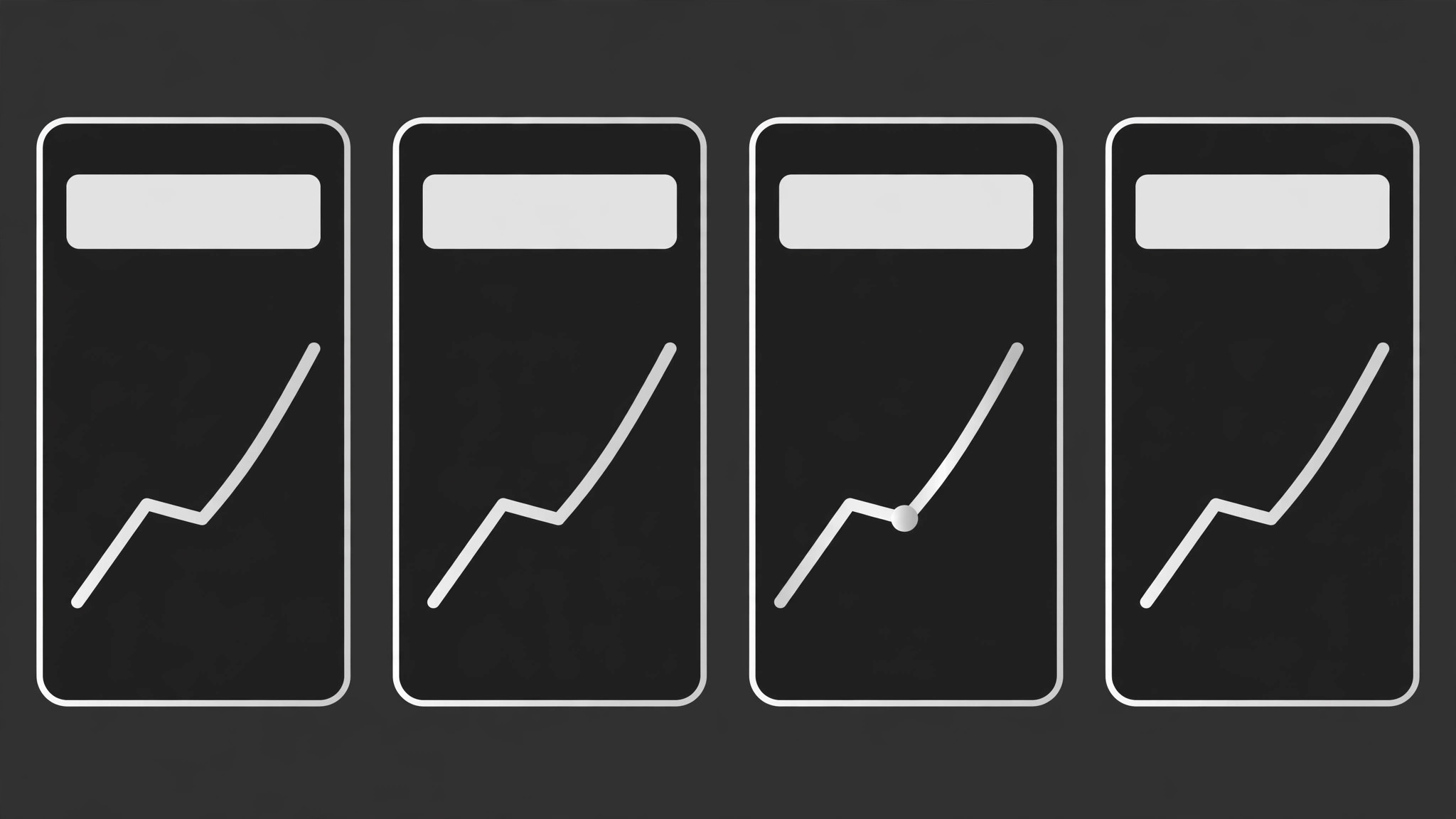
Jede KPI mit ihrer eigenen ehrlichen Trendlinie — kein Diagramm-Schnickschnack.
Verwandelt Ihre KI in einen Dashboard-Designer — erstellt ein KPI-Panel, das zu jeder Kennzahl ein eigenes ehrliches Liniendiagramm stellt: eine Kennzahl, eine Linie, eine einfach formulierte Definition, kein Diagramm-Schnickschnack.
In 3 Schritten installieren
Keine Anmeldung. Keine CLI-Tools. Wählen Sie Ihre AI, kopieren Sie eine Zeile und fügen Sie sie ein.
Lieber selbst machen? Kaufen Sie den Skill ($4.99), laden Sie die ZIP-Datei aus Ihrer Kaufbestätigung herunter, entpacken Sie sie in das oben angezeigte Verzeichnis und starten Sie Ihre AI-Sitzung neu — gleiches Ergebnis. Haben Sie ihn schon gekauft? Ihr AI-Assistent kann ihn für Sie herunterladen.
Was ist enthalten
Eine SKILL.md (die Anleitung) + eine Startvorlage. Eine Vorschau:
KPI Line Panel
When to use
- Your dashboard, report, or status page shows KPI numbers with no trend context, so nobody can tell whether a number is good news or bad
- A team page needs a small panel of the metrics that actually matter — three to six, not thirty — each with its history visible
- A weekly or monthly review deck needs KPI slides where the chart and the number agree and the definition is printed on the slide
- A product or ops team keeps arguing about metrics because two dashboards define the same KPI differently
- A landing or status page wants to show live performance honestly, with the trend visible and the bad weeks not hidden
Workflow
- Choose the metrics that matter (input: your goals + available data → output: metric shortlist of 3–6)
Pick three to six metrics, each tied to a decision someone actually makes. For each, write the question it answers ("Are we growing?" "Are we breaking promises?") and who acts on it. Drop vanity metrics that move without changing any decision, and drop any metric you cannot compute the same way twice. A panel with four trusted metrics beats a wall of twenty decorative ones. - Define each metric in plain words (input: shortlist → output: definition card per metric)
For each metric, write: the exact formula or data source, the time window it covers, and what counts and what does not. ("Active users = accounts with at least one login in the last 28 days; trial accounts excluded.") Put the definition where the reader can find it — a tooltip, a footnote, or a definitions line under the panel. If two people compute the metric differently, you do not have a metric yet; settle the definition before drawing anything. - Draw one line per metric (input: definitions + history → output: line chart per metric)
Give each metric its own small line chart showing its history over a sensible window — weeks for fast-moving metrics, months for slow ones. One line per chart: no dual axes, no stacked lines pretending to be comparable. The vertical axis starts at a value that tells the truth about the change — never truncate an axis to exaggerate a small move, and never stretch one to hide a big move. Mark real events on the line (a launch, an outage, a price change) so readers can see why the line moved instead of guessing. - Pair number, change, and context (input: line charts → output: panel layout)
Each panel tile holds four things: the metric name, the current value in large type, the change versus the previous period with its direction stated in words ("up 12% vs last month"), and the line chart. Add one line of context when the number needs it — a target, a comparison period, or a note like "holiday week." Keep tiles identical in structure so the eye can scan down the panel without re-learning each tile. Never show a change percentage without the period it compares against. - Check states and honesty (input: panel layout → output: verified panel)
Cover the states a real panel hits: loading, no data yet, partial data, and a metric that moved sharply. "No data" must say so plainly — never draw a flat zero line for missing data, and never smooth over a gap. Then do the honesty pass: every number traceable to its definition, every axis labeled with units, every change labeled with its period, and the bad weeks visible alongside the good ones. Show the panel to one person who will use it and ask them to explain each tile back to you; fix whatever they get wrong.
Vorschau der Startvorlage
KPI Line Panel — Build Template
Four trusted metrics beat twenty decorative ones. Define first, draw second.
Metrics (3–6, each tied to a decision)
Dropped as vanity: {metrics considered and cut, with why}
Definition cards (one per metric)
{Metric 1}
- Formula / source: {exact computation or data source}
- Time window: {e.g. last 28 days}
- Counts: {what counts} — Excludes: {what does not count}
{Metric 2}
- Formula / source: {exact computation or data source}
- Time window: {e.g. last 28 days}
- Counts: {what counts} — Excludes: {what does not count}
Das Skill-Paket selbst (SKILL.md + Vorlage) ist auf Englisch verfasst.