Inspect Split Reveal
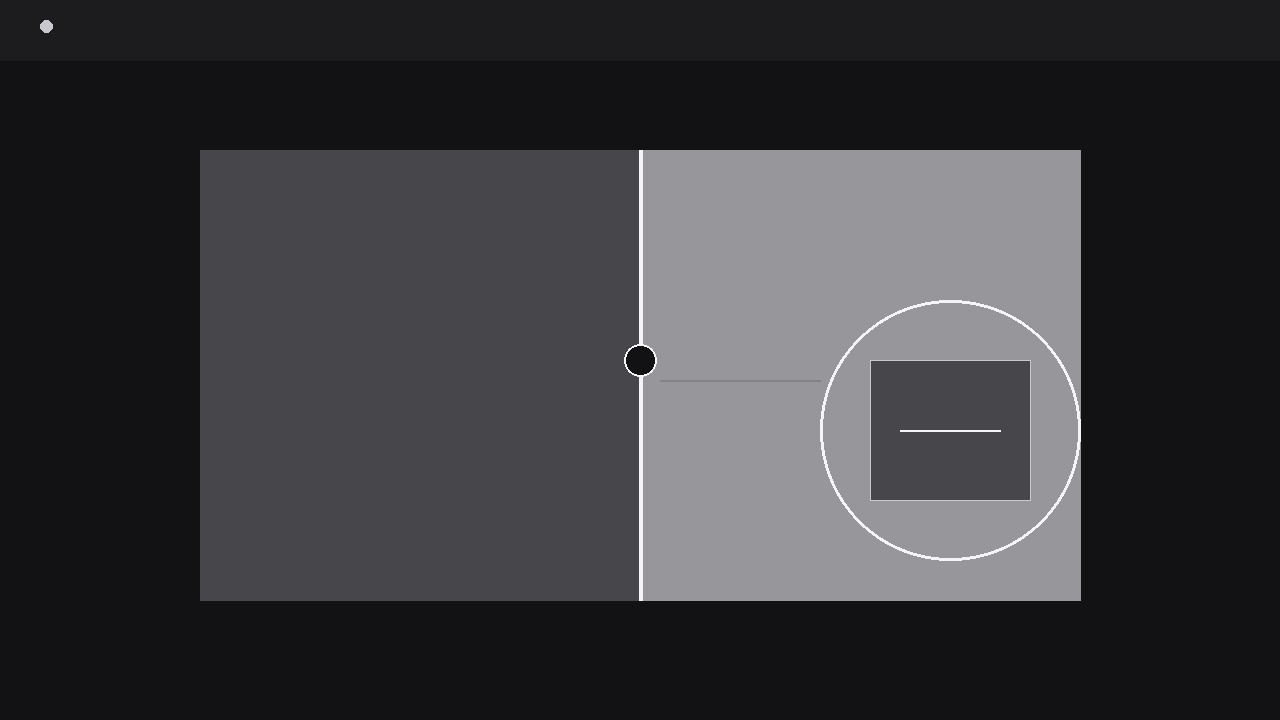
Ein Spalt gleitet auf — und das Detail darunter wird aus der Nähe inspiziert.
Verwandelt Ihre KI in einen Motion-Graphics-Regisseur für Split-Reveals — nimmt ein Bild oder eine Szene, teilt es entlang einer sauberen Linie auf und zoomt in das darunterliegende Detail, damit Ihr Publikum exakt das inspiziert, worauf es ankommt. Für Vorher/Nachher-Vergleiche, Qualitätsprüfungen und jeden Moment, in dem sich das Detail im Ganzen versteckt.
In 3 Schritten installieren
Keine Anmeldung. Keine CLI-Tools. Wählen Sie Ihre AI, kopieren Sie eine Zeile und fügen Sie sie ein.
Lieber selbst machen? Kaufen Sie den Skill ($4.99), laden Sie die ZIP-Datei aus Ihrer Kaufbestätigung herunter, entpacken Sie sie in das oben angezeigte Verzeichnis und starten Sie Ihre AI-Sitzung neu — gleiches Ergebnis. Haben Sie ihn schon gekauft? Ihr AI-Assistent kann ihn für Sie herunterladen.
Was ist enthalten
Eine SKILL.md (die Anleitung) + eine Startvorlage. Eine Vorschau:
Inspect Split Reveal
When to use
- A before/after comparison needs the audience to see both states of the same image — original vs. retouched, draft vs. final, worn vs. restored — with a split they control in their mind
- A product video has to zoom into a small detail (a stitch, a chip, a label, a defect) and prove it is really there in the full scene
- A quality-check or teardown video inspects one region of a larger object and the audience must keep track of where that region sits in the whole
- A design walkthrough compares two versions of the same layout side by side without cutting between two separate screenshots
- A tutorial highlights a single area of a screen, document, or photo and explains what is happening inside it while the rest stays visible for context
Workflow
- Pick the split and the detail (input: image or scene → output: split plan)
Choose the image and decide two things: where the split line goes, and which detail gets inspected. The split line should follow a natural seam in the image — a vertical line through the centre for before/after, a horizontal line for above/below, or a diagonal only when the image has a strong diagonal edge to follow. The detail is one region, roughly 10–25% of the frame, with a clear reason to inspect it: the change, the flaw, the feature, the proof. Write the detail's claim in one sentence before animating ("The stitching is double-rowed along this seam") — if you cannot state the claim, the zoom will wander and the audience will not know what they are looking at. Mark the detail's location on the full image now; the zoom must start from exactly that spot, or the audience will feel teleported. - Stage the whole, then split it (input: split plan → output: staged split)
Show the whole image first, full frame, for at least one second — the audience needs the "whole" before it is split. Then the split line draws itself across the frame over 300–400 ms: a thin, high-contrast line (2–3 px, white or near-white on a dark image, black on a light one) with a small handle or grip at its centre so it reads as a divider, not a scratch. The two sides separate along the line with a small gap (8–16 px) that reveals the background or a neutral strip between them — the gap is what makes the split read as an opening rather than a seam. Label each side the moment the split completes, with short tags at the outer edges ("Before" / "After", "Original" / "Restored"), never across the split line itself. The labels fade in over 150 ms and then stay fixed; a label that moves during inspection forces the viewer to re-read it. - Slide the split (input: staged split → output: animated split travel)
If the comparison benefits from it, slide the split line across the frame over 800–1200 ms with an ease-in-out curve, revealing more of one side and less of the other. The slide is a reveal, not a wipe: the image on each side stays still while the divider moves, so the viewer compares the same content under two treatments. Move the line in one continuous pass — no back-and-forth scrubbing, which reads as indecision — and end with the line parked at a position that favours the side the narration is about (roughly 60/40, never hard against an edge). If the video is interactive or the editor wants a scrub feel, the line can pause at the midpoint for a beat before completing the slide. During the slide, keep the labels fixed at the outer edges; a label that rides the moving line is unreadable while it moves. - Zoom into the detail (input: split frame → output: magnified detail)
From the parked split frame, pick the detail region and zoom into it: a rounded-corner loupe, a rectangular callout, or a full-frame push-in. The loupe style is the most honest — a circular or rounded window (about 30–40% of frame width) that appears over the detail with a thin border and a small connector line back to its location on the split image, so the audience never loses the detail's address. The zoom itself takes 400–600 ms, ease-out, from the full frame into the magnified view, and the magnification is 2–3x: enough to see the stitching, the grain, or the defect, without dissolving into pixels. Inside the loupe, the detail holds still for at least two seconds while the narration states the claim — a moving loupe over a moving detail is unwatchable. If the detail spans the split line (e.g. a seam that differs on each side), the loupe straddles the line so both treatments stay visible inside the magnified view; that straddling loupe is the single strongest image this pattern can produce. - Return to the whole (input: magnified detail → output: restored full frame)
Inspection needs a return journey, or the audience is left stranded in the zoom. Reverse the zoom over 400–500 ms back to the split frame, with the loupe shrinking and fading as it lands, then close the split: the two sides glide back together over 300 ms, the gap disappears, the split line fades, and the whole image is restored. The return proves the detail was really in the image — a zoom that cuts away to something else leaves a small doubt that the detail was faked or from another photo. Hold the restored whole for at least one second before cutting away; that hold is the "yes, it was there all along" beat. If the sequence compared two states, end with a final one-line caption stating the verdict ("Restored: seam re-stitched, colour matched") placed below the image, never over the detail. - Verify the inspection is honest (input: finished sequence → output: verified export)
Check three things at delivery size: the split line never covers the detail it is meant to reveal, the loupe's connector line still points at the right spot after all the motion, and the magnified detail matches the full image pixel-for-pixel (no swapped-in close-up photo — a swapped close-up is a trust breach the audience can sense even if they cannot prove it). Watch muted at 1x speed: can you point to the detail in the whole, follow the loupe to it, and state the claim afterwards? At phone scale, the loupe must be at least 120 px across or the magnification is wasted. Do not loop a split reveal — a loop that re-splits an already restored image reads as a glitch. End on the held whole.
Vorschau der Startvorlage
Inspect Split Reveal — Starter Template
One image, one split, one detail — proven to live inside the whole.
The image
Source image: {file / link} | Resolution: {must support the planned magnification}
Split plan
The detail (one region, 10–25% of frame)
Location in the full image: {e.g. lower-right seam, near the pocket} Claim (one sentence): {e.g. "The stitching is double-rowed along this seam."} Does the detail span the split line? {yes — loupe straddles it / no}
Animation settings
- Whole image first: {≥1 s}
- Split line draw: {300–400 ms}, {2–3 px}, handle: {yes}
- Side labels: fade in {150 ms} after split, fixed at outer edges
Das Skill-Paket selbst (SKILL.md + Vorlage) ist auf Englisch verfasst.


