Calendar Reschedule
Anheben, ziehen, ablegen — und zusehen, wie sich der alte Slot schließt.
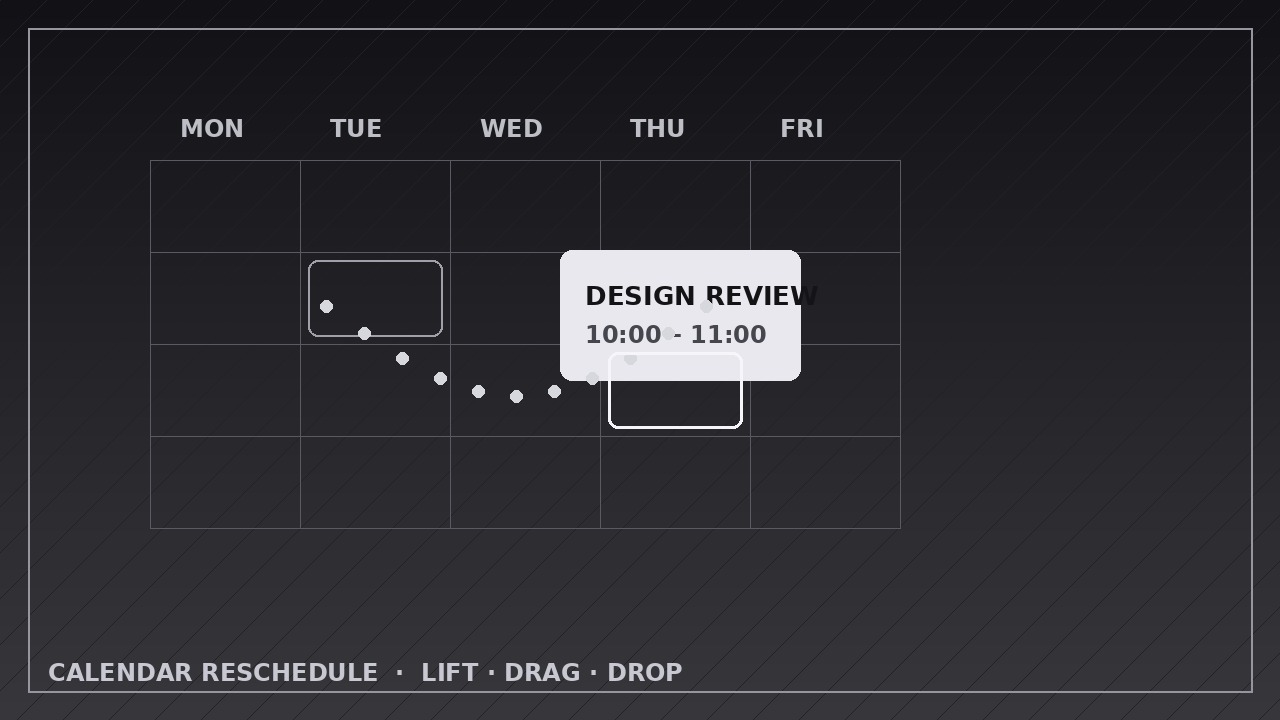
Bringt Ihrer KI bei, einen Kalendertermin zu animieren, der sich aus seinem Slot löst, auf einer glatten Bahn zieht und auf einer neuen Zeit landet, während der alte Slot sich neu ordnet.
In 3 Schritten installieren
Keine Anmeldung. Keine CLI-Tools. Wählen Sie Ihre AI, kopieren Sie eine Zeile und fügen Sie sie ein.
Lieber selbst machen? Kaufen Sie den Skill ($4.99), laden Sie die ZIP-Datei aus Ihrer Kaufbestätigung herunter, entpacken Sie sie in das oben angezeigte Verzeichnis und starten Sie Ihre AI-Sitzung neu — gleiches Ergebnis. Haben Sie ihn schon gekauft? Ihr AI-Assistent kann ihn für Sie herunterladen.
Was ist enthalten
Eine SKILL.md (die Anleitung) + eine Startvorlage. Eine Vorschau:
Calendar Reschedule
When to use
- Demoing a calendar or scheduling product's drag-to-reschedule interaction
- Explaining how a meeting moved: from Tuesday 10:00 to Thursday 14:00, and what filled the gap
- Teaching time-blocking or calendar hygiene: moving a task to a better slot instead of deleting it
- Showing a booking flow where a customer picks a new appointment time
- Visualizing a timetable change (class, shift, delivery window) and its knock-on effects
- Animating "before vs. after" of a day plan where one event moves and the rest of the day reflows
Workflow
- Define the move (input: old and new times → output: move spec with event, old slot, new slot, and neighbors)
Write down the event (title, duration, color), its old slot (day + start/end time), its new slot, and which neighboring events sit around each slot. Confirm the event's duration stays identical — a reschedule moves the block, it never stretches or shrinks it. If the move crosses days, name both days explicitly; if it stays in one day, keep the view on that day. Note what happens to the old slot: does it close up (neighbors slide together), stay empty (a visible gap), or get filled by something else — decide before animating. - Build the calendar stage (input: move spec → output: calendar grid with the event in its old slot)
Build a clean week or day grid: day headers, hour lines, and event blocks as rounded rectangles with a title and time. The event to be moved gets a distinct color; everything else stays neutral. Show the event resting in its old slot for at least 1 second before anything moves — the viewer must register "before" before they can appreciate "after". Keep the grid static: no scrolling, no zooming, no view switching during the move. - Lift the event (input: staged calendar → output: lift keyframes)
The lift takes 0.3–0.4 seconds: the block scales up 3–5%, gains a soft shadow, and rises slightly above the grid (a 4–8 px lift at 1080p), ease-out. This is the "picked up" signal — it tells the viewer the block is now draggable. The old slot shows a ghost outline of the block at ~30% opacity left behind, so the origin stays visible throughout the move. Nothing else moves during the lift. - Drag to the new slot (input: lifted event → output: drag keyframes)
Drag the block along a smooth path from the old slot to the new slot over 0.8–1.2 seconds, ease-in-out (gentle start, steady middle, gentle landing). Use a straight line for same-day moves; for cross-day moves, a gentle arc that clears the intervening columns. The block stays on top of the grid (highest z-layer) the whole way, and the ghost outline stays in the old slot. If the drag passes over other events, it glides over them without pushing them — neighbors only react after the drop, never during the drag. - Drop and close up (input: dragged event → output: drop + reflow keyframes)
The drop takes 0.3 seconds: shadow shrinks away, scale returns to 100%, ease-in, landing exactly on the new slot's grid lines — snap to the grid, never float between lines. Then, over 0.4–0.6 seconds ease-out, the old slot closes up: the ghost outline fades out and neighboring events slide to fill the gap (if the design closes gaps), or the gap simply remains as clean empty space. Add a single confirmation cue — a brief checkmark, a subtle pulse on the dropped block, or the new time label updating — applied once, not flashing. Hold the final state for 2 seconds so the viewer can read the new day layout. - Export and check the grid (input: full animation → output: rendered video)
Export at the platform's native size (1920×1080 for YouTube, 1080×1080 or 1080×1920 for social), 30 fps, H.264. Verify frame by frame: the block's duration (height) is pixel-identical before and after, it lands exactly on grid lines, and no two events overlap at any point. A block that changes height or lands half-on a line reads as a bug, not a feature.
Vorschau der Startvorlage
Calendar Reschedule — Animation Spec Template
Fill in the move before animating. Duration never changes in a reschedule — the block moves, it never stretches.
Move: {event title}
Canvas: {1920×1080 / 1080×1080 / 1080×1920} | Frame rate: 30 fps | Export: H.264 View: {day / week} | Event color: {distinct} | Other events: {neutral}
Move spec
Timeline
Layers (bottom → top)
- Calendar grid — {day headers, hour lines — static}
- Neighbor events — {neutral, move only in reflow phase}
- Ghost outline — {~30% opacity in old slot, fades at close-up}
- Moving event block — {top layer during drag}
Keyframes checklist
Das Skill-Paket selbst (SKILL.md + Vorlage) ist auf Englisch verfasst.


